Help Centre
›
Reporting and month-end
›
AP Aging, Approval Backlog and Spend Reporting: Definitions and Limits

AP Aging, Approval Backlog and Spend Reporting: Definitions and Limits

What each Finofo Dashboard widget shows, from pipeline aging and cash requirements to spend and payment cycle times, and the limits of each metric.

At a glance

The Dashboard summarizes invoice and payment data in six widgets: where invoices sit and how old they are, what is due, what you spend, how fast you pay, and where exceptions occur.

This article explains what each widget shows, using the labels on screen, and what it does not cover.

How It Works

Every widget follows two global filters at the top of the page, Currency and Date range (for example Last 6 months). All metrics shows every widget; + New view saves a custom view for an audience such as the executive team or the AP team.

Widgets answer operational questions about AP work in progress. They are built from invoices and payments, and they are not accounting reports: your ERP remains your system of record.

What Each Widget Shows

  • Pipeline Health: "What's in the system right now": Active invoices, In pipeline, Overdue (invoices) and Overdue (cost). A chart splits open invoices by stage (In Progress, In Approval, Approved, In Payment) and age (0-7d, 8-14d, 15-30d, 31+d).
  • Cash Requirements: "Upcoming obligations by due date": Past due, Due in 7 days and No due date, in buckets from Past Due to 30d + and No due date.
  • Spend Analytics: "Where money goes": Total spend, Invoices and Vendors, with the tabs Vendors, AP category (spend by accounting category), Concentration and Trend.
  • Spend Trend: "Monthly and cumulative spending over time".
  • Days payable Outstanding (DPO) / On-Time Rate: "Paid invoice cycle times": On-time %, and Invoice → Paid, Ingested → Paid and Approved → Paid in days, shown as the median.
  • Exceptions & Friction: "Exception instances per ingested invoice": Exception rate, Total exceptions and Most common, with the tabs By Exception type, By Vendor and By Trend.

Read AP Aging

1. Open the Dashboard and set Currency and Date range.
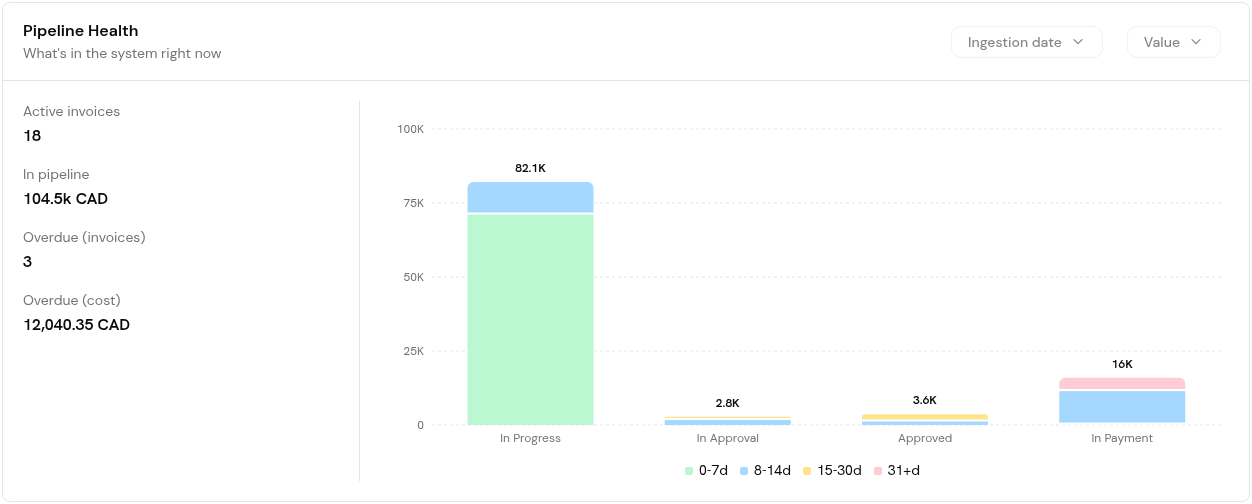
The Pipeline Health widget with active invoices, value in pipeline, overdue counts and invoices by stage and age.

2. In Pipeline Health, read how open invoices are spread across stages and age buckets.

3. In Cash Requirements, read what is past due and what falls due in the coming weeks.
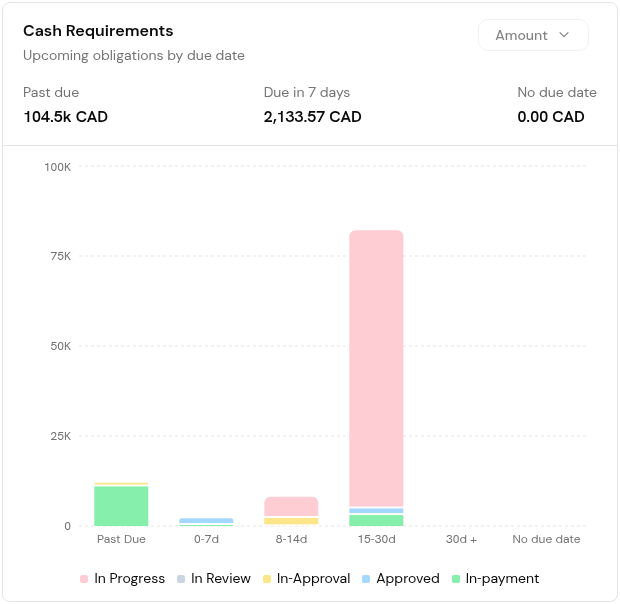
The Cash Requirements widget with past due, due in 7 days and no due date amounts by bucket.

Pipeline Health shows how old work in the pipeline is, by stage. Cash Requirements groups what you owe by due date. Use the first to find stuck work and the second to plan payments.

Find the Approval Backlog

1. In Pipeline Health, read the In Approval stage and its age buckets.

2. Open My tasks to see what is waiting for you on Needs you, and Drafts > In Approval for purchase orders waiting for sign-off.

3. For a list by approver, export an Invoices report filtered by Pending approver from Settings > Reports.

Report on Spend and Payment Speed

1. In Spend Analytics, switch tabs to see spend by vendor or by accounting category, its concentration and the trend.
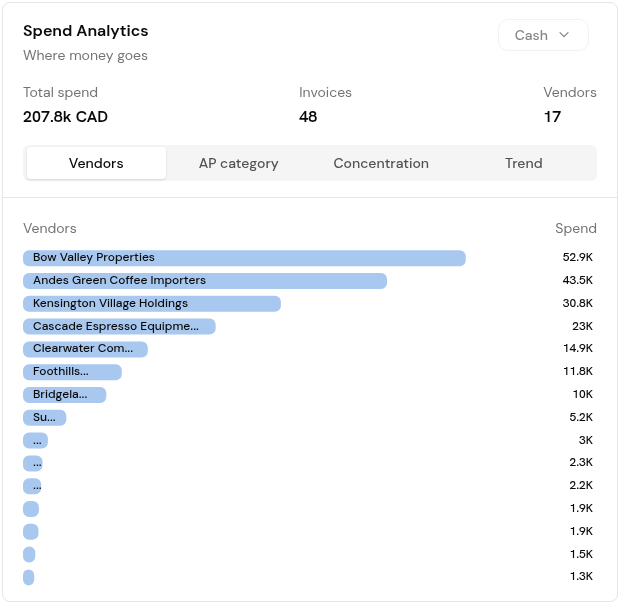
Spend Analytics with total spend, invoice and vendor counts and the Vendors, AP category, Concentration and Trend tabs.

2. In the DPO / On-Time Rate widget, read the cycle times, then use Phase breakdown, Timeline trend or By group to see where paid invoices spent their time.
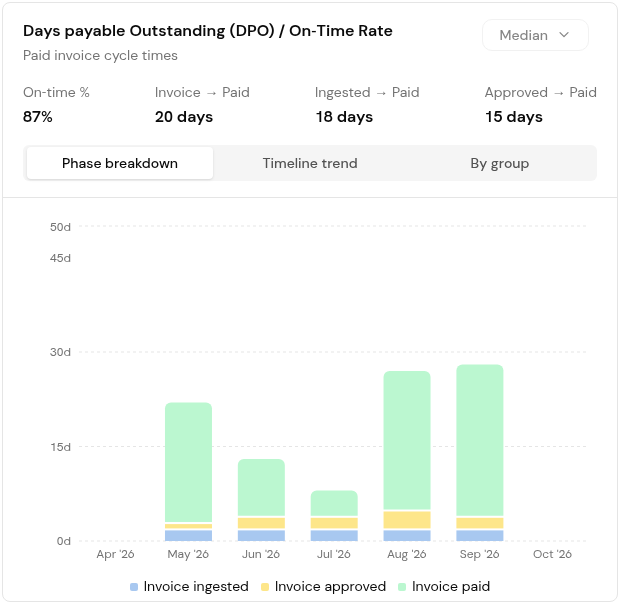
The DPO / On-Time Rate widget with On-time %, the median cycle times and the Phase breakdown, Timeline trend and By group tabs.

Limits of the Dashboard

  • The widgets are built from invoices and payments. There is no card expense or reimbursement view on the Dashboard.
  • Cycle times describe paid invoices only. Open invoices appear in Pipeline Health and Cash Requirements instead.
  • The Dashboard shows no definition or formula for On-time %, DPO or Exception rate. Agree a definition internally before you quote any of them as a performance measure.
  • For row-level data, export a CSV from Settings > Reports.

Tips

  • Review Cash Requirements weekly, before you build a payment batch.
  • Use the By Vendor tab in Exceptions & Friction to find vendors whose invoices often disagree with orders or receipts, then review their tolerances or catalog offerings.
  • Save one view per audience so each meeting opens on the right widgets.

Frequently Asked Questions

Is Pipeline Health the same as an aged payables report?

No. It shows open invoices by stage and age in the pipeline. For amounts by due date, use Cash Requirements; for the accounting aged payables report, use your ERP.

What are the cycle times measured on?

Paid invoices. Each shows the median number of days between the two points its label names, for example Approved → Paid.

How is On-time % calculated?

The Dashboard does not show a formula. Treat it as a trend indicator and confirm the definition before you report it externally.

What exception types are counted?

The widget shows types such as Under Received, Not Received, Unit Price Mismatch and Overbilled.

Back to
Reporting and month-end