Approval policies decide which approval group must approve each invoice or expense. Policies are evaluated top down, the first match wins, and a catch-all sends everything else to the default group.
Invoice policies can test Total amount, Vendor, Label, Currency, Due in days and GL coding, so you can route by amount, vendor, or a department or project held in Class or Location.
A policy has three parts: When these conditions match, Except when these conditions match and Then assign this approval group. Conditions in one scenario must all be true; Add another scenario (OR) adds an alternative. If any exception scenario is met, the policy is skipped.
Amounts and Due in days use is equal to, is greater than, is greater than or equal to, is less than, is less than or equal to or is between. Vendor, Label and Currency use is or is not. GL coding uses contains any of or contains none of on Account, Class, Location or Tax Rate, which is how you route by department or project. Expense policies offer Total amount, Vendor, Label and Currency.
The group's Behavior is Editable (set automatically, but users can switch group before sending for approval) or Enforced (required; users cannot switch). In a group, each step lists its approvers; a Mandatory approver must approve, and Approvals needed sets how many must sign off.
1. Open Settings > Approval Workflows, select Policies, and choose Invoices or Expenses.
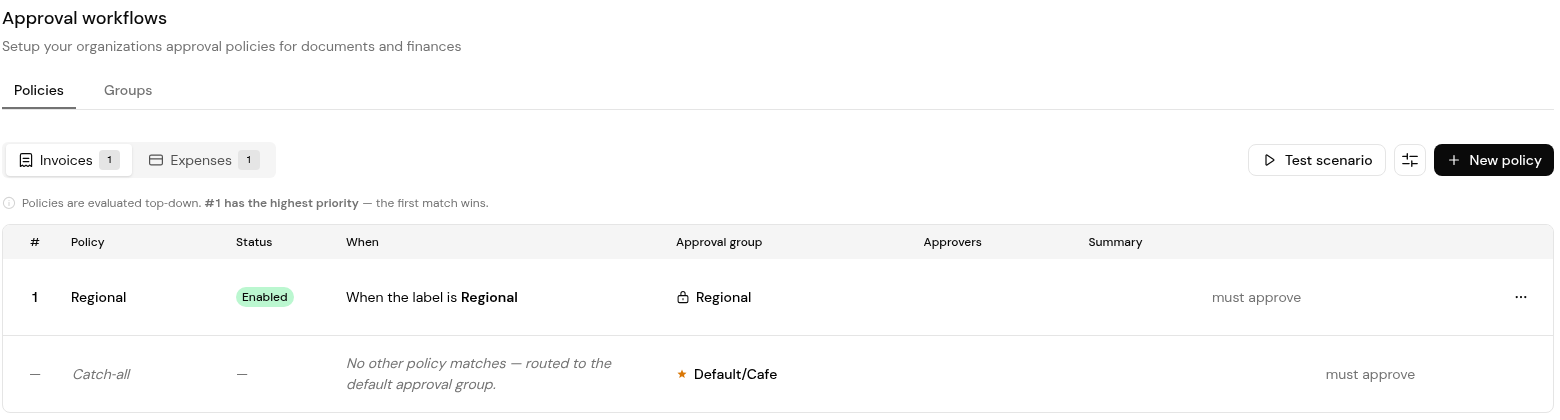
2. Click New policy and enter a Policy name, for example "High-value invoices".
3. Under When these conditions match, choose a field, an operator and a value, for example Total amount is greater than 10,000.
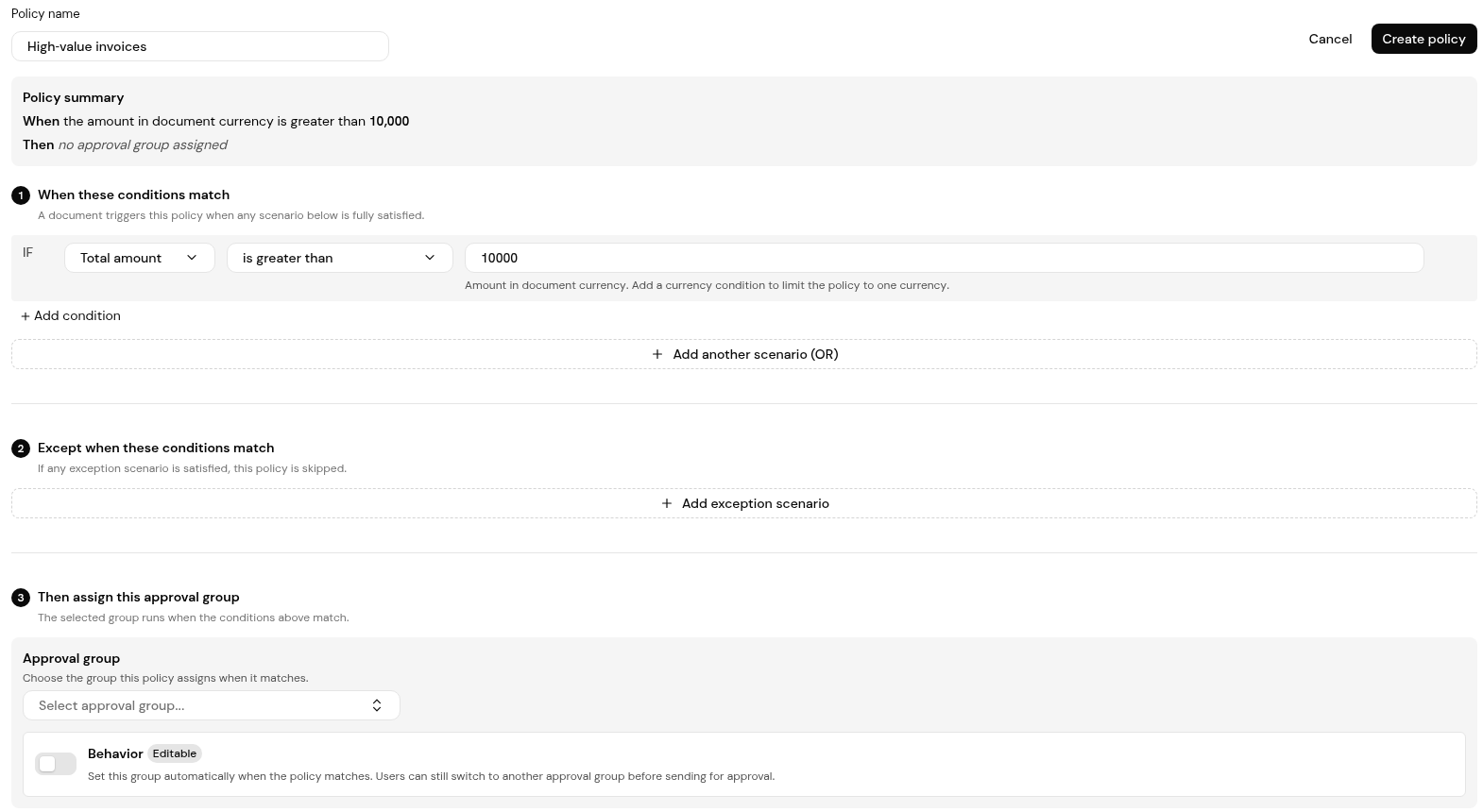
4. Add more conditions, or click Add another scenario (OR) for an alternative.
5. Under Except when these conditions match, add an exception scenario if needed.
6. Under Then assign this approval group, choose the group and set Behavior to Editable or Enforced.
7. Click Create policy.
To change a policy later, open it and click Edit policy, then Save changes. The row menu offers Enable, Edit and Delete.
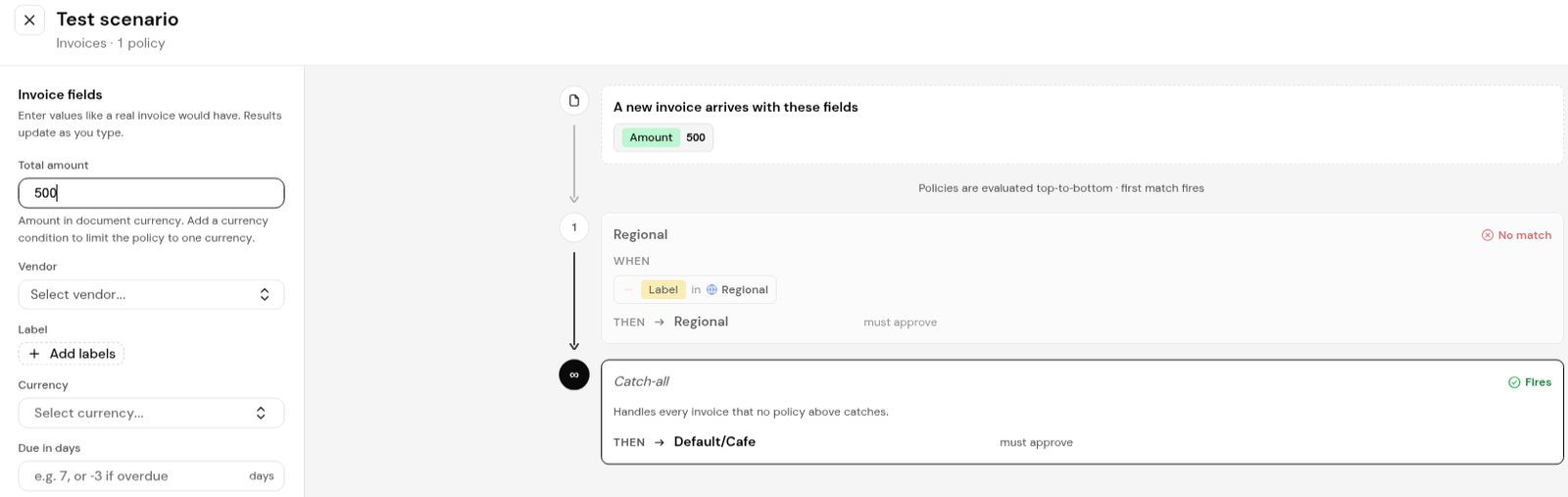
1. Click Test scenario.
2. Enter the fields of a sample invoice, for example Total amount and Vendor. Use Clear all fields to start again.
3. Read the result: each policy shows No match or Fires, with the group and approvers that would be assigned.
1. Select the Groups tab and create a group.
2. Enter the Group name, and switch on Default approval group if this group should be the catch-all.
3. On Step 1, use Search and add users to add approvers.
4. Switch on Mandatory for anyone who must approve, and set Approvals needed.
5. Click Add step for another step, check the Summary, then click Save.
Yes. If your departments or projects are held in Class or Location, add a GL coding condition with contains any of and choose the values.
It goes to the default approval group in the Catch-all row.
Policies are evaluated top down, and #1 has the highest priority. Put the most specific policies first.
Yes. Add a second step, or set Approvals needed to 2 on a step.


