My tasks lists everything waiting on you: invoices to approve and comments that mention you.
Open an invoice beside its PDF, check the header, lines, coding and totals, then click Approve & next, or Reject with a Rejection reason.
Approval policies send each submitted invoice to an approval group, and it appears on the Needs you tab. The approval pane, for example Invoice approval 1/1, shows the header fields, bill lines with their coding, the totals and the original PDF side by side. Approval steps shows the group, who started the approval and the stage, for example Stage 1 In progress.
Approve & next approves the invoice and opens the next item; the shortcut is Shift+A. Reject asks for a reason, and the invoice moves back to In Progress so AP can correct it.
1. Open My tasks and stay on Needs you.
2. Click an invoice. It opens beside its PDF.
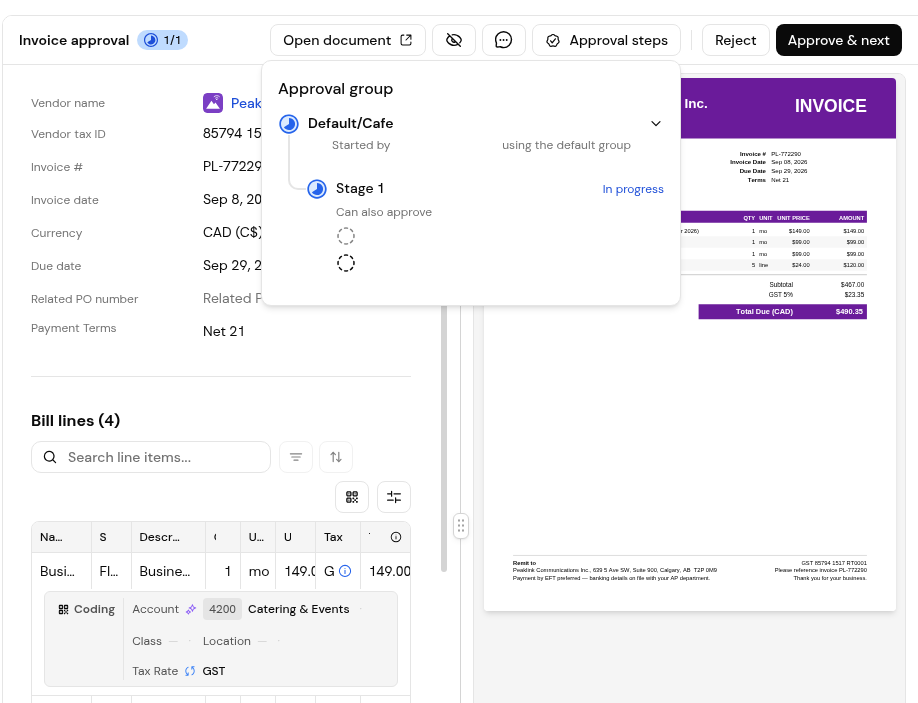
3. Check the header: vendor, invoice number and dates, currency, related PO number and payment terms.
4. Check each bill line and its coding (Account, Class, Location, Tax Rate). Use Copy to all lines to apply one line's coding to every line.
5. Check the totals and the Reconciled chip.
6. Click Approve & next.
1. Click Reject.
2. Type the Rejection reason ("Briefly explain why you're rejecting..."). Reject stays disabled until you enter one.
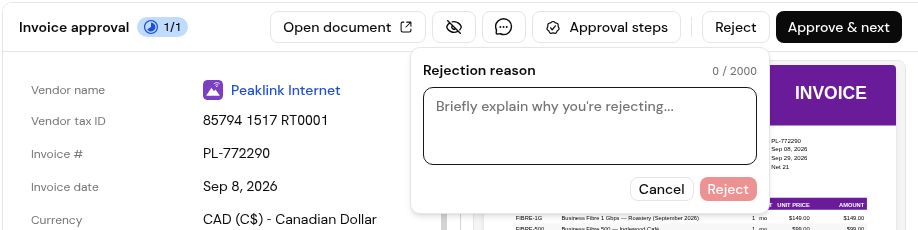
3. Click Reject. The invoice returns to In Progress.
1. Click an item marked "Mentioned you on" a document.
2. Use Reply to answer, or add a reaction.
3. Click Resolve when the question is settled.
Yes. Approve & next uses Shift+A.
Yes. Reject stays disabled until you enter a Rejection reason (up to 2,000 characters).
Back to In Progress, so AP can correct and resubmit it.
They moved to My tasks. The Inbox now holds the mail sent to your workspace.


