Settings > Cards holds your corporate cards: who holds each one, its GL account and whether its expenses need approval.
Settings > Submitters decides how each team member's receipts become expenses: card expenses, reimbursements or both, and which vendor record reimbursements go to.
The Cards page is where you "Manage corporate cards, cardholders, and GL account mappings". Each row shows the Card name and last four digits, its Status, Approval (Required or Not required), Currency, Expiry, Holders and GL accounts. The row's ... menu has an Active switch, Edit and Delete. Holders are the people who can use the card, and the expense form offers each person only their own cards.
The Submitters page lets you "Decide how each team member's receipts become expenses". Each row shows the Team member, whether card expenses and reimbursements are on, Assigned cards and Reimburses to. View settings opens the person's expense settings: With Card expenses on, the person's receipts can create card expenses paid from their assigned card. With Reimbursable expenses on, they can submit out-of-pocket expenses for reimbursement, which "Requires a linked vendor record."
Roles are set in Settings > User Management: Owner, Read Only, Approver, Member, Receiver and Submitter. The Submitter role suits team members who only submit expenses.
1. Open Settings > Cards.
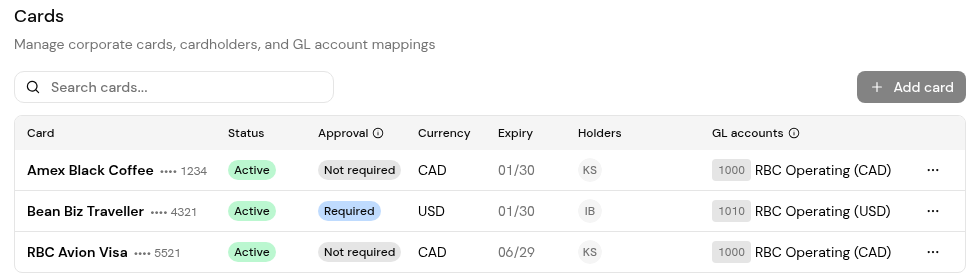
2. Click Add card and enter the card's details: its name and last four digits, currency, expiry, holders, GL account and whether its expenses need approval.
3. To change a card, open its ... menu and choose Edit. Use the Active switch to stop a card being used.
1. Open Settings > Submitters and find the team member.
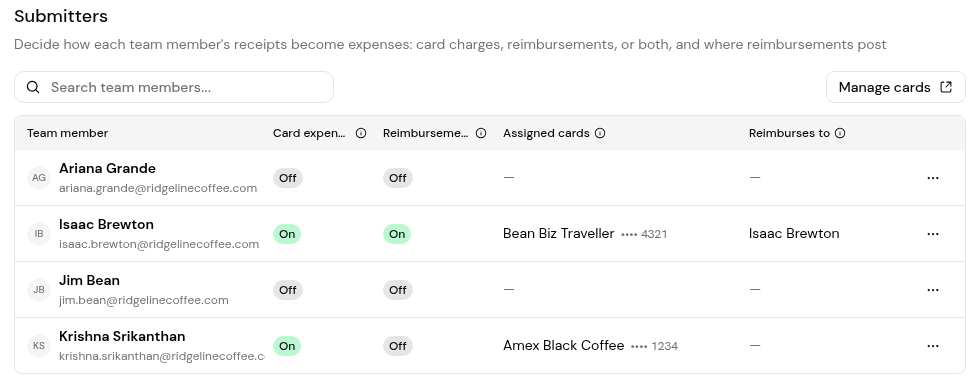
2. Open the row's ... menu and choose View settings.
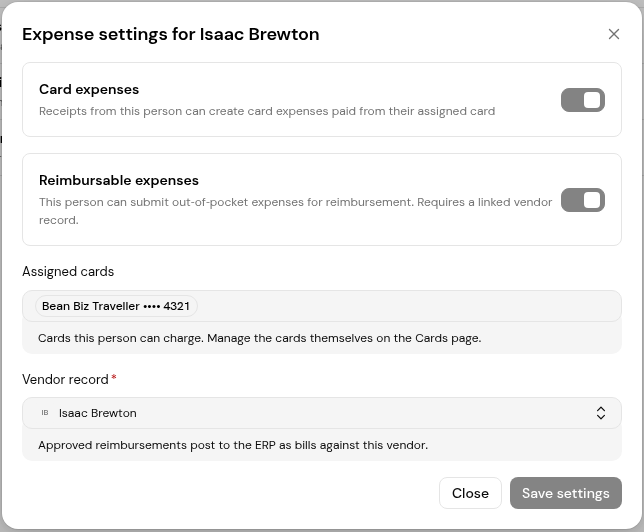
3. Turn on Card expenses and assign their cards under Assigned cards. Cards can also be assigned from the Cards page.
4. Turn on Reimbursable expenses and link the employee's Vendor record.
5. Click Save settings.
1. Open Settings > User Management and check the person's role. The roles are Owner, Read Only (the default), Approver, Member, Receiver and Submitter. Use Invite member to add someone new.
2. Choose Submitter for someone who only submits expenses.
They aren't a holder of that card. Assign it under Assigned cards in their expense settings, or from the Cards page.
Reimbursable expenses is off for them in Settings > Submitters.
Reimbursements are paid and posted through the employee's vendor record.
Yes. Set its Approval to Not required.


