Close a purchase order with Close Purchase Order once it is fully received and billed.
Closing moves its related invoices to ready for approval and locks its goods receipts. Reopen PO moves the invoices back to In Progress.
Purchase orders move through the Draft, Open, Closed and Cancelled tabs. An invoice's Purchase order linked step asks you to "Link a closed purchase order, or mark this invoice as a non-PO invoice," so closing the PO is part of getting its invoices approved.
Closing a linked PO moves its related invoices to ready for approval. Its goods receipts can no longer be edited: "This purchase order is closed; reopen it to correct its goods receipts." A closed PO's ... menu offers Send PO, Reopen PO and Cancel PO. Cancelling is different from closing: it also cancels related invoices and packing slips.
1. Open Documents > Purchase orders, select Open and open the PO.
2. Check the Received column and the Goods Receipts and Linked Invoices in the Overview panel.
3. Click Close Purchase Order.
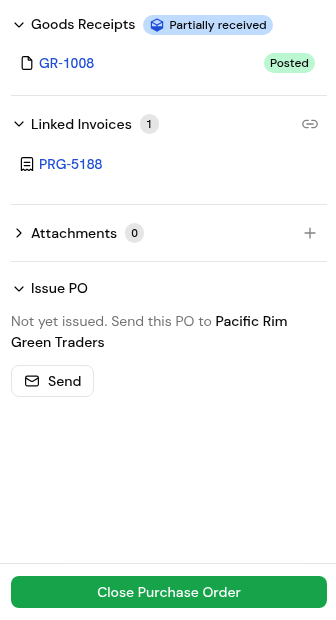
4. In the Close purchase order? dialog, click Close purchase order.
5. Check the PO on the Closed tab.
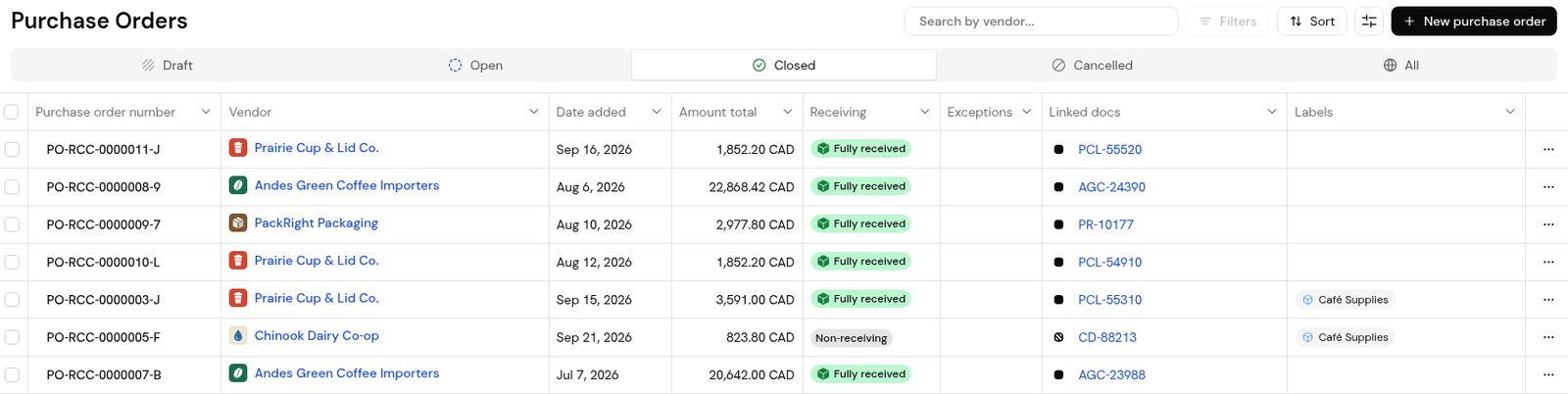
1. Open the PO and its ... menu.
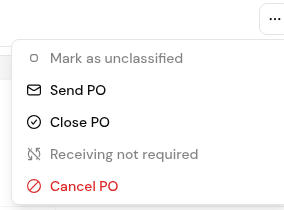
2. Choose Reopen PO to make changes or correct its receipts, or Cancel PO if the order will not go ahead.
They move to ready for approval.
Its related invoices move back to In Progress, and its goods receipts can be corrected again.
Yes. The row actions menu offers Close PO.
Closing finishes a completed order. Cancelling stops it and also cancels its related invoices and packing slips.


