Every expense is coded before it is approved and posted to your ERP. Document coding sets the default for the whole expense, and each line can carry its own coding.
Lines are coded to Account, Class, Location and Tax Rate. If your ERP tracks departments or projects as classes or locations, that is where you code them.
Finofo reads the merchant, amounts, tax and line items from the receipt and suggests GL coding from your category mappings, merchant patterns and coding history, so you confirm rather than type. Document coding is the default for the whole expense: "Lines without their own coding follow it." Each line can override it with its own Account, Class, Location and Tax Rate.
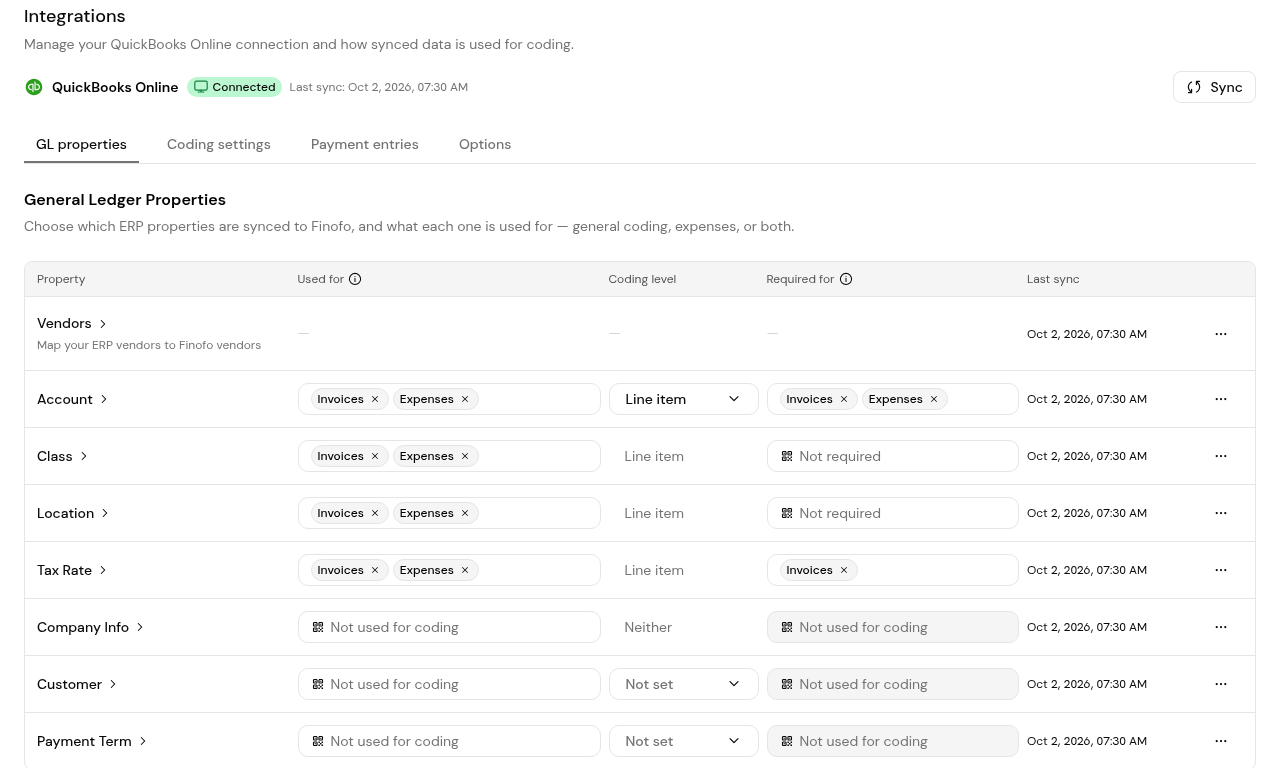
The GL properties tab of your ERP integration sets what is required. Account is required for invoices and expenses. Tax Rate is required for invoices only, and Class and Location are not required.
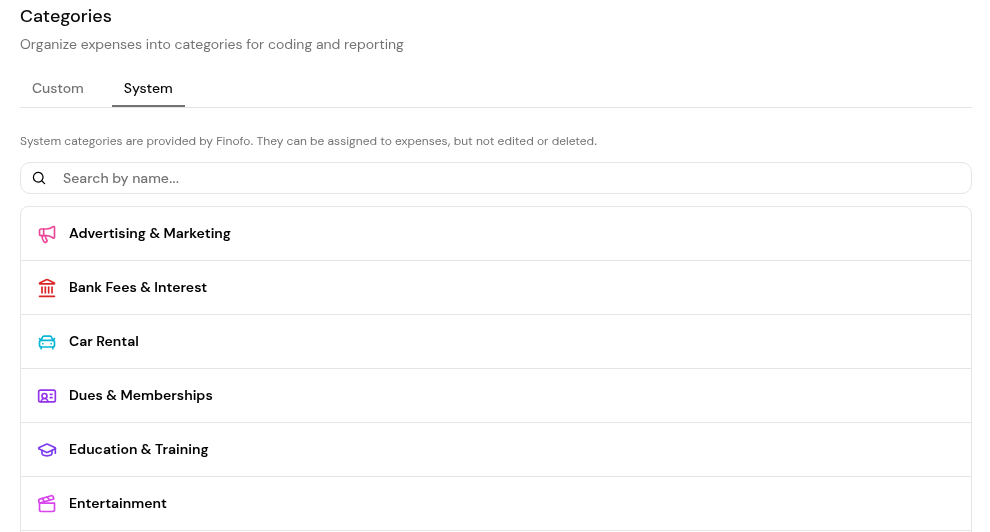
Category and Labels sit in the expense details. A category "Groups the expense for reporting"; Finofo provides 25 system categories, such as Meals & Dining and Software & SaaS, and you can add your own. Labels are "Your own tags, for filtering later." Both are optional. Expense approval policies can also test the Label.
1. Open the expense from the In Progress tab by clicking the merchant name.
2. Check the merchant, date, currency and card, and choose a Category and Labels if you use them.
3. Check the Document coding and each line's coding: Account, and Class, Location and Tax Rate where they apply.
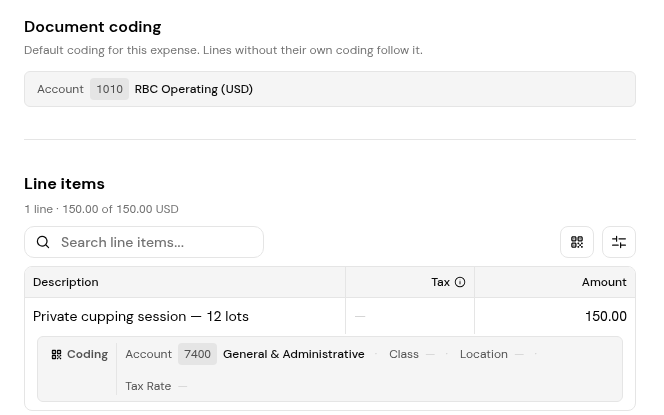
4. To change a line, click Edit coding and pick the records you need.
5. Confirm the Reconciliation chip reads Matches receipt.
1. Open the Approvals card. When it reads Ready for approval, expand All steps complete to see the five checks: Expense date, Currency, Card, Line items and GL coding.
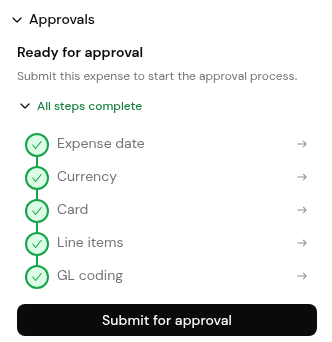
2. Click Submit for approval.
1. As an administrator, open Settings > Integrations, open your ERP integration and select GL properties to see which properties are required.
2. Open Settings > Categories. The System tab lists the categories Finofo provides; the Custom tab is where you add your own with New category.
Account is required. Class and Location are optional, and Tax Rate is required for invoices only.
Use Class or Location, whichever your ERP uses for departments and projects.
Yes. Enter a line item for each part when you create the expense, and code each line separately.
No. System categories can be assigned to expenses but not edited or deleted. Add your own on the Custom tab.


