Contracts is your contract register. Each contract stores the agreement and its terms, tracks how much of its value has been invoiced, and warns you before it ends.
Link purchase orders and invoices to a contract to see utilization, record key dates such as cancellation deadlines, and use Set up renewal to choose auto-renew or manual renewal with a reminder.
The register has the tabs Active, Exhausted, Expired, Closed, Renewed, Terminated and All. Each row shows the Contract #, Vendor, Period, Value, Utilization, Invoiced, Renewal and Exceptions. The exception flag is Unlinked Spend: invoiced spend with that vendor that is not linked to the contract.
The Expiring soon panel lists contracts coming up for renewal. Inside a contract, the Spend Tracking bar shows the Value and how much is Invoiced, Committed and Remaining. Invoiced is spend billed against the contract; committed spend is tracked separately from invoiced spend.
Contracts are especially useful for spend without purchase orders, such as software, leases, retainers and insurance. Recording the payment frequency and expected amount per period gives you the reference to check each bill against the agreed terms.
1. Click + New contract, or + > Contract. The Create Contract page opens.
2. Upload the Contract file.
3. Complete the required fields: Contract type, Contract # (use Regenerate # for a new number), Vendor, Start date, End date, Currency and Total contract value.
4. Add the optional Payment frequency and Expected amount per period, and use Link document to link invoices and purchase orders.
5. Under Additional details, tick Key dates to add review dates, payment due dates or cancellation windows, and tick Renewal terms or Additional notes if needed.
6. Click Create document, or Save as draft.
1. Open Contracts and check Utilization, Exceptions and the Expiring soon panel.
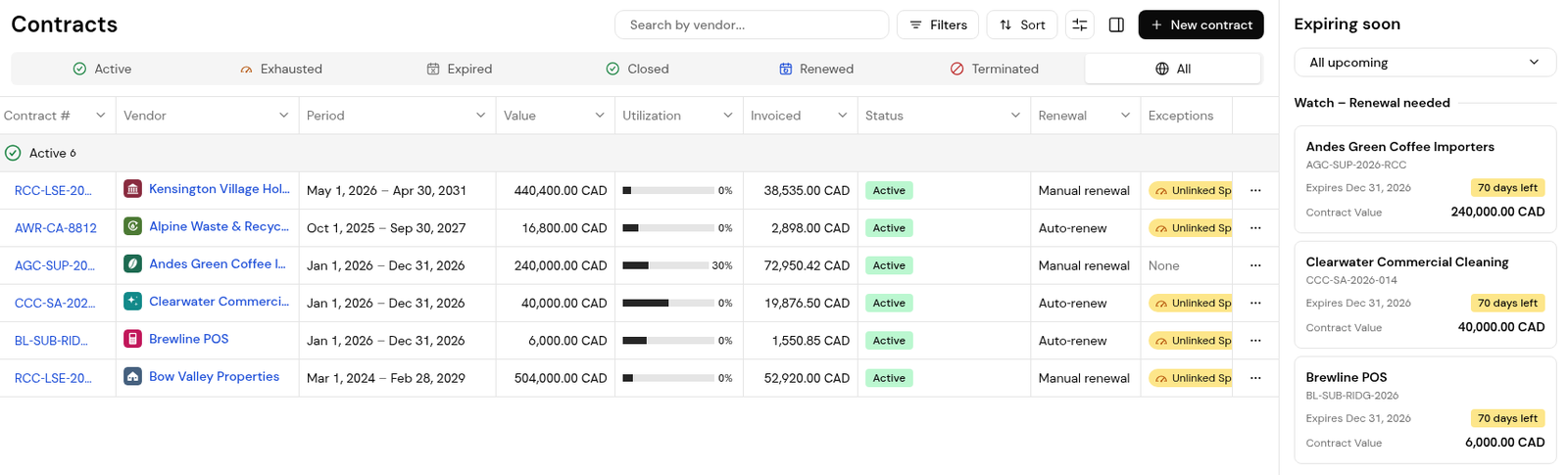
2. Scroll the table to the right to read the full Exceptions value, for example Unlinked Spend.
3. Open a contract and read the Spend Tracking bar and the Key dates table on Overview, for example a cancellation deadline or a review date.
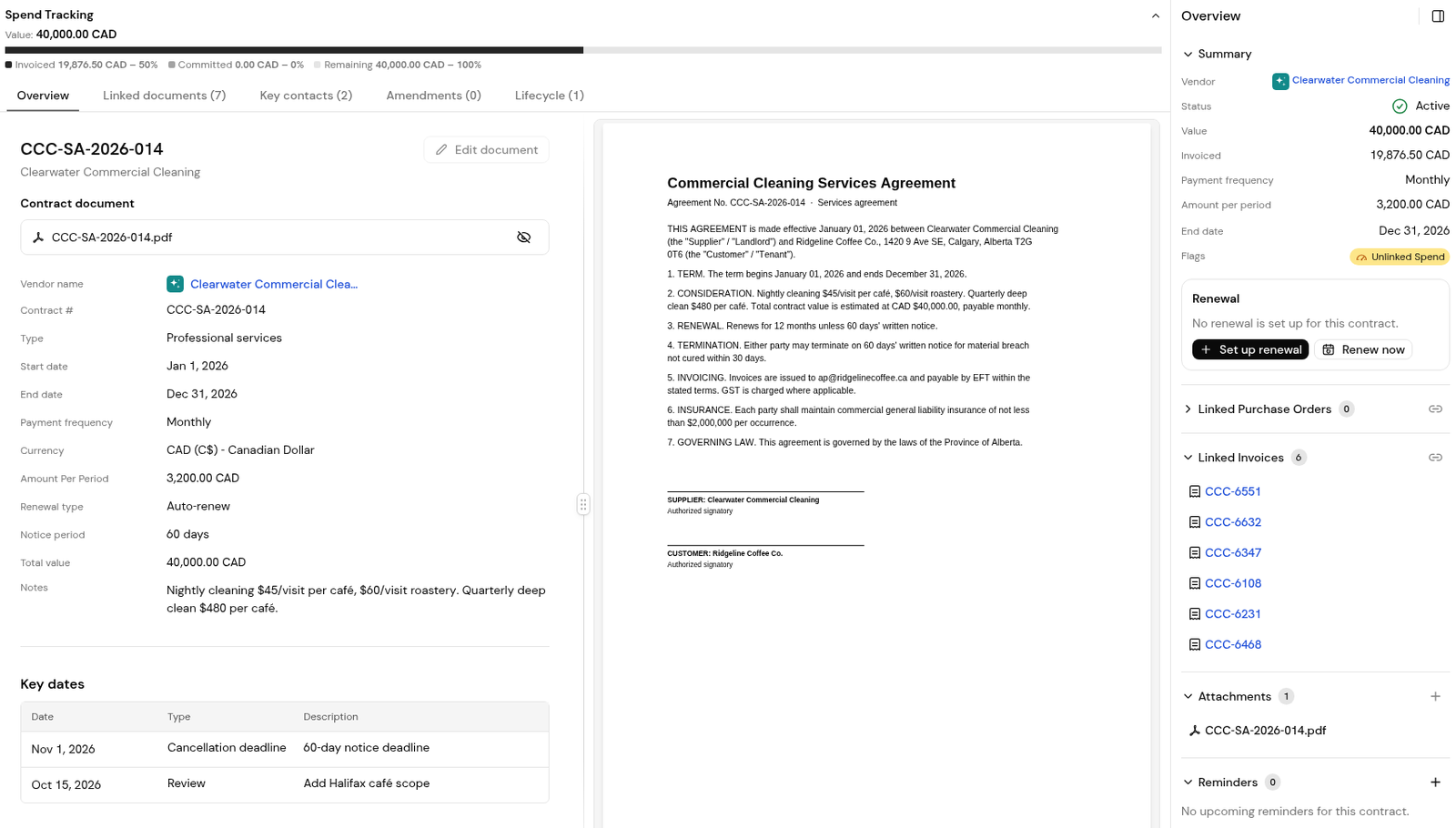
4. Use the other tabs: Linked documents, Key contacts (vendor and internal contacts with their roles), Amendments and Lifecycle (the original contract and its term).
1. On the Renewal card, click Set up renewal.
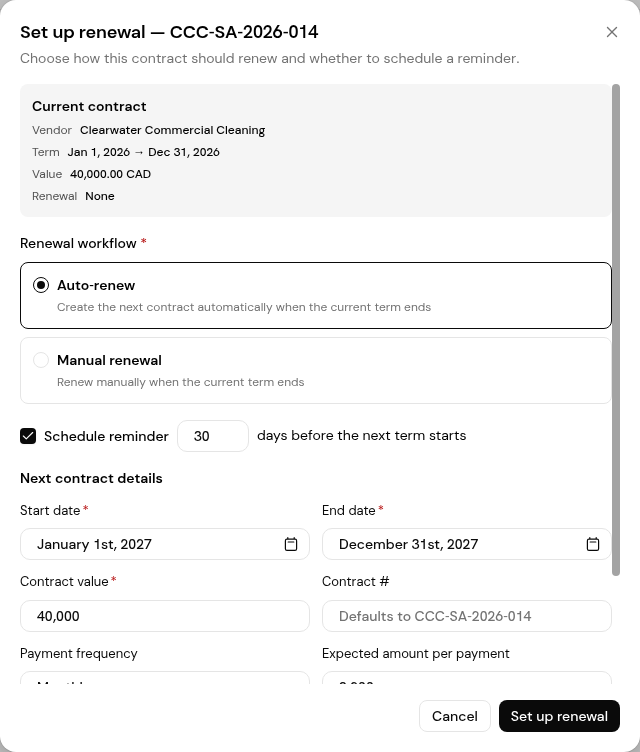
2. Check the Current contract block: vendor, term, value and renewal.
3. Choose the Renewal workflow: Auto-renew ("Create the next contract automatically when the current term ends") or Manual renewal ("Renew manually when the current term ends").
4. Tick Schedule reminder and set how many days before the end date you want it (30 by default).
5. Fill in the Next contract details (start date, end date, contract value and payment frequency). Scroll down in the dialog to upload the next contract document if you have it, then click Set up renewal. To renew at once, use Renew now instead.
Invoiced is spend billed against the contract. Committed is spend committed against it but tracked separately from what has been invoiced.
Finofo found invoiced spend with the contract's vendor that is not linked to the contract.
Settings > Notifications includes a renewal reminder for manual renewals, an auto-renewal reminder, contract auto-renewed, contract expired without renewal and contract reminder due.
On the contract's Amendments tab, which lists amendments recorded against it.


