Help Centre
›
Getting started
›
Create Any Document From the + Menu

Create Any Document From the + Menu

Use the Finofo + menu to upload documents, create purchase orders, invoices and expenses, and start contracts and statement reconciliations.

At a glance

The Create document button (+) in the top bar is the single starting point for new work, available on every screen.

Upload files for Finofo to read, create a purchase order, invoice or expense by hand, or start a contract or statement reconciliation.

How It Works

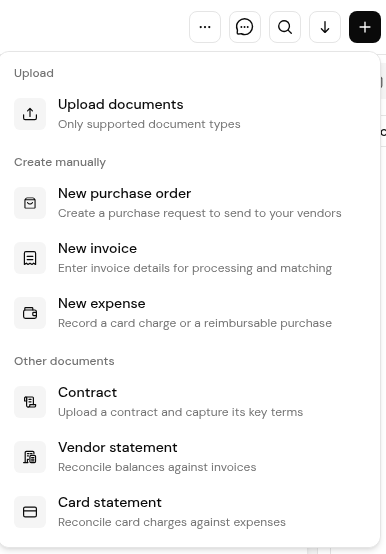
The menu has three groups. Upload sends files for automatic classification and reading. Create manually opens a blank form. Other documents starts the documents that have their own upload and review flow.

What Each Option Does

1. Click + in the top bar.

The + menu grouped into Upload, Create manually and Other documents.
  • Upload documents: Only supported document types: purchase orders, invoices, packing slips and expense receipts, read automatically.
  • New purchase order: Create a purchase request to send to your vendors.
  • New invoice: Enter invoice details for processing and matching.
  • New expense: Record a card charge or a reimbursable purchase.
  • Contract: Upload a contract and capture its key terms.
  • Vendor statement: Reconcile balances against invoices.
  • Card statement: Reconcile card charges against expenses.

Upload Documents

1. Click + > Upload documents.

2. Drag files onto the page or browse for them. Supported files are PDF, JPEG, JPG and PNG up to 25 MB.

3. Click Uploads in the top bar to follow progress in File uploads. Check Failed for any file that could not be processed.
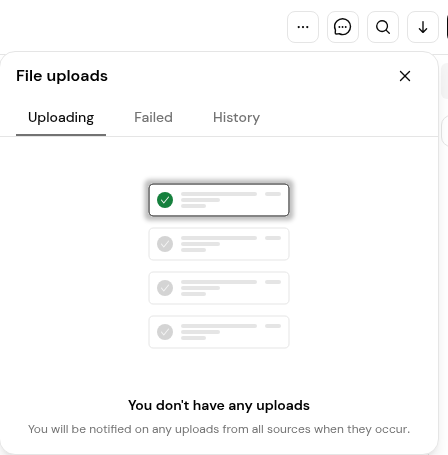
The File uploads panel with the Uploading, Failed and History tabs, here with no uploads in progress.

4. Processed documents appear in their lists, for example Invoices > In Progress.

Documents can also be emailed to your workspace address or texted to your workspace number. They arrive in the Inbox.

Tips

  • Use Upload documents for purchase orders, invoices, packing slips and expense receipts. Start contracts, vendor statements and card statements from their own options.
  • Check the Failed tab after a large upload.

Frequently Asked Questions

Do I need to tell Finofo what type of document I uploaded?

Rarely. Finofo works out the type and, for an invoice, finds the purchase order it bills against.

Where does a file go if Finofo cannot recognize it?

To Documents > Unclassified, where you can classify it or link it to another document.

Can I enter an invoice without a file?

Yes. Choose + > New invoice and enter the details.

Back to
Getting started