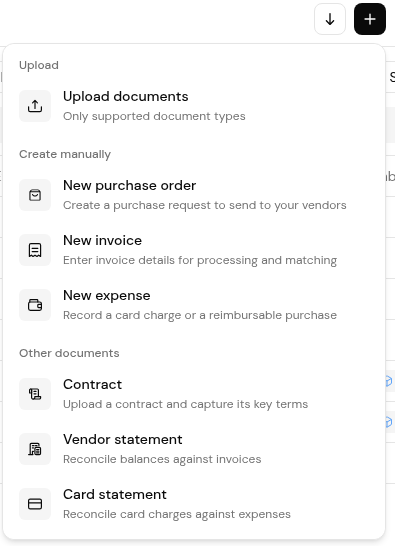
Raise a purchase order from + > New purchase order, then click Submit for approval or Save as draft.
Once approved, send it to the vendor from Issue PO > Send. Approving the order up front means the invoice can later be checked against an agreed price and quantity.
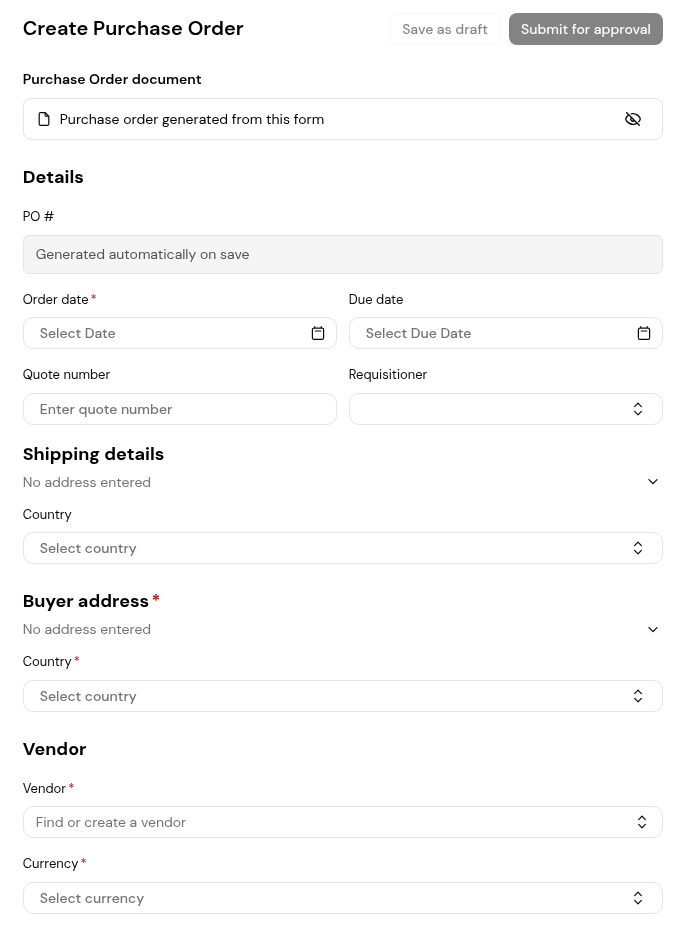
The PO number is "Generated automatically on save" from your 3-letter entity code, for example PO-RCC-0000012-H, and Payment terms and Notes can be prefilled from templates.
A PO sent with Submit for approval waits on the In Approval tab of Drafts. Its Approvals section shows the group and stage, and the approver chooses Approve or Reject. Once approved, the Issue PO section reads "Not yet issued" until you send it. "After sending, the vendor, PO date, and customer details can no longer be edited."
1. Click + and choose New purchase order.
2. Under Details, enter the Order date and, if needed, Due date, Quote number and Requisitioner.
3. Under Shipping details and Buyer address, enter the addresses and choose the Country.
4. Under Vendor, use "Find or create a vendor" and choose the Currency.
5. Under Line items, enter Name, SKU, Description, Qty, Unit and Unit price for each line. Click Add line item for more.
6. Add any Discounts & charges, the Tax rate, and check Payment terms and Notes.
7. Click Submit for approval, or Save as draft to finish later.
1. Once the PO is approved, open it and click Send under Issue PO.
2. In Send purchase order, check To, choose a Template and edit the Subject and message.
3. Use Preview to check the email. The PO PDF is "Attached automatically when sent".
4. Click Send.
Yes. Click Save as draft. It waits in Drafts until you submit it.
Automatically on save, from the 3-letter entity code in Settings > Documents > Purchase orders.
Not everything. After sending, the vendor, PO date and customer details can no longer be edited.
"Emails can take a few minutes to send."


