Email templates save you rewriting the same message every time you issue a purchase order to a vendor.
Create templates in Settings > Emails, then pick one when you send a purchase order. The Deliverability tab shows addresses Finofo has stopped sending to.
A template holds a name, a subject, an optional reply-to address and a message body. Subjects and bodies can include variables such as the PO number and your organization name, which are filled in when the email is sent. The purchase order PDF is attached automatically.
Deliverability lists addresses Finofo stopped sending to after bounces or spam complaints, with their Status, Reason, Last event and Date.
1. Open Settings > Emails and select Templates.
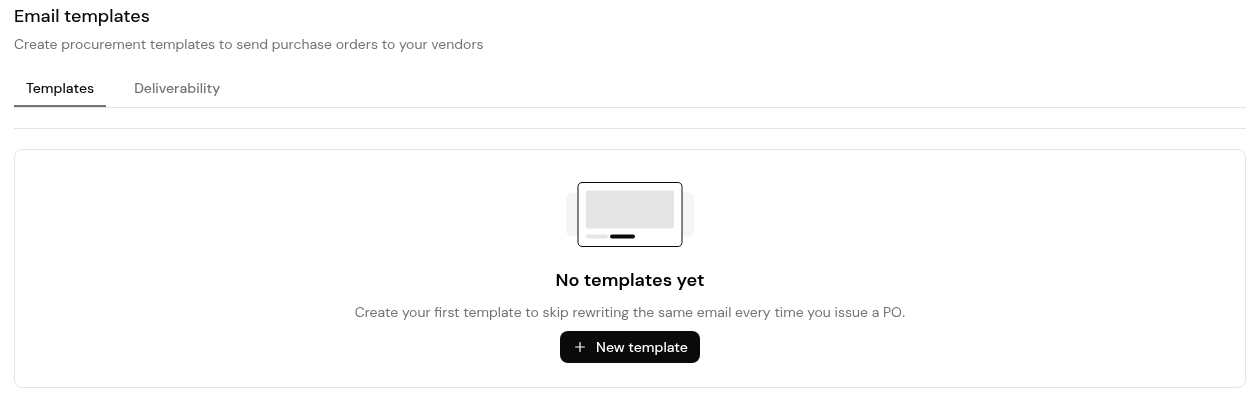
2. Click + New template. The New email template page opens.
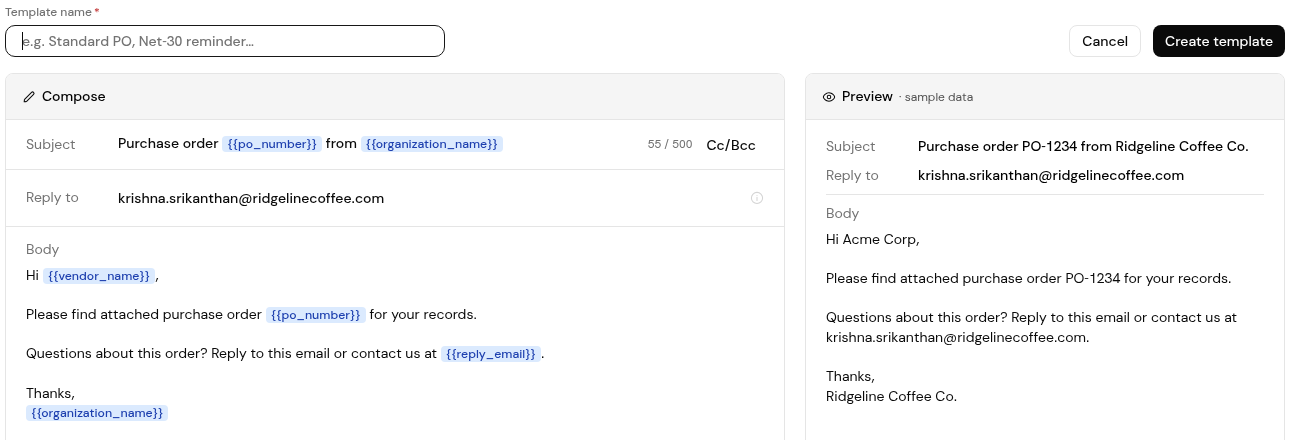
3. Enter a Template name, for example a standard PO or a reminder.
4. Write the Subject and Body. Type / in the body to insert a variable, and use Cc/Bcc to add copies.
5. Check Reply to and the Preview panel, then click Create template.
1. Open the purchase order and click Send under Issue PO.
2. In the Send purchase order dialog, choose a Template. Manage opens your templates in a new browser tab.
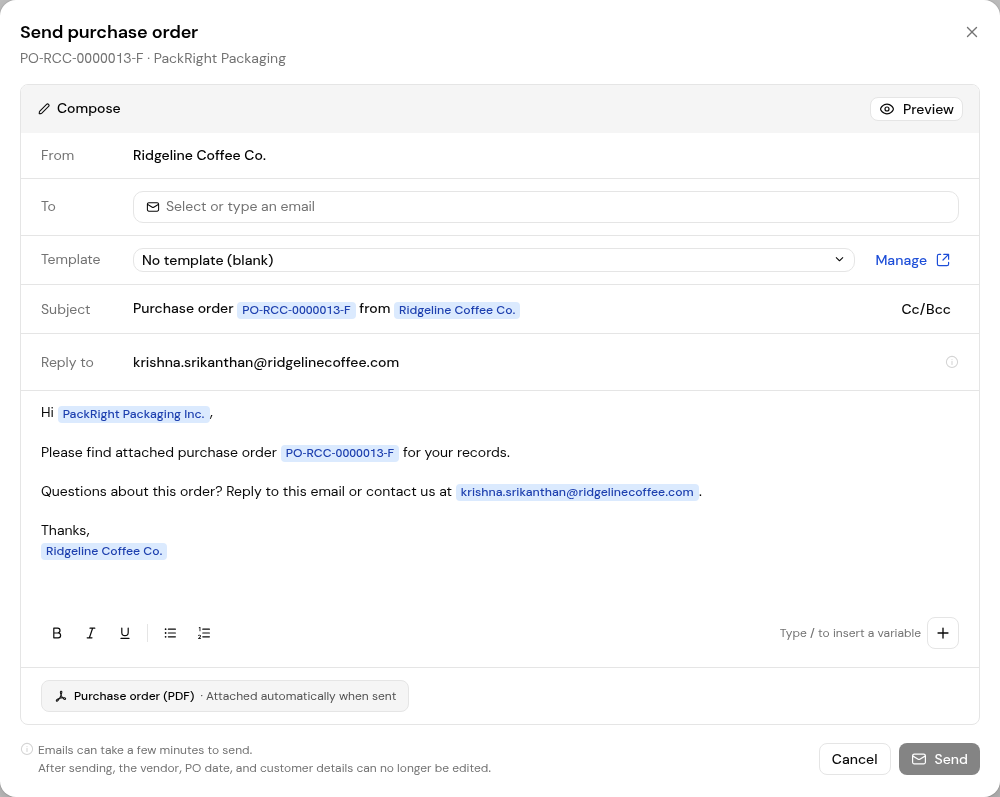
3. Enter or select the vendor address in To, then check Subject and the message.
4. Select Preview to check the email, then click Send.
Emails can take a few minutes to send. After sending, the vendor, PO date and customer details can no longer be edited.
Yes. The purchase order PDF is attached when the email is sent.
Yes. Leave Template on No template (blank) and write the message.
Their address may be on the Deliverability list after a bounce or spam complaint. Confirm the address with the vendor.


