Keep the corporate cards you already have. Connect the card account to its bank so transactions flow into Finofo, or upload the monthly statement instead.
Cardholders submit receipts that become coded, approved card expenses. Finofo matches each one to its card transaction and posts approved expenses to your ERP.
You don't need Finofo-issued cards. Each existing card is set up in Settings > Cards with its holders, currency, expiry, GL account and an Approval setting of Required or Not required. To bring transactions in automatically, connect the card account to its bank from the bank connection page in Settings: it reads "Sync corporate card transactions directly from your bank." Synced transactions show in Expenses > Transactions with the source Bank feed. Without a connection, upload the statement and its transactions show with the source PDF.
From there the flow is the same every month. The cardholder submits the receipt, Finofo reads it and suggests the coding, the expense is checked and approved, it is matched to its card transaction, and the statement is reconciled. Approved expenses post to your ERP with the receipt attached.
Each stage below shows what happens, followed by where to find it.
1. Open Settings and, in the Business section, open the bank connection page.
2. Click Connect bank and follow the prompts to sign in to your bank.
3. Check that the bank shows Connected with its last sync time, and that each bank card account is linked to a card with the status Active.

4. Click Sync to pull the latest transactions, or Sync history to see past syncs.
1. Open Expenses > Card expenses to see expenses with their card, amount, Match status and Exceptions.

2. Click + (New card expense) and drop the receipt on the page, or click Browse files.
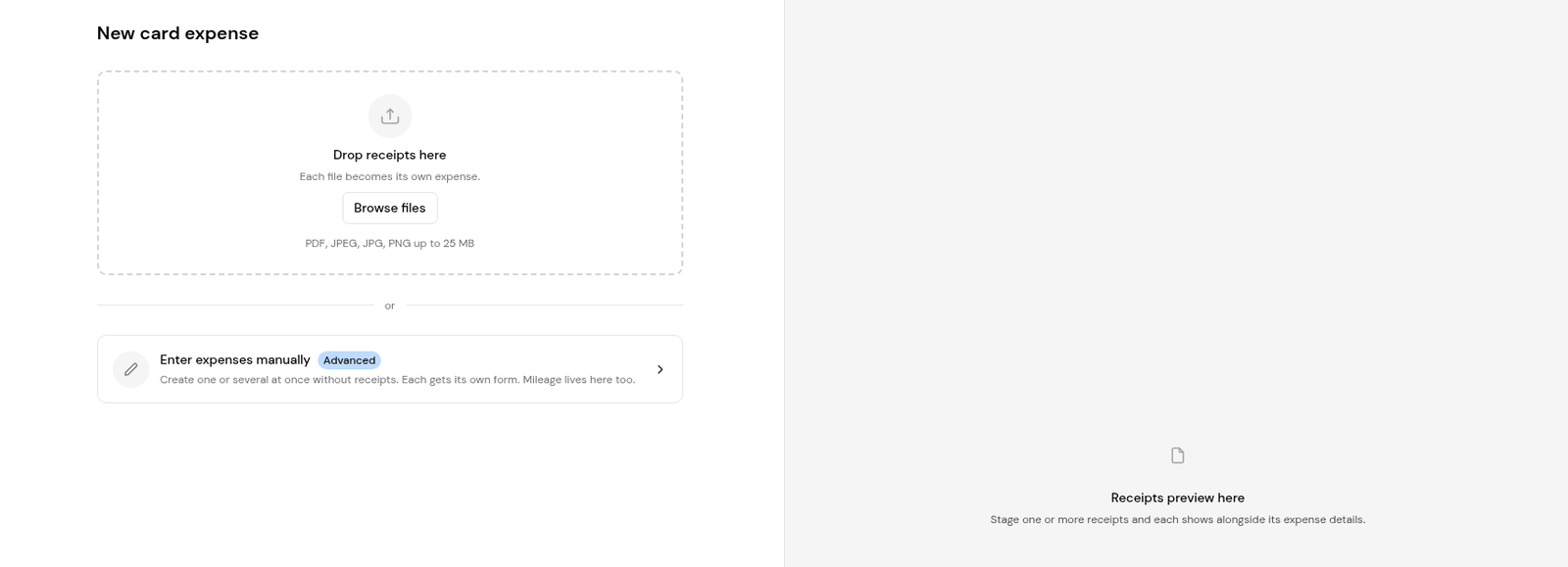
3. Check Paid with, the Card, the merchant, date, currency and line items, and the coding.
4. Click Create card expense, then Submit for approval once the Approvals card reads Ready for approval.
1. Open an approved expense and find its ERP section. It shows the destination ERP and whether the expense has been posted.
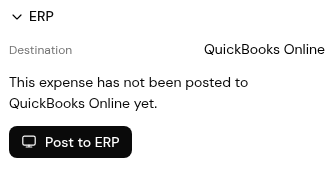
2. Click Post to ERP. An expense that isn't approved yet shows "Not approved yet, so it cannot be posted."
No. Finofo works with your existing company-issued corporate cards.
Upload the card statement in Expenses > Card statements. Its transactions are added with the source PDF.
Expenses on cards with Approval set to Required go through approval. Cards set to Not required skip it.
To your ERP. The expense's ERP section shows the destination and posting status.


