Help Centre
›
Reporting and month-end
›
Export Reports as CSV

Export Reports as CSV

Generate CSV exports of invoices and invoice payments in Finofo Settings > Reports, with filters for status, exceptions, approvers and ERP status.

At a glance

Settings > Reports exports invoice and payment data as CSV files for analysis, audit and management reporting outside Finofo.

Choose Invoices or Invoice payments, add filters, name the report and click Generate report. Reports are listed under Generated reports.

How It Works

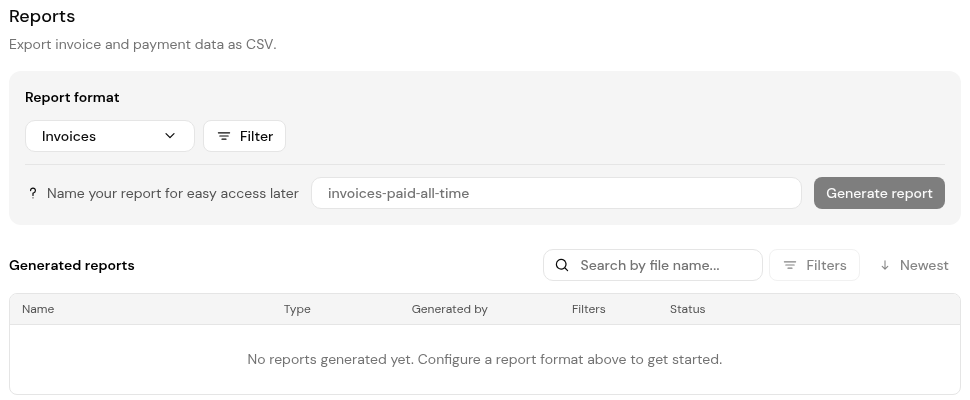
A report is a CSV export of the records that match your filters. The Report format sets what the file contains: Invoices (the default) or Invoice payments. Generated reports lists each report with Name, Type, Generated by, Filters and Status. Until the first report is generated it reads "No reports generated yet. Configure a report format above to get started."

Exports complement the Dashboard and your ERP. The Dashboard gives a live view of AP work in progress; your ERP stays your system of record for accounting reports.

Generate a Report

1. Open Settings > Reports.

Settings > Reports with Report format, Filter, the report name field, Generate report and the Generated reports table.

2. Choose the Report format: Invoices or Invoice payments.

3. Click Filter and add the filters you need (see below).

4. Enter a name in Name your report for easy access later.

5. Click Generate report. The report appears under Generated reports.

Filters for Invoice Reports

  • Period and vendor: Date, Vendor, Vendor name, Invoice number.
  • Status and money: Invoice status, Currency, Amount, Amount outstanding.
  • Exceptions and approvals: Exception type, Exception count, Pending approver.
  • Your ERP: ERP bill status, ERP payment status.
  • Origin and links: Source, Linked purchase order, Label, External uploader ID.

Tips

  • Name reports by period and purpose, for example "invoices-september-2026-audit", so they are easy to find.
  • Filter on ERP bill status to list invoices not yet in your ERP at month end.
  • Filter on Pending approver to send each approver a list of what is waiting for them.
  • Check the Filters column before sharing a file, to confirm which records it covers.

Frequently Asked Questions

What file type do reports use?

CSV, which opens in any spreadsheet tool.

Which report formats are there?

Invoices and Invoice payments.

Can I see who generated a report?

Yes. The Generated by column shows who generated each report.

Should I use exports for my financial statements?

No. Use your ERP for accounting reports. Exports suit analysis, audit samples and AP management reporting.

Back to
Reporting and month-end