Every document in Finofo has an Activity tab that records what happened to it and who did it, alongside its comments and approval history.
To trace an invoice, read its Activity tab, the Approvals and Payments sections of its Overview panel, and the history of its linked purchase order, goods receipts and vendor.
Each detail page has a right panel with two tabs: Overview and Activity. On an invoice, Activity lists events such as starting an approval flow, each approved step, Approval flow completed and a completed payment, with who acted. The filter offers All changes, Document edits, Comments and Approvals.
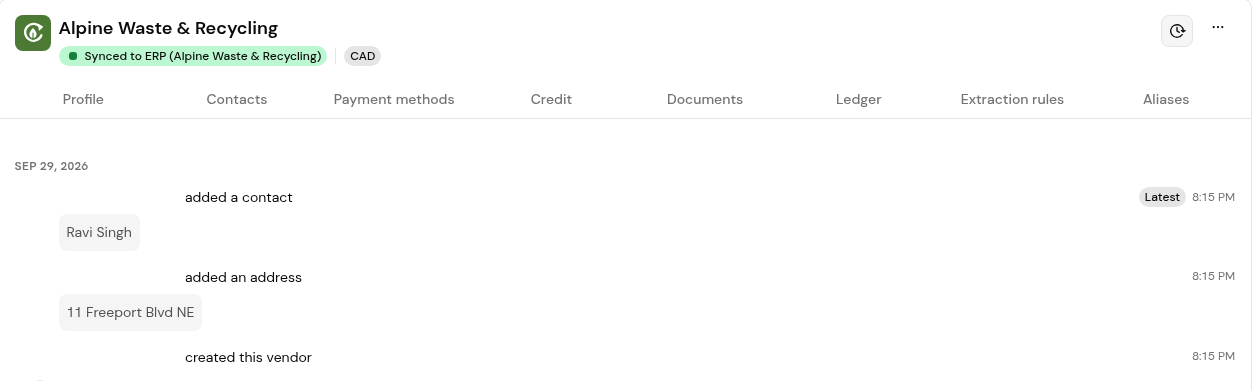
The trail runs across documents. A purchase order's Activity records who added or changed lines, with the old and new values. A goods receipt's Activity lists who created, posted or voided it and every line change. Comments stay on the document, and each vendor has an activity log of changes such as a contact or address being added.
1. Open the invoice from Documents > Invoices.
2. In the right panel, select Activity.
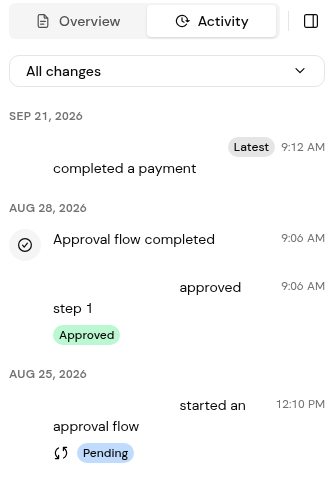
3. Use the filter to show Document edits, Comments or Approvals.
4. Switch to Overview and open Approvals, then its History.
5. Check Payments for the amount paid, the status (for example Paid fully) and the Payment history.
6. Check the ERP section for the bill in your ERP.
1. In the Overview panel, open the Linked Purchase Order and select its Activity tab.
2. From the PO, open each goods receipt under Goods Receipts and check its Activity tab.
3. Back on the invoice, click Open reconciliation to see how each line was decided.
1. Open Vendors and select the vendor.
2. Click the activity (clock) icon at the top right of the vendor panel.
Filter the invoice's Activity tab to Approvals, or open Approvals > History in the Overview panel. Each approval shows the approver and the step.
Open the Payments section of the Overview panel. Payment history shows the method and date.
No. "The receipt is kept for audit." Its quantities stop counting toward the purchase order.
In the vendor's activity log. Open the vendor and click the activity (clock) icon at the top right.


