Every invoice in Finofo follows six stages: Capture, Classify, Match, Approve, Pay and Sync to ERP.
Finofo reads and matches each invoice, an approver signs it off in My tasks, and the approved bill posts to your ERP and can be paid in a payment batch.
The tabs in Documents > Invoices show where each invoice is, from In Progress to Paid.
Invoices arrive by upload, or by email or text to your workspace address and number. Emailed and texted documents wait in the Inbox until someone sends them to extraction, unless a sender rule processes them automatically. Finofo then works out the document type, reads the vendor, invoice number, dates, every line and the tax on each line, finds the purchase order the invoice bills against and suggests GL coding.
An invoice can go for approval only when its Approvals checklist is complete. Approval policies route it to an approval group, and approvers decide in My tasks. Depending on Settings > Documents, the final approval posts the bill to your ERP (Automatic posting), or someone posts each approved invoice (Manual posting). Approved invoices can then be paid in a payment batch.
Each stage below shows what happens, followed by where to find it in Finofo.
1. Click +, choose Upload documents and drop the PDF. For an emailed invoice, open Inbox, select the message and click Send to extraction.
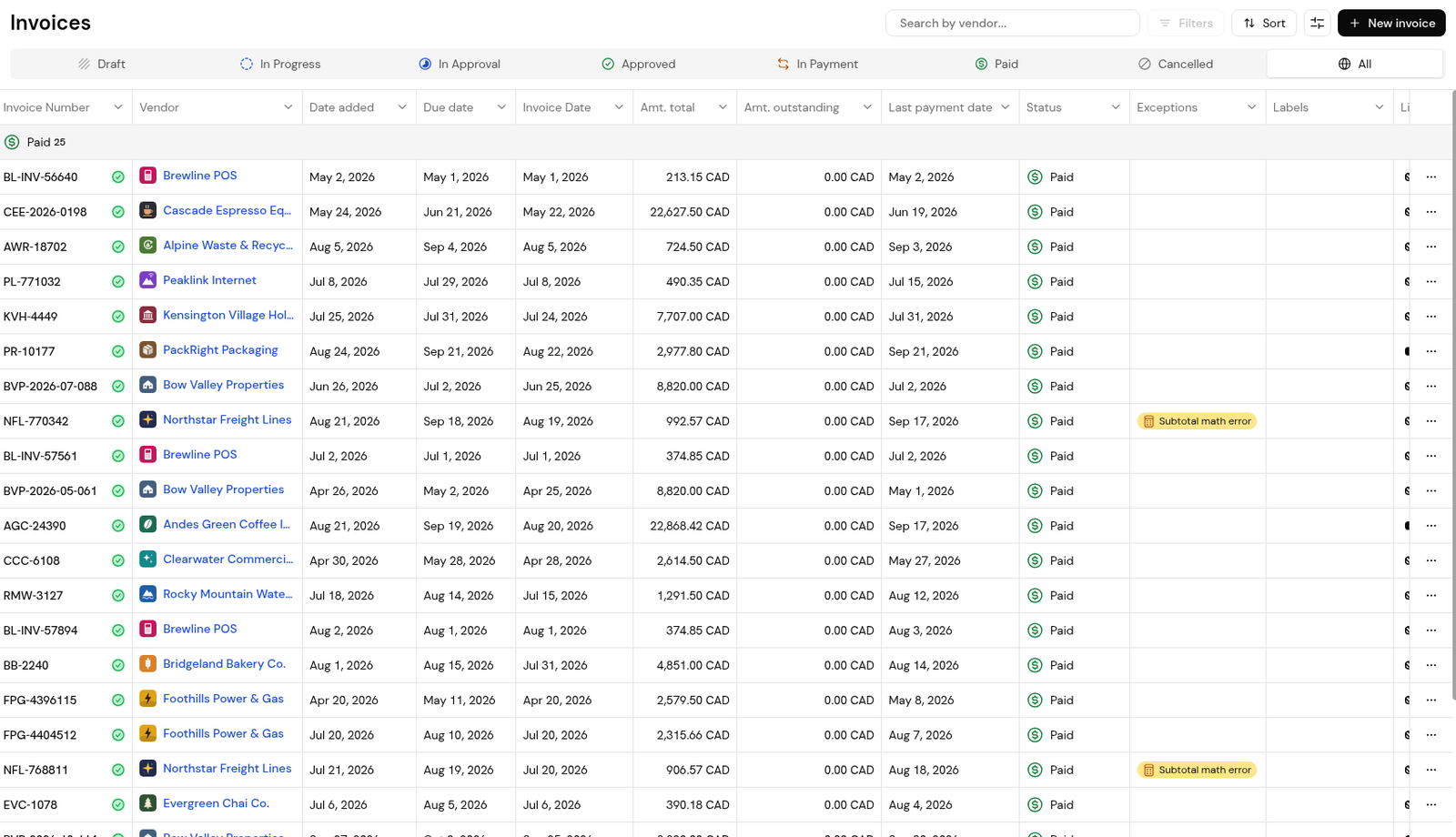
2. Open Documents > Invoices and find the invoice on the In Progress tab, already linked to its PO.
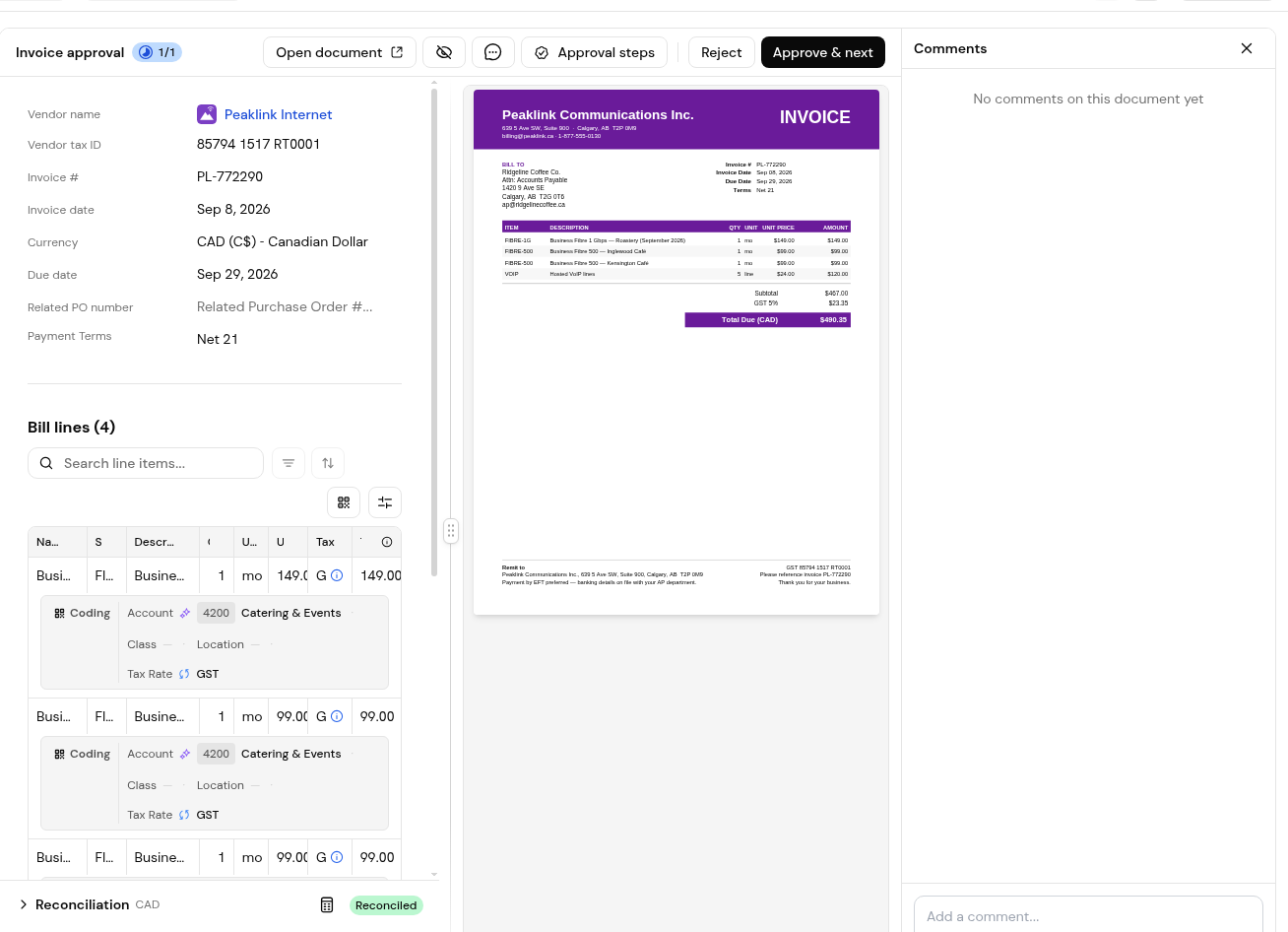
3. Open the invoice and check each bill line, its Tax cell and the coding row under it.
4. If a flag shows the paperwork disagrees, click Open reconciliation and decide each line that needs review.
5. When every step of the Approvals checklist is complete, click Submit for approval. The invoice moves to In Approval.
6. The approver opens it in My tasks and clicks Approve & next, or Reject, which asks for a reason.
7. The invoice moves to Approved and posts to your ERP, on final approval or when someone posts it. The ERP section then links to the bill.
8. On the Approved tab, tick the invoice and click Pay. Check the batch, click Review payment batch, then Send for payment. The invoice moves to In Payment, and to Paid once payment completes.
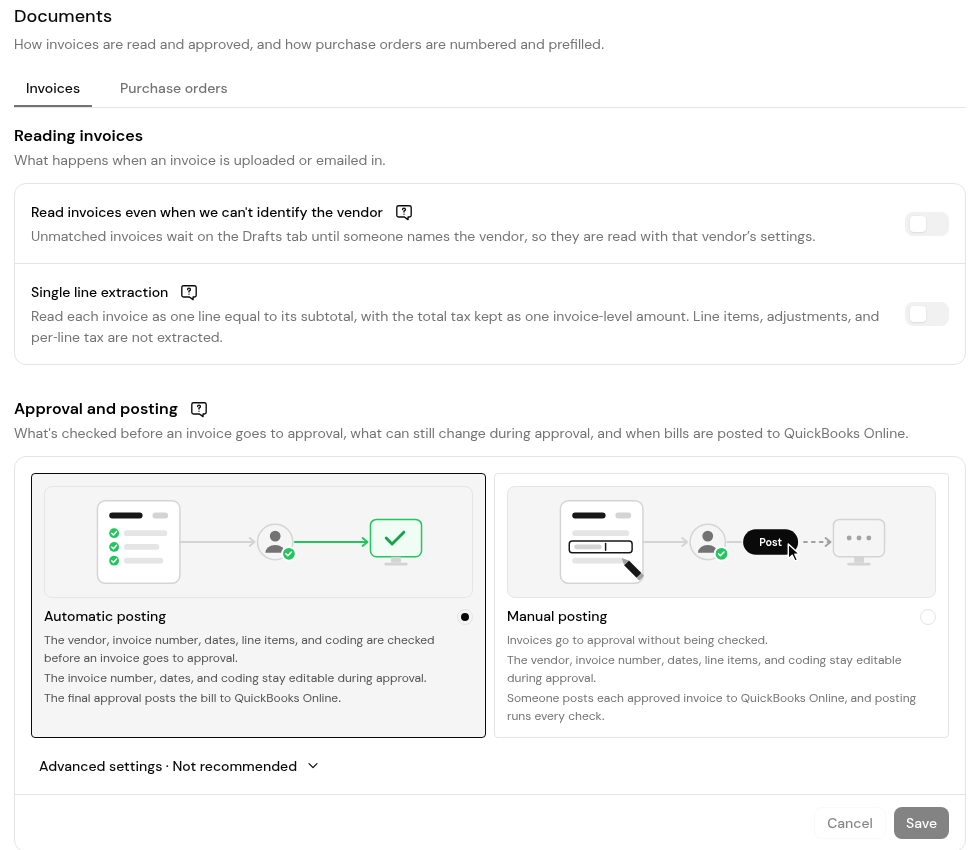
1. Open Settings > Documents and select the Invoices tab.
2. Under Approval and posting, choose Automatic posting ("The final approval posts the bill to your ERP.") or Manual posting ("Someone posts each approved invoice to your ERP.").
Usually not. Finofo finds the PO the invoice bills against while reading it. Check the link before you submit.
Back to In Progress, with the reason the approver gave, so AP can correct and resubmit it.
No. Only invoices on the Approved tab can be selected for a payment batch.
Yes. Finofo can post approved bills to your ERP and mark them paid outside Finofo while payments continue from your existing system. Batch payments are optional.


