Labels are company-wide tags you apply to documents. They help you find and filter work, and they can route documents to the right approvers.
Create custom labels in Settings > Labels, apply them on documents, and use them in approval policies and reports.
The Custom tab holds your own labels, with Label name, Created by, Applies to (All or AP) and Created date. The System tab holds labels Finofo applies itself: Overdue for invoices that are past due, and Approval rejected for invoices rejected without a follow-up approval run.
Labels show as a column on lists such as Invoices, can be a condition in approval policies, and can filter CSV reports.
1. Open Settings > Labels and stay on the Custom tab.
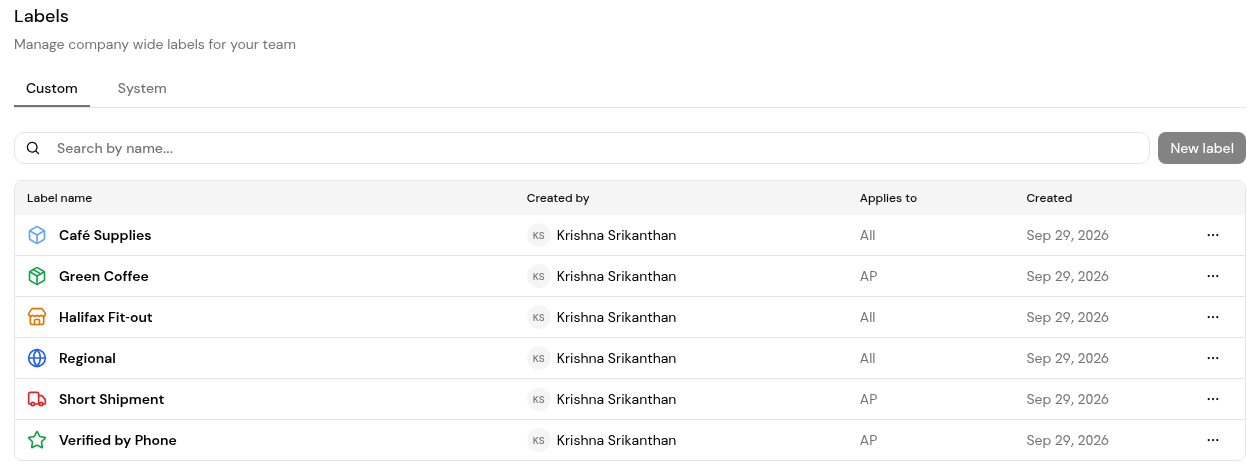
2. Click New label.
3. Name the label and choose what it applies to: All or AP.
1. Open the document and find Labels in the Overview panel.
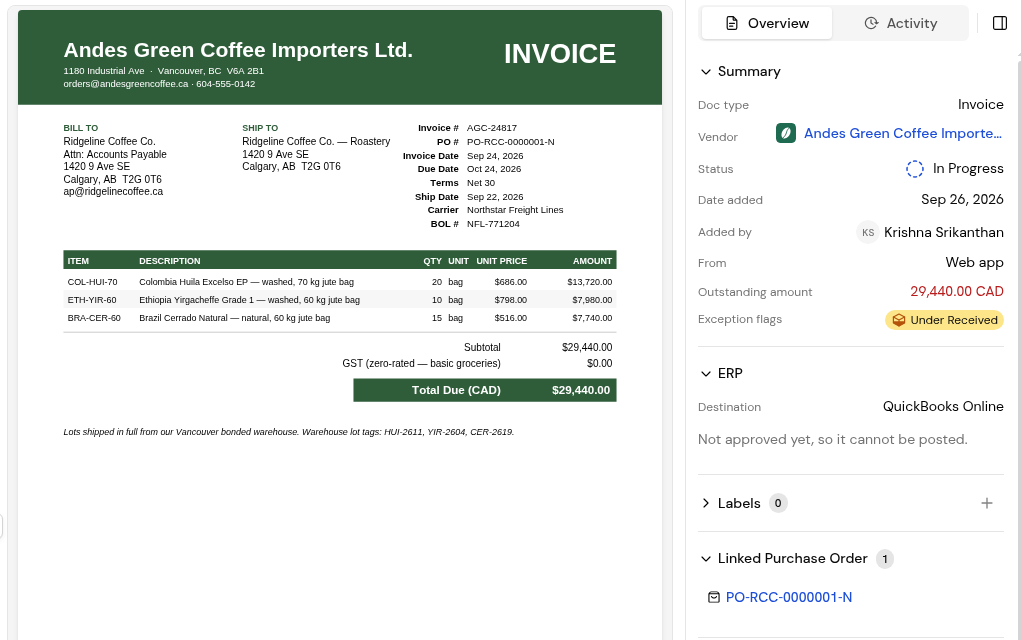
2. Click + and choose the label.
3. On new purchase orders and expenses, add labels in the form's Labels section.
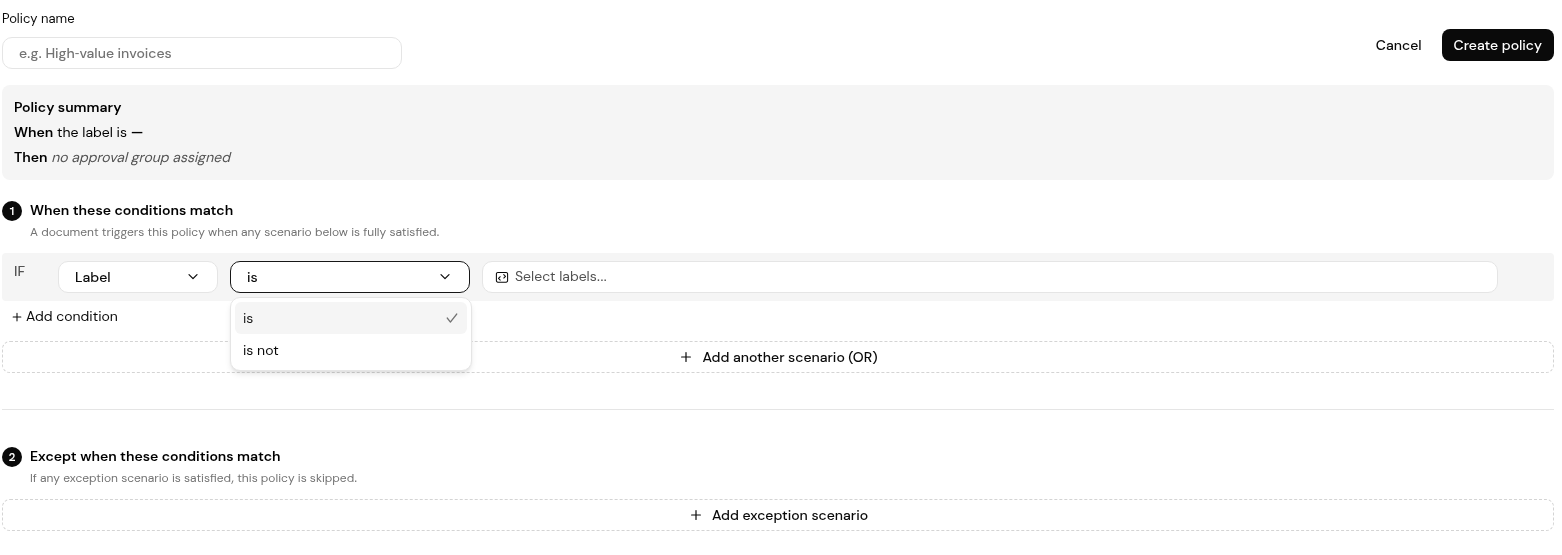
1. In Settings > Approval Workflows, create a policy and choose Label as a condition, then is or is not, and pick labels from Select labels....
2. In Settings > Reports, add a Label filter to export only labelled invoices.
In Settings > Labels, on the Custom tab. Everyone can then apply them on documents.
Whether the label can be used on all documents (All) or on accounts payable documents only (AP).
No. Finofo applies Overdue and Approval rejected automatically.
Yes, if an approval policy uses a Label condition.


