Add vendors with a clear internal name, legal name and ERP ID, keep them mapped to your ERP, and control the bank details they are paid to.
A new bank account is added as a new payment method and shows Awaiting approval until an approver signs it off in My tasks. Always confirm a change with a known vendor contact first.
Vendor records are shared reference data: the people who enter invoices maintain them, and the people who approve payments control where money goes. Give day-to-day AP staff the Member role and approvers the Approver role in Settings > User Management, so the person who records new bank details is not the person who approves them.
Bank details are not edited in place. A new or changed account is added as a new payment method and goes to an approval group. Until it is approved it shows Awaiting approval, and no payment batch can use it. Approved methods stay locked.
Requests to change bank details are a common fraud route. In the Inbox, a bank change request from an unverified sender is flagged Suspicious and cannot be sent to extraction.
1. Open Vendors and click + Add vendor. The Add a vendor page opens.
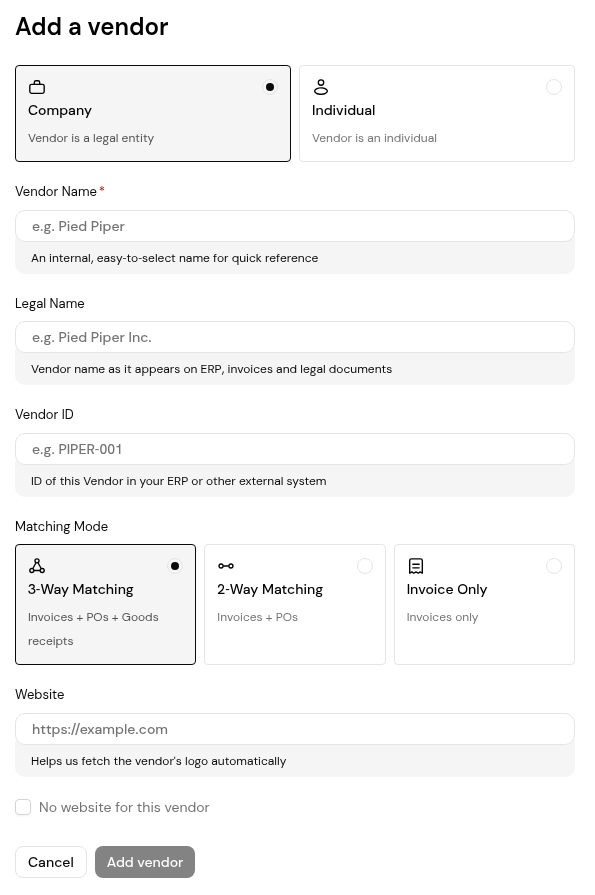
2. Choose Company or Individual.
3. Enter the Vendor Name (required; an internal, easy-to-select name), the Legal Name (as it appears on invoices and in your ERP) and the Vendor ID from your ERP.
4. Choose the Matching Mode: 3-Way Matching (invoices, purchase orders and goods receipts; the default), 2-Way Matching (invoices and purchase orders) or Invoice Only.
5. Enter the Website so Finofo can fetch the vendor's logo, or tick No website for this vendor.
6. Click Add vendor.
1. On the vendor list, click Review on the banner "ERP vendors not yet mapped in Finofo".
2. On the Unmapped tab, use Select & match on each row to pick the matching Finofo vendor, or click Import All ERP Vendors.
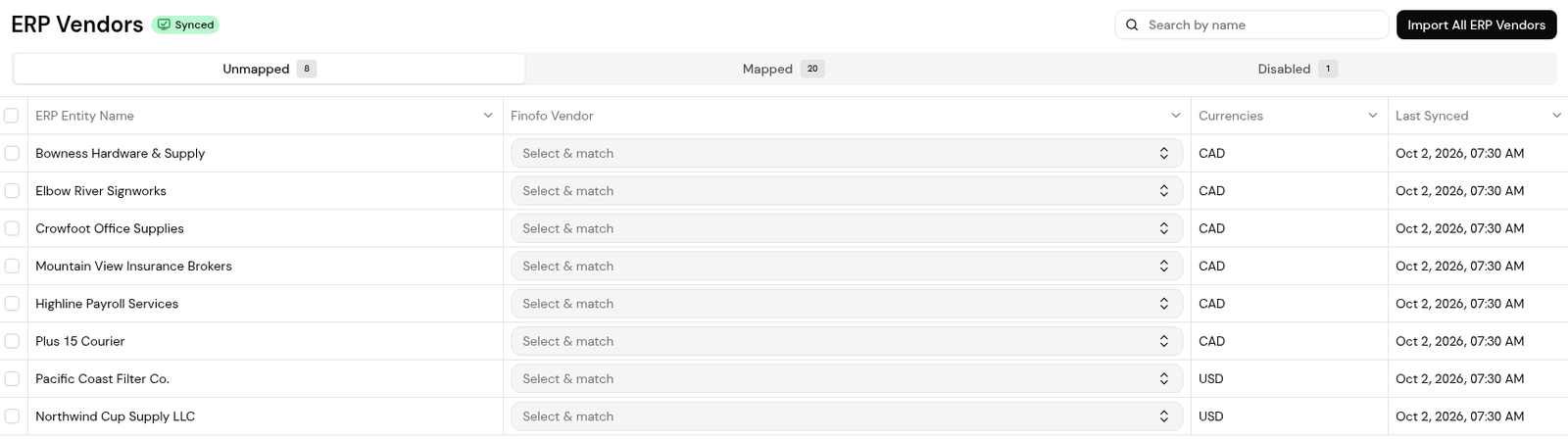
3. Check the Mapped and Disabled tabs for vendors already handled.
1. Before adding anything, call the vendor on a number you already hold, not one given in the change request, and confirm the new details.
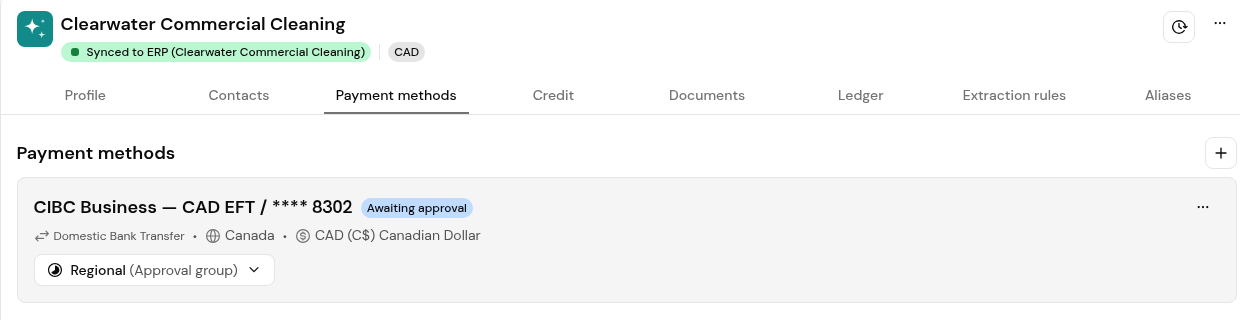
2. Open the vendor, select Payment methods and click the + icon to add the new account as a new payment method.
3. The new method shows Awaiting approval with the approval group that will review it.
4. The approver opens the item in My tasks > Needs you. The Payment method summary shows the account type, legal name, bank country, currency, payment method and the beneficiary account, bank code and transit numbers.
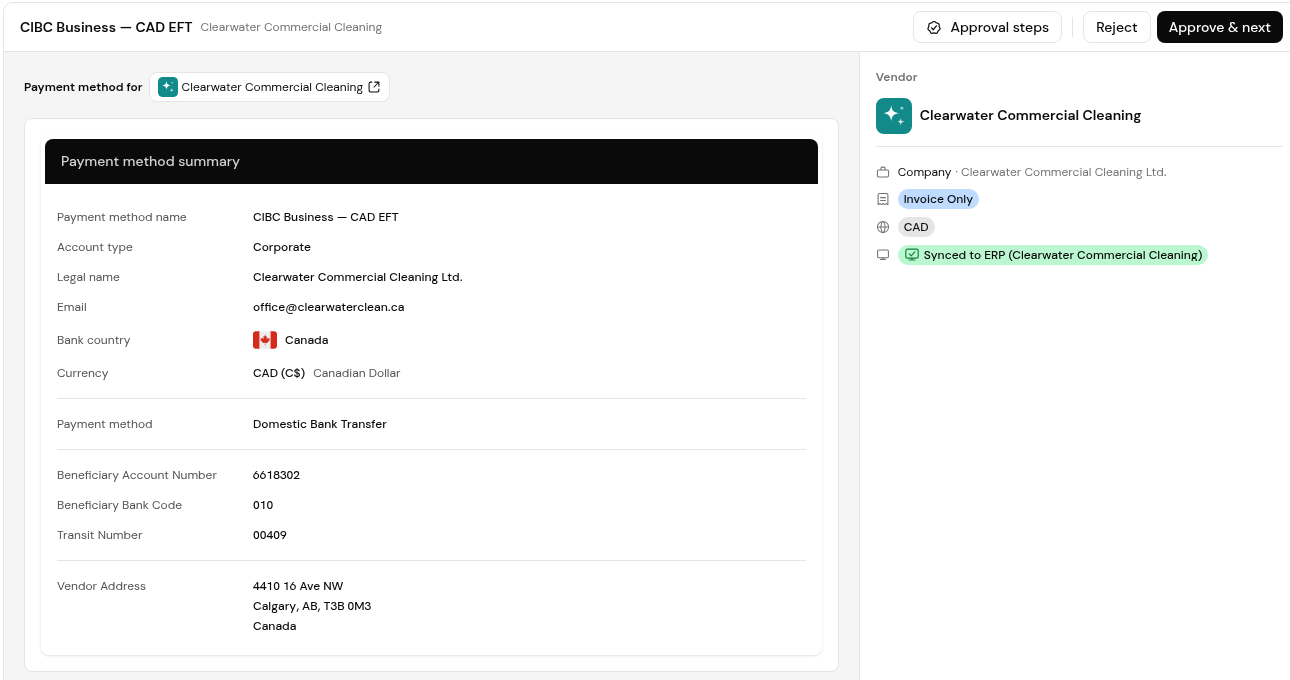
5. The approver checks the details against the vendor's own records and clicks Approve & next or Reject.
No. Add the new account as a new payment method. It must be approved before it can be used, and approved methods stay locked.
The method has been added but not yet approved, so no payment batch can use it.
Vendors exist in your ERP that are not yet matched to a Finofo vendor. Review opens the list so you can match or import them.
Someone other than the person who entered it, typically a finance lead with the Approver role.


