A clean AP close means every document is captured, every approved bill is in your ERP, every card transaction has a receipt, and you know what is still owed.
Work through this checklist in order. Each step names the Finofo screen that shows what is left.
Invoices move through In Progress, In Approval, Approved, In Payment and Paid. Anything stuck early in that chain is a cost you may not have accrued, and anything approved but not posted is missing from your ERP.
How approved invoices reach your ERP depends on Settings > Documents > Invoices > Approval and posting. With Automatic posting, "The final approval posts the bill to your ERP." With Manual posting, "Someone posts each approved invoice to your ERP." A posted invoice shows the Synced with ERP chip, and its ERP section confirms that the ERP has this invoice's bill.
1. Open Inbox and clear Needs review: send each message to extraction or dismiss it.
2. Open Documents > Unclassified and classify or link every file.
3. Open Drafts and complete or cancel anything on the Uncompleted tab.
1. Open Documents > Invoices and work the In Progress tab until each invoice is submitted for approval.
2. Check My tasks and the In Approval tab, and follow up with approvers on anything waiting.
3. On the Approved tab, open invoices and check for the Synced with ERP chip.

4. In the right panel, the ERP section names the destination and confirms that the ERP has this invoice's bill.
5. If you use Manual posting, select approved invoices that are not yet synced and use Post to ERP.
6. Keep the ERP post failed and Bill payment sync failed alerts on in Settings > Notifications so failures are not missed.
1. Open Expenses > Transactions. The banner counts the transactions still to resolve. Link an expense to every row that needs one.
2. On Expenses > Card expenses, open the All tab and scan the Match status column for Unmatched.
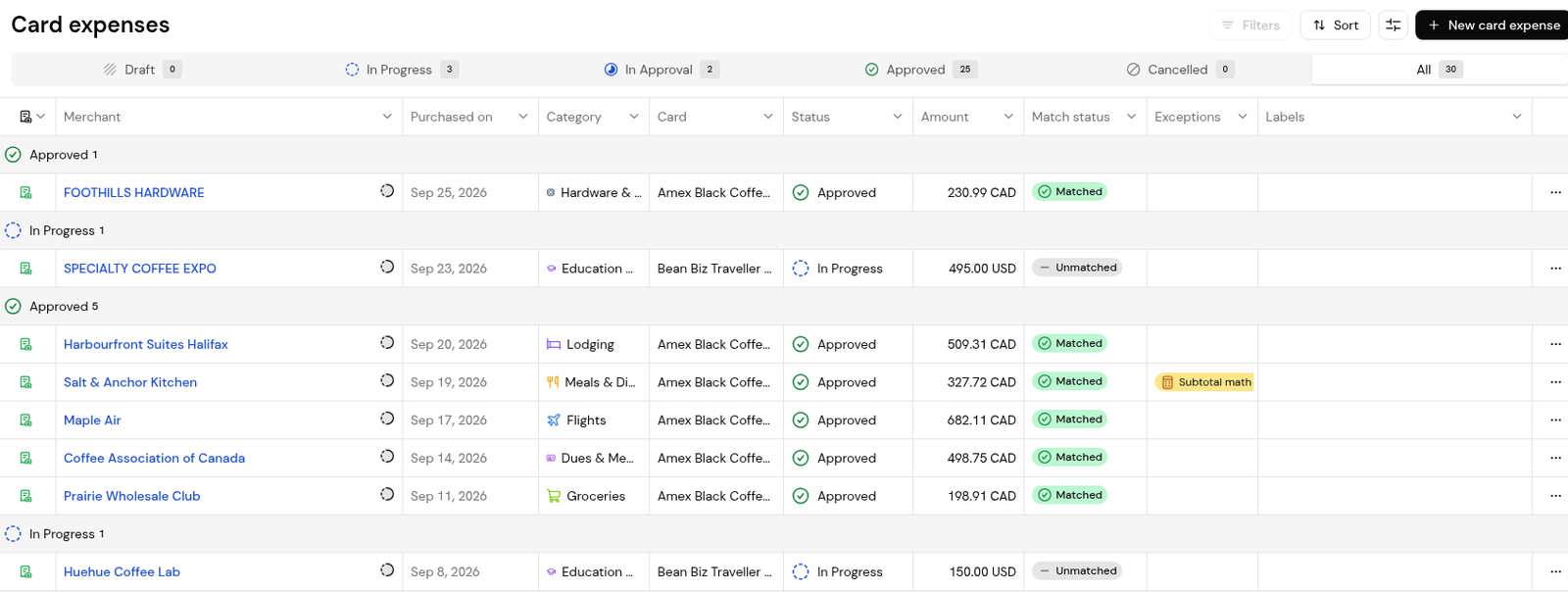
3. Reconcile each card statement in Expenses > Card statements until no transactions are left to match.
1. Reconcile statements from key vendors in Statements. Lines marked "Invoice not posted yet" point to invoices still to post.
2. Check Documents > Goods receipts > Awaiting receipt for deliveries that arrived but were not recorded.
1. On the Dashboard, read Pipeline Health for invoices by stage and age, and Cash Requirements for what is past due and coming due.
2. Check Documents > Invoices > In Payment for part-paid bills, and Batch payments for batches still in progress.
3. Export what you need for your close file from Settings > Reports, for example invoices filtered by ERP bill status.
Look for approved invoices without the Synced with ERP chip, or export an Invoices report filtered by ERP bill status.
A card expense with a Match status of Unmatched, or a card transaction on Expenses > Transactions with no expense linked.
No. It gives a live view of AP work in progress. Your ERP stays your system of record.


