Pick a notification preset and switch email and in-app alerts for approvals, mentions, contracts, payments and ERP sync events.
At a glance
Notifications decide which events alert you and how: by email, in the app, or both.
Pick a preset for the overall level, then switch individual events on or off.
How It Works
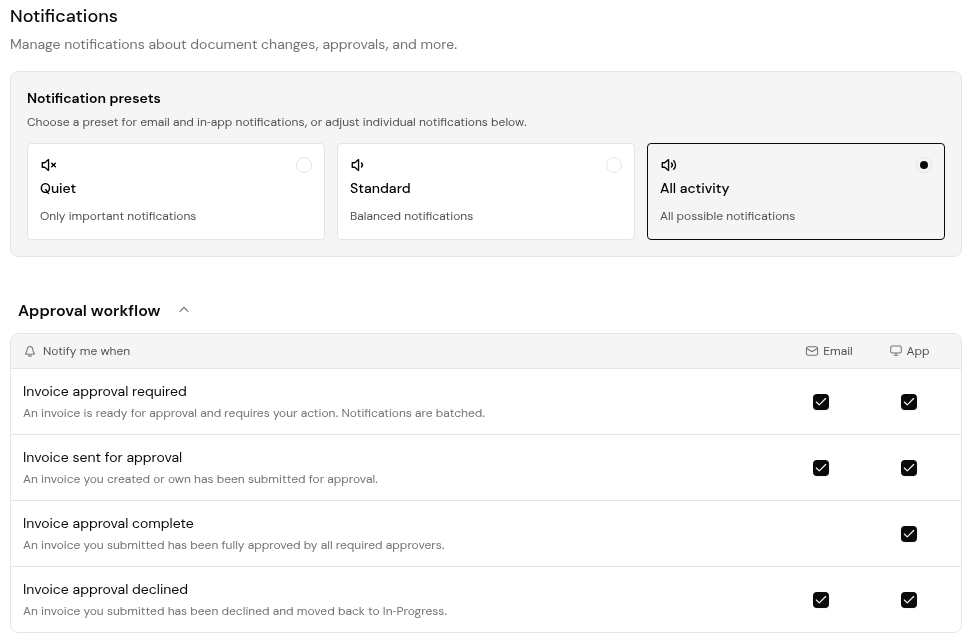
Notification presets set the overall level: Quiet (only important notifications), Standard (balanced notifications) and All activity (all possible notifications). Below the presets, each event under Notify me when has an App toggle, and most also have an Email toggle.
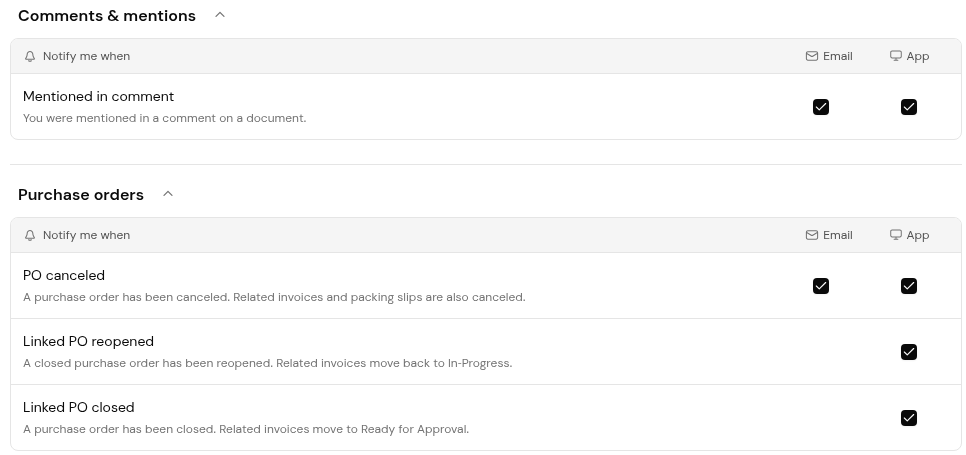
A few events are in-app only: Invoice approval complete, Linked PO reopened and Linked PO closed. Invoice approval required notifications are batched.
Set Your Notifications
1. Open Settings > Notifications.
2. Under Notification presets, choose Quiet, Standard or All activity.
Settings > Notifications with the Quiet, Standard and All activity presets and the first event group.
3. Switch individual events on or off with their Email and App toggles. Use the chevron on each group to collapse it.
Event groups with Email and App toggles, including in-app-only events.
Events You Can Be Notified About
Approval workflow: Invoice approval required, Invoice sent for approval, Invoice approval complete (app only) and Invoice approval declined.
PO approval workflow: PO approval required, PO sent for approval, PO approval complete and PO approval declined.
Document status & lifecycle: Document edited by another user, Document linked and Document unlinked.
Comments & mentions: Mentioned in comment.
Purchase orders: PO canceled, Linked PO reopened (app only) and Linked PO closed (app only).
Contracts: Contract renewal reminder, Contract auto-renewal reminder, Contract auto-renewed, Contract expired without renewal and Contract reminder due.