Settings > Organization holds your business name, email, the addresses that prefill new documents, and remittance notice settings.
Settings > Documents sets how purchase orders are numbered and the text new purchase orders start with.
Business addresses are "Used to prefill billing and shipping addresses on new documents". Purchase order numbers are generated automatically from a three-letter Entity code, for example PO-RCC-0000001-X. Contract numbers are generated when you create a contract, and expense receipt numbers are prefilled from the submitter's initials and the date. Invoices keep the vendor's own invoice number.
1. Open Settings > Organization.
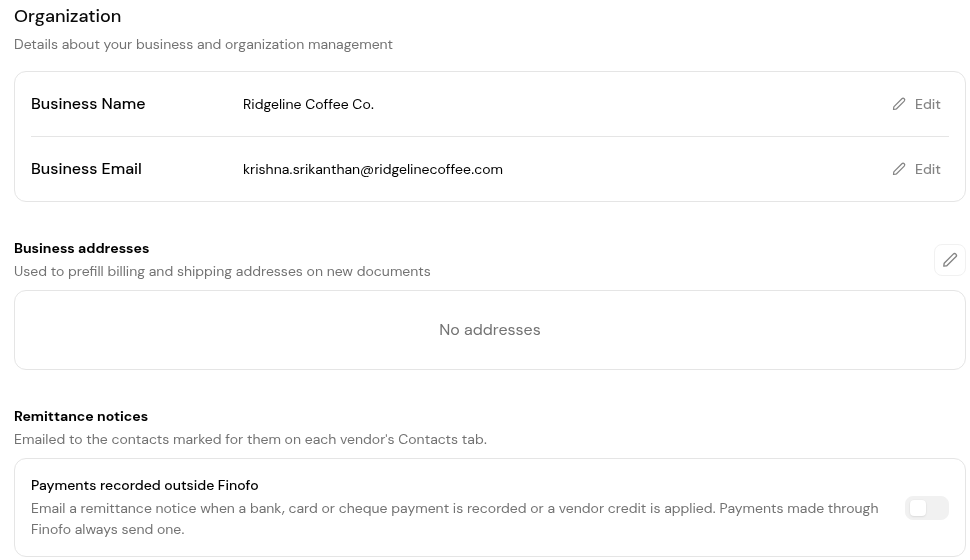
2. Click Edit beside Business Name or Business Email to change them.
3. Click the pencil icon beside Business addresses to add your billing and shipping addresses.
4. Under Remittance notices, turn on Payments recorded outside Finofo if vendors should get a remittance email when a bank, card or cheque payment is recorded or a vendor credit is applied. Payments made through Finofo always send one.
1. Open Settings > Documents and select the Purchase orders tab.
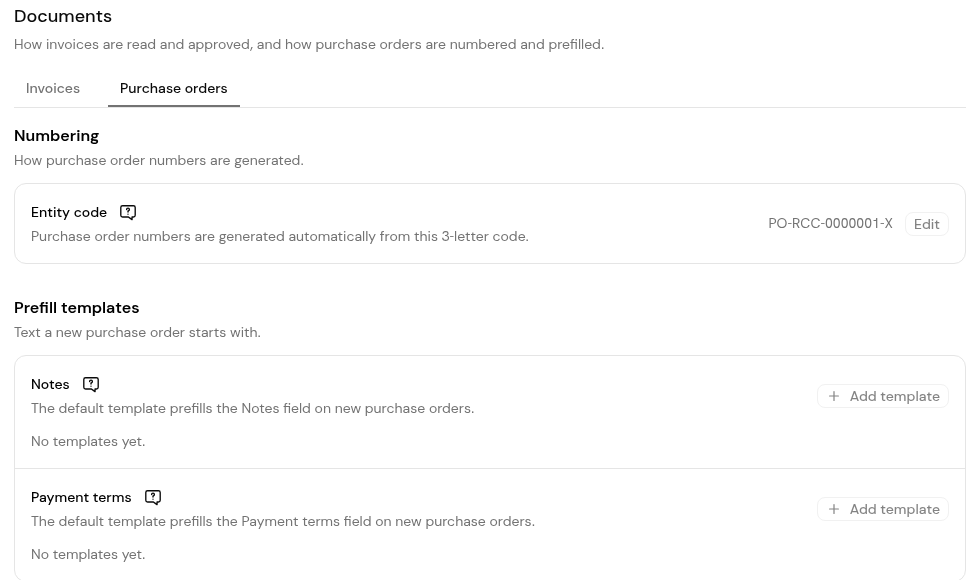
2. Under Numbering, click Edit beside Entity code and enter the three-letter code for this organization.
3. Under Prefill templates, click + Add template under Notes or Payment terms to set the text new purchase orders start with.
Automatically, when the purchase order is saved.
No. Invoices keep the vendor's own invoice number, which Finofo reads from the document.
On the Invoices tab of Settings > Documents, under Approval and posting.


