Each organization in Finofo is its own space, with its own documents, vendors, settings, email address and text number.
Teams that run several companies create one organization per entity and switch between them from the organization menu in the top bar.
The menu lists your organizations under Organizations, with a check mark on the current one and a Manage button that opens Settings > User Management for it. Below are All organizations, Create Organization, the signed-in user and Sign Out.
Everything you see, including search and duplicate checks, belongs to the organization you are in. You sign in once and move between your organizations.
1. Click the organization name at the top right.
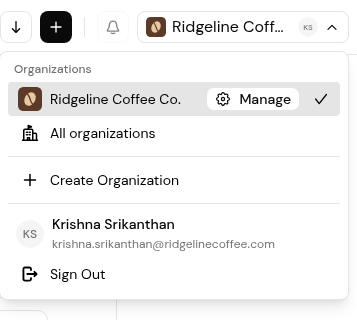
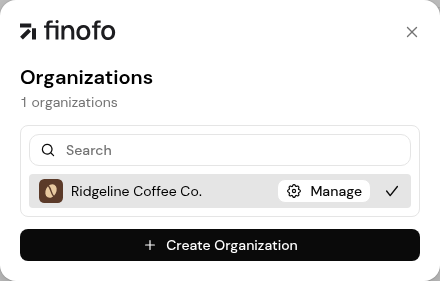
2. Pick the organization you want, or click All organizations to search the full list.
3. Check the name in the top bar before you upload or approve anything.
1. Click Create Organization in the organization menu, or + Create Organization in the Organizations dialog.
2. Enter the new organization's details and confirm.
3. Set it up like any new organization: business details, members and roles, the ERP connection, approval workflows and posting.
4. Share the new organization's email address and text number with its vendors and staff.
Duplicate checks run within each organization, so send each document to the right organization in the first place.
No. You use one sign-in and switch between the organizations you belong to.
It opens Settings > User Management for that organization, where you invite members and set roles. Business details are in Settings > Organization.


