When an order arrives in several deliveries, post a goods receipt for each one. The PO shows Partially received until every line is received.
For services, receive by quantity like goods, or mark the PO Receiving not required.
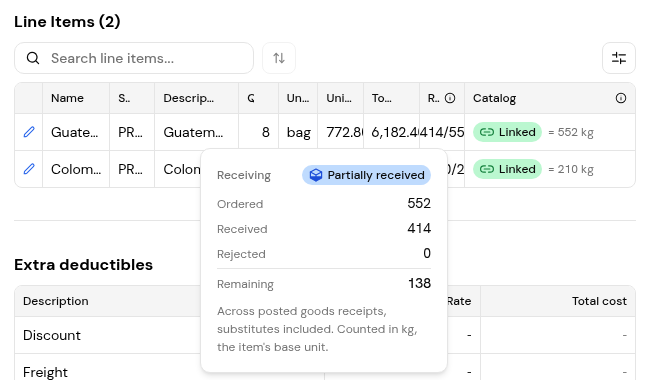
Each posted receipt adds to the PO's received quantity. On the PO, the Received figure (for example 414 / 552) opens a Receiving popover with Ordered, Received, Rejected and Remaining "across posted goods receipts, substitutes included", in the item's base unit. Each receipt's Overview shows a count of Other goods receipts for the same PO.
Reconciliation compares each invoice line with what was accepted on posted receipts. A line billed for more than was accepted shows Awaiting receipt and waits until the rest is posted or someone decides it; there is no hold option. Pay accepted quantity pays for what arrived and withholds the rest.
1. Open Documents > Goods receipts > Awaiting receipt. The PO shows Partially received.
2. Click Receive, record what arrived in this delivery and click Post receipt.
3. Open the PO and click the Received figure on a line to see the Receiving popover.
1. Open the invoice and click Open reconciliation.
2. Find lines marked Awaiting receipt and compare Ordered, Accepted and Billed.
3. Wait for the remaining receipt, or open the line's ... menu and choose Pay accepted quantity.
Finofo has no separate service confirmation. Items, services included, are received by quantity, so you can confirm a service by posting a receipt for it. Where no receipt is needed, mark the PO Receiving not required; it then shows Non-receiving and has no Goods Receipts section.
1. Open the PO and open its ... menu.
2. Choose Receiving not required. To undo it, choose Change to receiving required.
Yes. Each delivery gets its own receipt, and the PO's Receiving popover totals them.
Yes. Pay accepted quantity pays for what was accepted and withholds the rest.
Post a goods receipt for the quantity delivered, or mark the PO Receiving not required if no confirmation is needed.


