A payment batch is a payment run: a group of approved invoices paid together, with one row per vendor and the payment method each vendor is paid by.
Tick invoices on the Approved tab and click Pay to build a draft batch. Approval and release happen in Finofo Payments, which opens from the link icon on the batch's Status pill or from Payments in the left menu.
Only approved invoices can be paid. When you tick invoices on the Approved tab, a selection bar shows how many are selected and their total, for example "2 selected" and 2,576.70 CAD. Beside the count, an X clears the selection. After the total come three icon buttons: a padlock for Move back to In Progress, a paper plane for Pay and a plus sign for Post to ERP.
Clicking Pay builds a draft batch named for its date and total, for example "Batch of Sep 29, 2026 for 4,014.80 CAD". The batch has one row per vendor, with the invoice number beside the vendor name, the Amount outstanding, the Amount to pay and the Payment method, such as the vendor's bank account paid by EFT. The Payment Summary totals the batch by currency on the Finofo Payment line and shows the batch Status, Created, Created by, Invoices and Vendors. Invoices in a batch appear on the In Payment tab.
Approval and release happen in Finofo Payments, which opens from the link icon on the batch's Status pill or from Payments in the left menu. Your payment approval policies apply to the whole batch, so the right people sign off before any money moves. A funding source is set for each payment, and Finofo works out the funds needed in each currency, and any conversions, before you pay. One batch can hold invoices in CAD, USD and other supported currencies.
1. Open Documents > Invoices and select the Approved tab.
2. Tick the invoices you want to pay.

3. Check the selection bar at the bottom of the page. It shows the count and the total.

4. Check the total, then click the Pay icon and confirm.
1. Open Batch payments in the left menu, select the Draft tab and open the batch.
2. For each vendor, check the invoice, the Amount to pay and the Payment method.
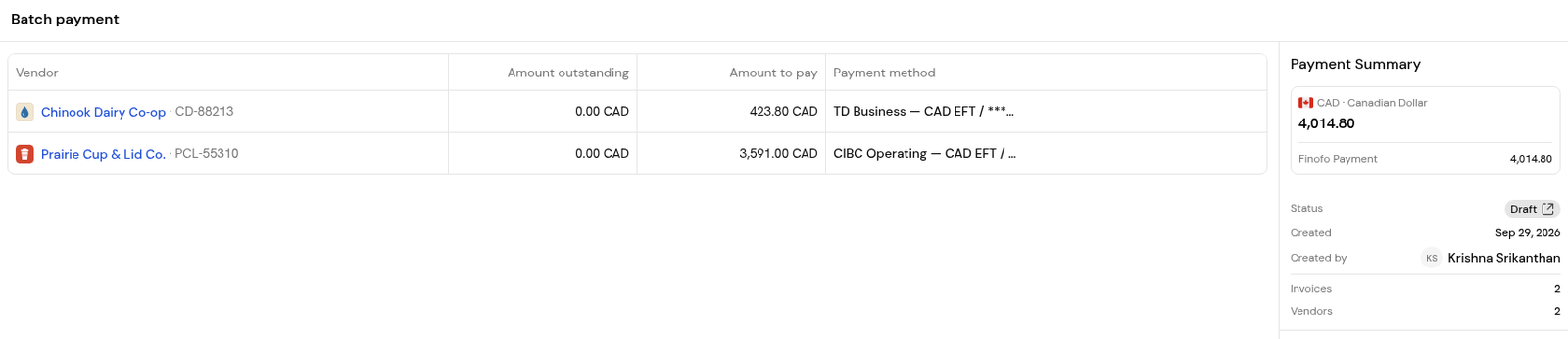
3. Check the Payment Summary total for each currency.
1. Click the link icon on the batch's Status pill to open the batch in Finofo Payments.
2. Review the batch and set the funding source for each payment. The available balance in each account shows before you choose.
3. Send the batch through your payment approval policy. Once it is approved, an authorized person releases the payments.
4. Back in Finofo, follow the batch on the Batch payments tabs. Invoices move to Paid once they are paid in full.
No. Only invoices on the Approved tab can be added to a batch.
In Finofo Payments. Open it from the link icon on the batch's Status pill, or from Payments in the left menu.
Yes. Finofo totals the batch by currency, calculates the funding needed and shows any conversions before you pay.
Yes. Batch payments are optional. Finofo can post approved bills to your ERP and record them as paid outside Finofo.


