Products & services is your item catalog. Each item has a base unit, and each vendor offering says how that vendor sells it: their SKU and item name, the unit sold, how many base units one pack holds, and the price.
Matching uses the catalog to compare purchase orders, goods receipts and invoices in one base unit, even when a vendor bills in bags and you count in kilograms.
The Base unit is "The smallest unit this item is counted in", and every vendor pack converts to it. A saved offering reads, for example, "Sold as bag · 1 bag = 70 kg · 21 days lead time", so an invoice for 10 bags is compared as 700 kg.
Saved offerings also show "Also seen as" names and unit aliases such as "bag also billed as: sack, bg", so a vendor's own wording still matches your item. The Sourcing card summarizes Vendors, Offerings, Preferred vendor, Lowest price and Shortest lead time.
Matching checks SKU, quantity, unit of measure and price on each line. The catalog supports purchasing and matching; it does not track stock levels or inventory value.
1. Open Products & services. The Active tab lists each item with its vendors, offerings, SKU, type, category, base unit and unit cost.
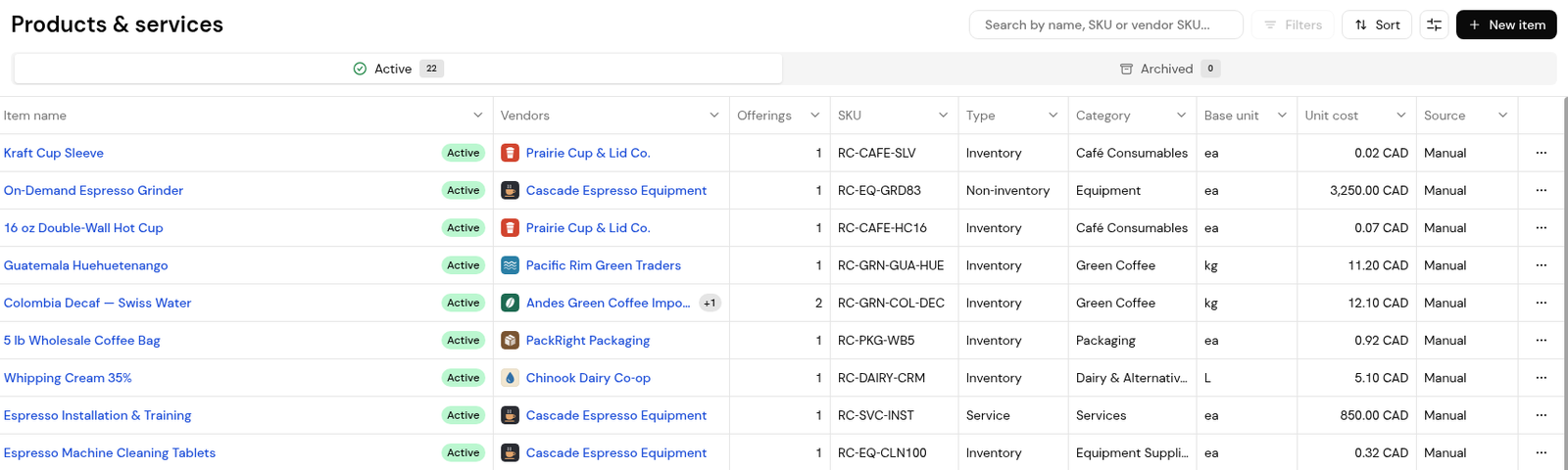
2. Click New item.
3. Enter the Item name, an optional Description ("A short summary shown wherever the item appears") and Category, and the Type.
4. Receipt basis shows Received by quantity.
5. Enter the Base unit (for example EA, CASE or KG) and the SKU ("documents match on it"). Add the Barcode and Manufacturer part number if the item has them.
6. Enter the Unit cost ("Reference cost per base unit") and Currency. Once an offering is added, the currency follows the preferred vendor's currency.
7. Use Notes for sourcing or handling notes. They are internal only, never shown to vendors.
1. Scroll down to Notes and Vendor offerings, then click Add vendor offering. A Vendor offering 1 block opens below.
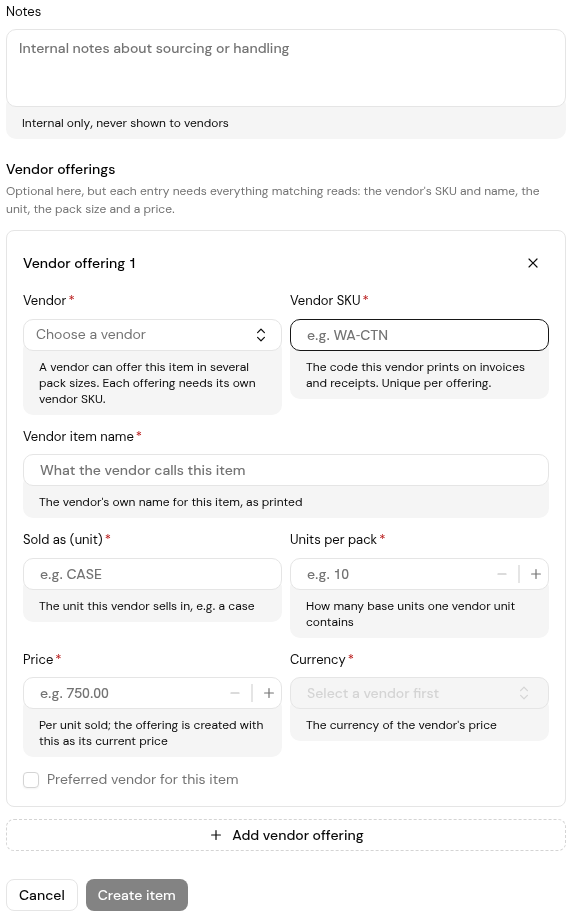
2. Choose the Vendor and enter the Vendor SKU (the code the vendor prints on invoices and receipts, unique per offering) and the Vendor item name.
3. Enter Sold as (unit), for example CASE, and Units per pack: how many base units one vendor unit contains.
4. Enter the Price per unit sold. Tick Preferred vendor for this item if this is your main source.
5. Add another offering for each vendor or pack size, then click Create item.
6. Open the item to check each offering card, its pack conversion and lead time, the alias chips and the Sourcing card. Use Add offering to add more later.
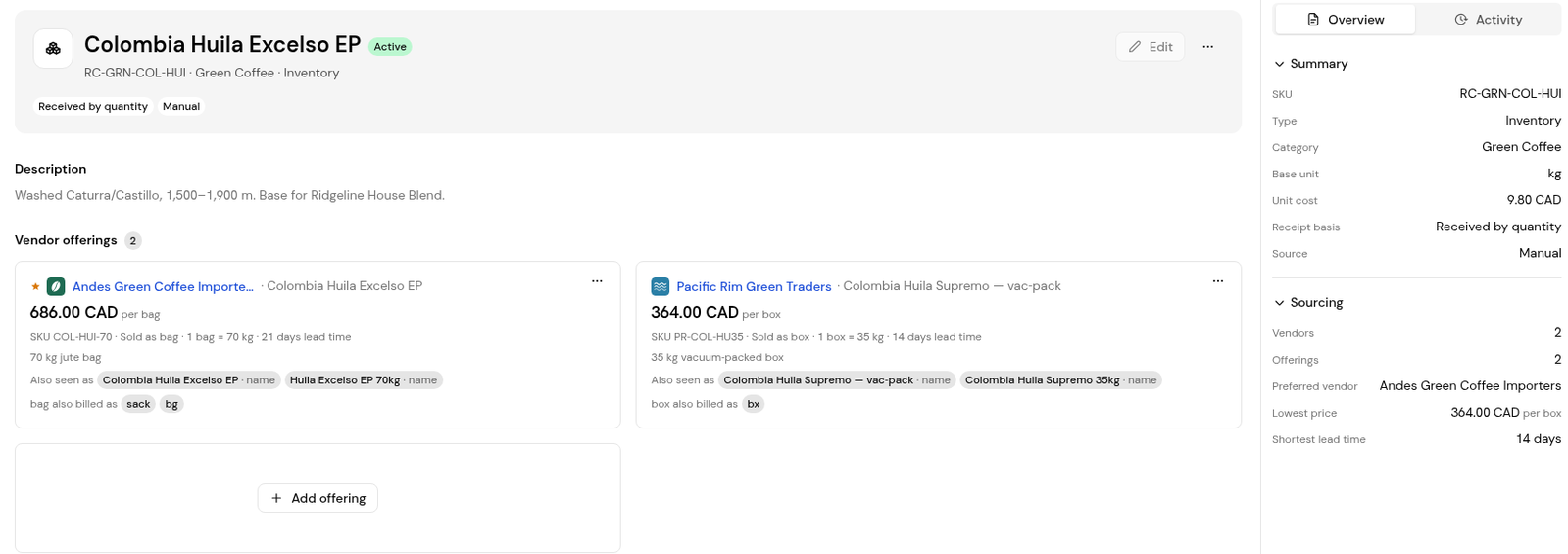
The offering's Units per pack converts the vendor unit to the item's base unit, so both lines are compared in kilograms.
Yes. Add one offering per vendor. The Sourcing card shows the preferred vendor, lowest price and shortest lead time.
No. Finofo is not an inventory system. Stock levels and inventory valuation stay in your accounting system.
Archived items sit on the Archived tab, separate from the Active catalog.


