Every invoice line in Finofo is coded with a QuickBooks Online Account, Class, Location and Tax Rate, so the bill that posts carries the same detail.
Sales tax is read line by line, including GST, HST, PST and QST and whether it is recoverable, and Finofo flags tax that does not add up before anything posts.
When an approved invoice posts, Finofo sends it to QuickBooks Online as a bill for the mapped vendor, with the invoice number, dates, each line and its coding, and the invoice file attached.
Each line carries its own Account, Class, Location and Tax Rate. Classes and locations are the QuickBooks Online dimensions many teams use for departments, projects, sites or regions. The records come from QuickBooks Online, so Finofo only offers values your books already have.
Finofo suggests coding for each line from your coding rules and history, so reviewers confirm rather than type. Coding progress shows how many required fields are complete, and posting checks that every required field is filled.
Tax is read for each line. Each line keeps its own rate, so a bill that mixes rates or exempt items stays accurate, and the recoverable part of the tax is shown as an input tax credit.
1. Open the invoice. Under each line, the coding row shows Account, Class, Location and Tax Rate, and Coding progress shows how many required fields are complete.
2. Hover over the AI icon beside a value to see why it was chosen.
3. Click Edit coding and pick the class or location for the line, for example the Roastery class and the Canmore location for a cost that belongs to that site.
4. When every line shares the same coding, use Copy to all lines in the My tasks approval view to apply one line's coding to the rest.
Approval policies can route invoices by class or location too. In Settings > Approval Workflows, add a GL coding condition with contains any of and choose the values.
1. In Settings > Integrations, open GL properties. The Required for column shows which coding cannot be completed until each property is filled in.
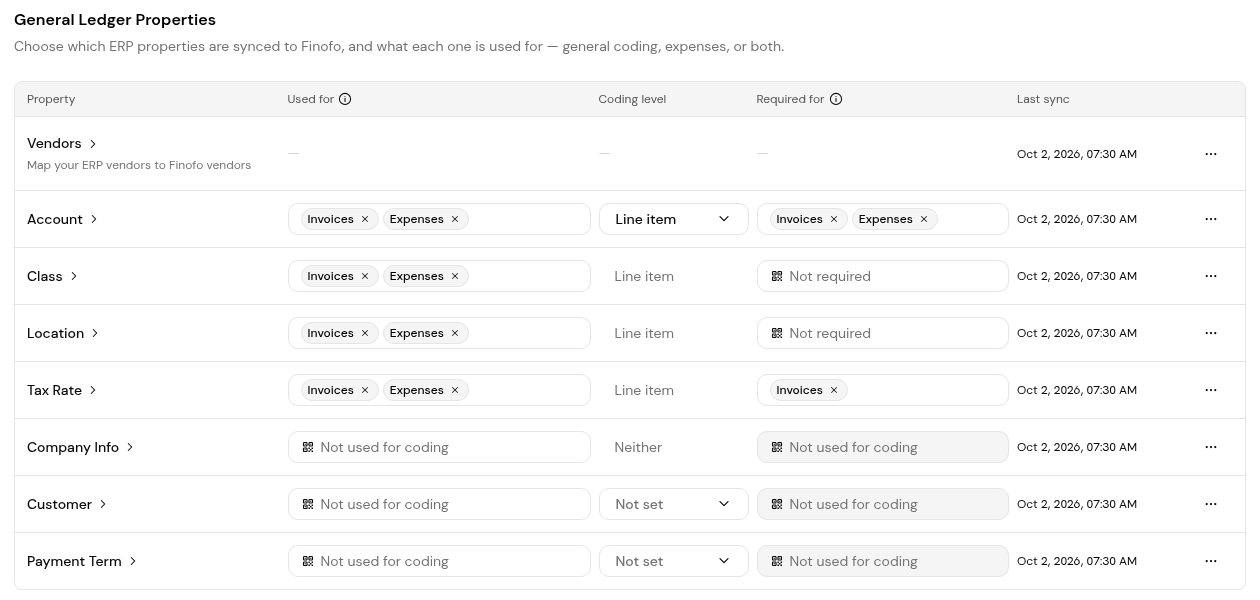
2. To change what a property is required for, edit its Required for chips. Only what the property is Used for can be required, so to require Class on invoices, it must be used for invoices.
3. Click Tax Rate to see the tax rates synced from QuickBooks Online. The page lists each rate with its Name, Code, Total Tax Rate, Tax Components, Used for and Description, and has Active and Disabled tabs.
In the demo organization, Account is required for invoices and expenses, Tax Rate is required for invoices, and Class and Location are not required. Its tax rates include names such as GST, HST ON, GST/PST BC, GST/QST QC - 9.975, Zero-rated, Exempt and Out of Scope, plus adjustment codes.
1. In Settings > Integrations, open Coding settings. The Rules tab lists your coding rules.
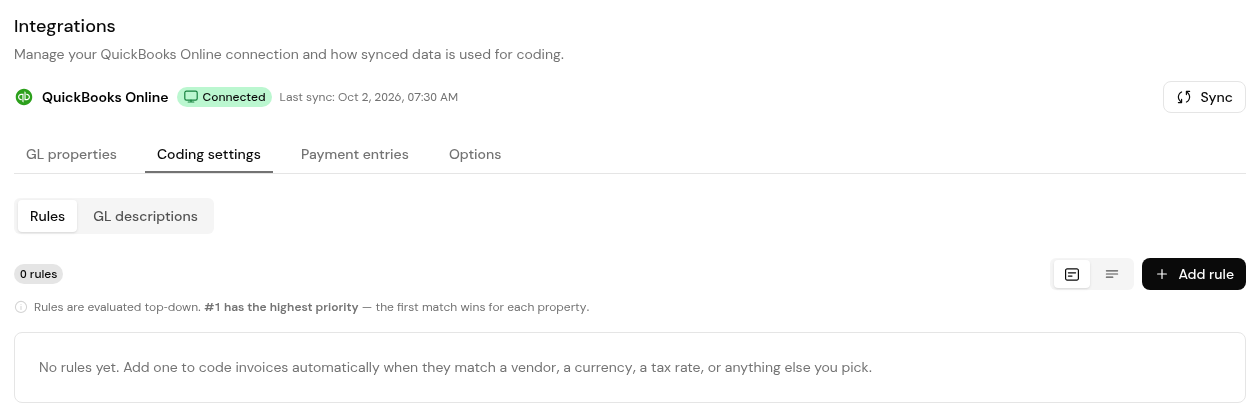
2. Click Add rule. In Create rule, give the rule a Name if you like, for example Ontario HST.
3. Set its Priority. Lower runs first.
4. Under Conditions, choose what to match, for example Vendor is any of and the vendor. Use Add value for more values, Invert to match when the condition is not true, and Add condition to combine conditions.
5. Under Codings, click Add coding and choose what gets set when the conditions match, and whether it applies to the document, its line items or both. A rule needs at least one coding.
6. Click Save. Rules are evaluated top-down: #1 has the highest priority, and the first match wins for each property.
The GL descriptions tab holds what each GL record is for, in your own words: an account, a class or any dimension you code. When no rule covers an invoice, automatic coding searches these descriptions, so one sentence can do the work of a rule you would otherwise write for each record. Each description is written next to its record and can be up to 500 characters.
1. Look at the Tax cell on each line, for example HST NS 2025. Open its popover to see the tax code, a Coded chip, the input tax credit (ITC) amount and the total.
2. If a rate looks wrong for the item, click Edit coding and choose the correct Tax Rate.
3. If the tax on the invoice does not agree with its lines, Finofo flags the invoice for review before anything posts to QuickBooks Online. Correct the lines on the invoice, then continue.
Each tax below shows where it is charged, followed by whether it is recoverable.
This table is general Canadian guidance. Your accountant decides how each tax rate is set up in QuickBooks Online, and Finofo applies the rates you sync, line by line.
1. With Automatic posting, the final approval posts the bill. With Manual posting, select approved invoices on the Approved tab and click Post to ERP.
2. Open the posted invoice. It shows a Synced with ERP chip, and its ERP section shows the destination, QuickBooks Online, and that QuickBooks Online has the bill.
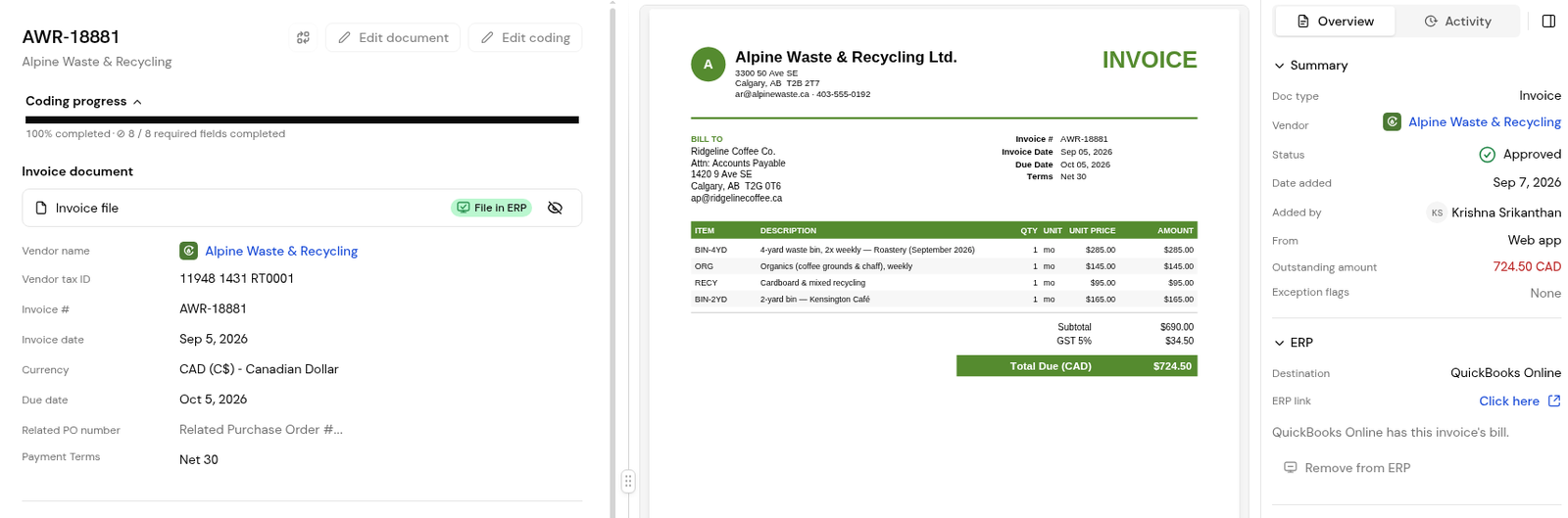
3. Click the ERP link to open the bill in QuickBooks Online and check its lines, classes, locations and tax.
1. In Settings > Integrations, open Options.
2. Turn on Billable line items to let users mark invoice lines as billable and apply a markup %.
3. Under Vendor credits, set the default accounts payable account. An account coded on the invoice is used first, and the default covers invoices without one.
4. Click Add a currency only if QuickBooks Online holds a separate accounts payable account for that currency.
Not unless your organization requires them. In the demo organization they are not required. GL properties in Settings > Integrations shows what your organization requires.
Finofo only offers records synced from QuickBooks Online. Check that the record is active in QuickBooks Online, then click Sync in Settings > Integrations.
Yes. Coding is set per line, so each line can carry its own class, location and tax rate.
From QuickBooks Online. Finofo syncs them as the Tax Rate property, so the codes you see match your books.
They tell automatic coding what each account, class or other record is for. When no coding rule covers an invoice, Finofo searches these descriptions to choose values. Each can be up to 500 characters.
It is the input tax credit on the line: the part of the tax your business can generally claim back.
A negative invoice posts to QuickBooks Online as a vendor credit against an accounts payable account. An account coded on the invoice is used first, and the defaults on Options cover the rest.


