Finofo connects to QuickBooks Online so every invoice and expense is coded with the same vendors, accounts, classes, locations and tax rates as your books.
Approved bills, vendor credits, expenses and payment entries post back to QuickBooks Online, which stays your ledger and system of record.
QuickBooks Online is one of the ERPs and accounting systems Finofo connects to natively, and the connection works the same way as the others, in two directions. From QuickBooks Online, Finofo syncs your vendors and the general ledger properties you code with: Account, Class, Location and Tax Rate. Finofo uses them on every invoice and expense line, so a bill that reaches QuickBooks Online needs no recoding.
In Finofo, documents are captured, read, coded, matched and approved, and the comments, exceptions and approval history stay attached to each one. Once a document is approved, Finofo posts the finished entry to QuickBooks Online with its file attached. When a payment batch is paid out, Finofo posts the payment entries too.
You do not need QuickBooks Online connected to start using Finofo. You can capture, match and approve documents first and connect when you are ready to post.
Each direction below shows what moves, followed by where you see it in Finofo.
Each item below shows where it lives, followed by what it means for you.
1. Open Settings > Integrations.
2. Start the QuickBooks Online connection from the integration card.
3. Sign in to QuickBooks Online and choose the company to connect.
4. Grant Finofo the permissions it asks for. You return to Finofo when the connection is complete.
5. Check the card. It reads QuickBooks Online, shows Connected and a Last sync line, and has a Sync button.
The card names the connected service, QuickBooks Online, and shows a Connected chip and a Last sync line with the date and time of the most recent sync.
1. On the GL properties tab, the table lists each property with the columns Property, Used for, Coding level, Required for and Last sync.
2. Used for sets which parts of Finofo offer the property when coding: invoices, expenses, both or neither. Required for sets which coding cannot be completed until the property is filled in. You set it per property, and only what the property is used for can be required.
3. Click a property to open its records, for example Class. The page shows a Synced chip, the coding level (Line item level), how many records are offered when coding, and Active and Disabled tabs. In the demo organization the classes are Cafés, Roastery, Wholesale, and Catering & Events, each used for invoices and expenses.
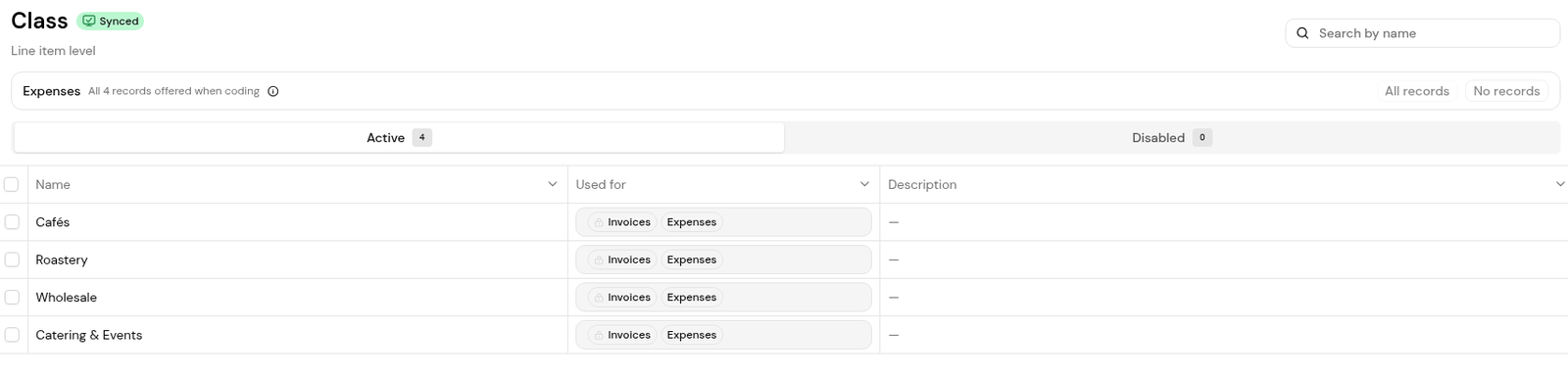
4. Click Describe on a record to write what it is for in your own words. Automatic coding uses these descriptions when choosing values.
5. Open Location the same way. The demo organization has seven locations, such as Banff, Canmore, Hydrostone (Halifax) and Kensington (Calgary).
6. If you add an account, class, location or tax rate in QuickBooks Online, click Sync on the integration card to bring it into Finofo straight away.
Each property below shows what it is used for, followed by where it is required.
The table shows the settings in the demo organization. Check GL properties in your own organization for its settings.
1. When QuickBooks Online vendors are not yet linked to a Finofo vendor, a banner at the top of Vendors says so. Click Review. You can also open Settings > Integrations, then GL properties, and click Vendors.
2. On ERP Vendors, open the Unmapped tab. Each row shows the ERP Entity Name, Finofo Vendor, Currencies and Last Synced.
3. For each row, click Select & match and pick the Finofo vendor it corresponds to.
4. To bring in every unmapped QuickBooks Online vendor at once, click Import All ERP Vendors.
5. Check the Mapped and Disabled tabs for vendors already handled.
1. Open Settings > Documents, Invoices tab, and go to Approval and posting.
2. Choose Automatic posting to check the vendor, invoice number, dates, line items and coding before an invoice goes to approval. The final approval posts the bill to QuickBooks Online.
3. Or choose Manual posting. Invoices go to approval without being checked, and someone posts each approved invoice to QuickBooks Online. Posting runs every check.
4. Click Save.
Expenses post from their own ERP section with Post to ERP once they are approved.
1. In Settings > Integrations, open Payment entries.
2. Under Finofo currency accounts, map each Finofo currency account to its ERP GL account in QuickBooks Online. Finofo posts payment entries with these accounts when batches are paid out, and the Status column shows which accounts are mapped.
3. Under External Payments, you can limit which GL accounts can be chosen for Cheque, Bank Payment, Credit Card and Vendor Credit, and mark one as the default so it is preselected in the batch payment drawer. Leave a method empty to keep all accounts available.
No. QuickBooks Online stays your ledger and system of record. Finofo does the work before posting (capture, coding, matching and approval) and sends finished entries back.
No. You can capture, match and approve documents first, then connect QuickBooks Online when you are ready to post.
Finofo picks up changes on the next sync. Click Sync on the integration card in Settings > Integrations, then try again.
The invoice shows a Synced with ERP chip, and its ERP section says QuickBooks Online has the bill, with a link to open it there.
Finofo sends an ERP post failed notification, or Bill payment sync failed for a payment, to everyone who has those notifications switched on.


