Card transactions arrive in Expenses > Transactions from your bank connection or an uploaded card statement. Each one should be linked to a card expense with its receipt.
Finofo links strong matches automatically. You link the rest with Match to expense, then reconcile the issuer's monthly statement in Expenses > Card statements.
Transactions is the card ledger. The Source column shows Bank feed for transactions synced from your bank, or PDF for transactions read from an uploaded statement. A chip in the toolbar counts what is still open, for example "18 transactions to resolve". The Resolution column shows Matched automatically, or Link an expense where no expense is linked yet; for those rows, Merchant / expense shows a Link expense link instead of the expense name.
Finofo matches receipts to card transactions on merchant, amount, currency and date. Strong matches link automatically and lower-confidence ones wait for you. When you match by hand, the likely matches are unmatched expenses on the same card and currency dated within 3 days of the transaction, and several receipts can share one charge.
A card statement is the issuer's monthly statement. Finofo reads it and compares it, transaction by transaction, with your expenses. Statements move through Draft, In progress and Reconciled, and the list shows each statement's card, period, New purchases and Closing balance.
1. Open Expenses > Transactions and check the transactions to resolve chip in the toolbar for the number still open.
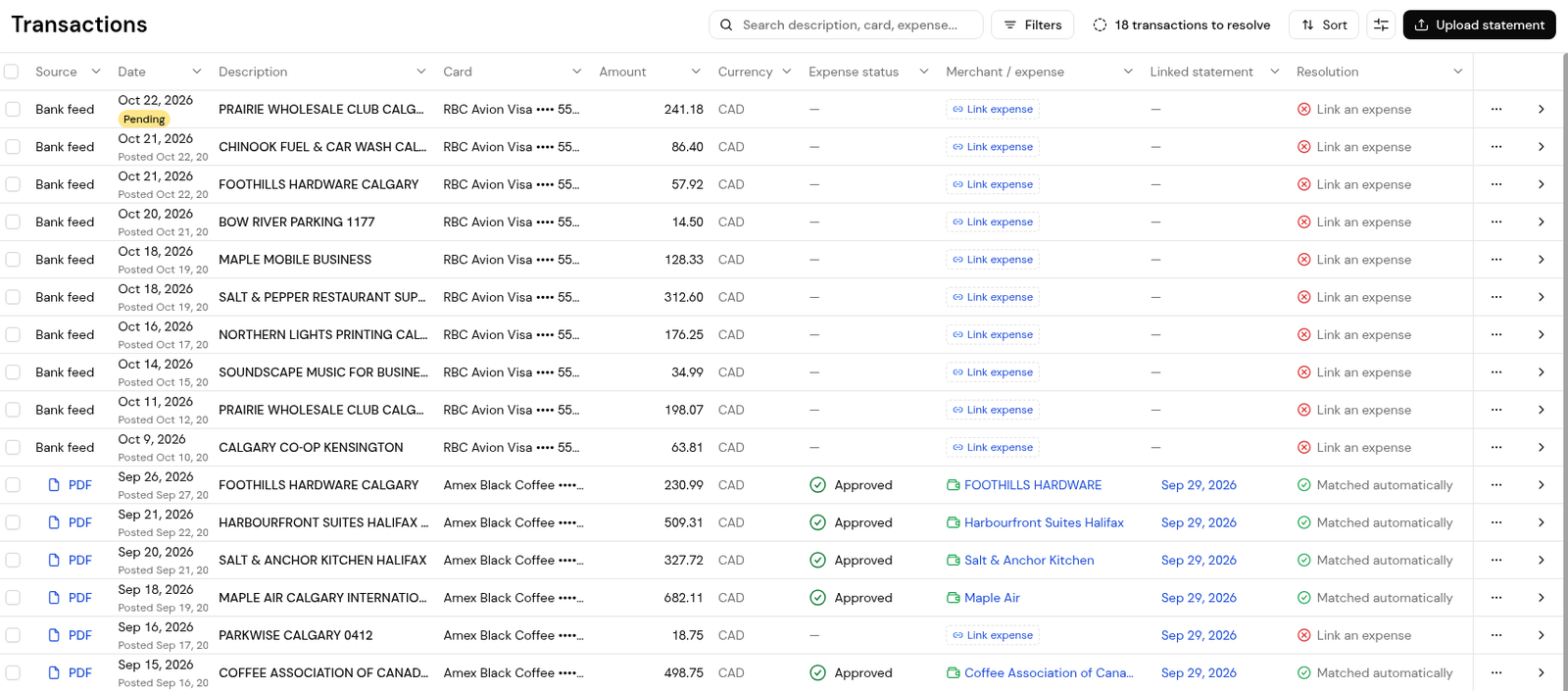
2. Leave rows marked Matched automatically.
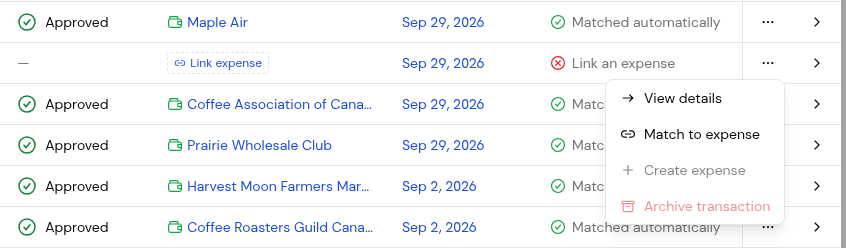
3. For a row marked Link an expense, open its ... menu and choose Match to expense.
4. In Link expense to statement transaction, check Likely matches, tick the expense or expenses this charge covers, and check that Match balance agrees with the transaction amount.
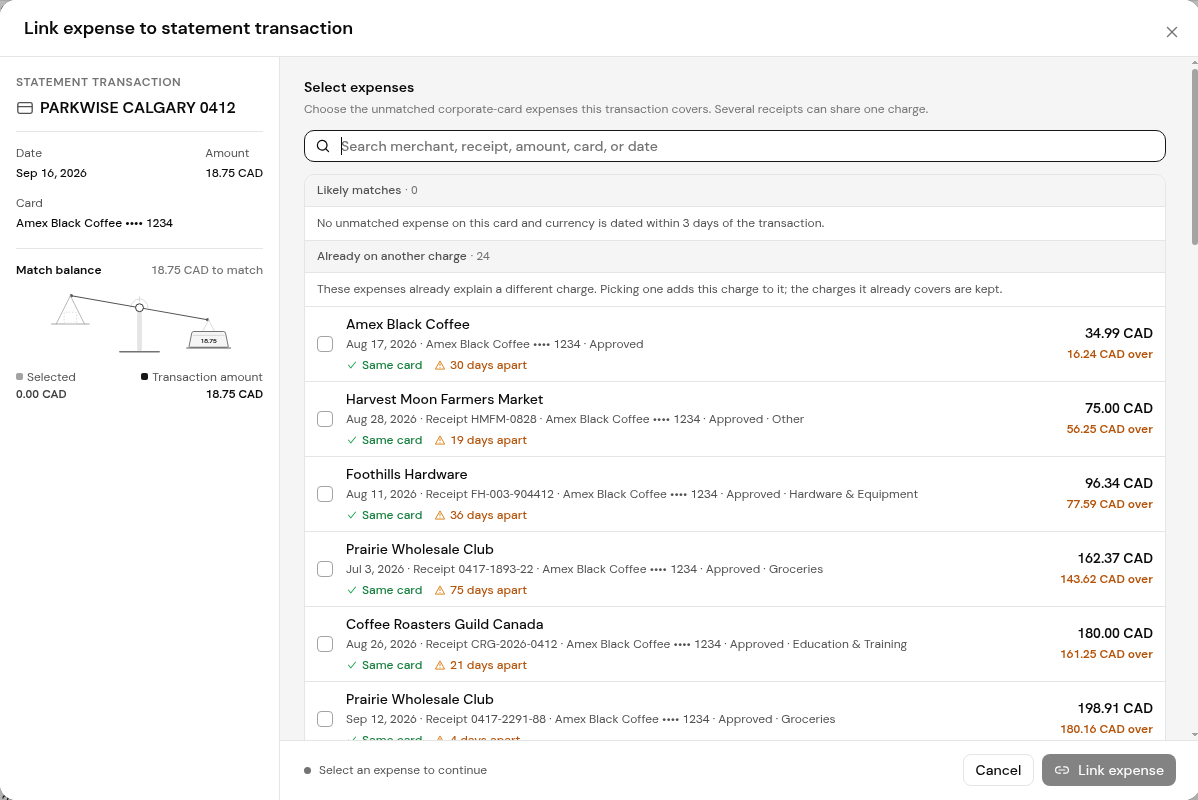
5. Click Link expense. The row shows the linked expense.
If no expense exists for a charge yet, ask the cardholder to submit the receipt. Where it is available, Create expense in the same menu creates the expense from the transaction.
1. Open Expenses > Card statements.

2. Click Upload statement and add the issuer's PDF statement, up to 25 MB. Finofo reads it and adds its transactions with the source PDF.
3. Open the statement and check its card, period and currency.
4. Click Auto-match to match the statement's transactions to expenses.
5. Turn on Show issues only to see the lines still unmatched, and resolve each one.
6. When every transaction is matched, the statement moves to the Reconciled tab.
From your bank connection, shown as Bank feed, or from an uploaded card statement, shown as PDF.
Finofo has linked the transaction to its expense. No action is needed.
Yes. In Link expense to statement transaction, tick every expense the charge covers.
When every transaction on it is matched. It then moves to the Reconciled tab.


