Upload a statement from a supplier and Finofo reads every line, matches it to the invoices and payments you hold, and compares the vendor's closing balance with your open invoices.
Resolve each line, check the Reconciliation card, then use Download summary to get a PDF you can send to the vendor.
A vendor statement lists what the vendor believes you owe. Finofo reads the header (vendor, statement number and date, payment due date, period, currency, opening and closing balance) and each statement line. Every line shows a Matched record and a Resolution, for example "Matches AGC-23988", "Matches Payment · AGC-23988", "Invoice not posted yet" or "Nothing linked".
The Reconciliation card compares the two sides: Vendor's closing balance, Our open invoices, Balance difference and To pay. To pay is "Based on currently open invoices and resolved statement lines", and it stays empty until every statement line is resolved.
Resolved and balanced are not the same thing. A line marked "Invoice not posted yet" counts as resolved: the invoice is in Finofo, but it is not included in Our open invoices on the statement. So a statement can be Reconciled, with every line resolved, and still show a Balance difference equal to that invoice. The vendor's Ledger tab still shows the invoice open on your books.
1. Open Statements. The list has the tabs All, Draft, In progress, Reconciled and Cancelled, and shows each statement's Vendor balance, Our open invoices, Difference, Resolved count and Status.

2. Click Upload statement. The Upload vendor statement page opens.
3. Drop the files on Drag and drop vendor statements here, or click Browse files.
4. Leave Disable document splitting for all files on if each file is a single statement. It is on by default; turn it off only for a file that holds several statements.
5. Click Upload & extract to read the statement now, or Create draft to finish later.
1. Open the statement and check the header against the vendor's document.
2. Turn on Show issues only to see just the lines that still need a decision.
3. For a line showing "Nothing linked", click + Link invoice, or open the line's ... menu. The menu offers Link invoice, Create invoice, Accept as valid vendor activity and Ignore extracted row.
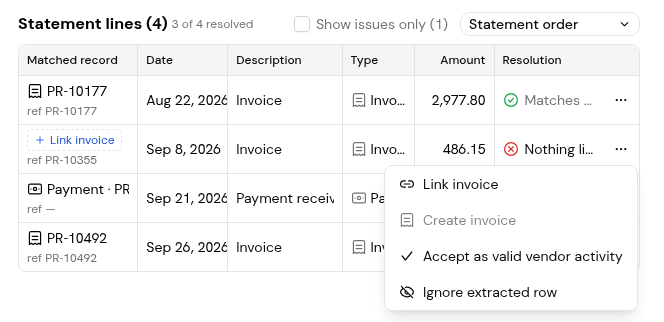
4. To link, choose the invoice in the Link record to statement line dialog and click Link invoice.
5. To undo a link, choose Unlink invoice from the line's ... menu.
While lines are open, the reconciliation table at the bottom groups them as Matched, No match and Explained, and counts what is still unresolved.
1. When every line is resolved, read the Reconciliation card: Vendor's closing balance, Our open invoices, Balance difference and To pay.
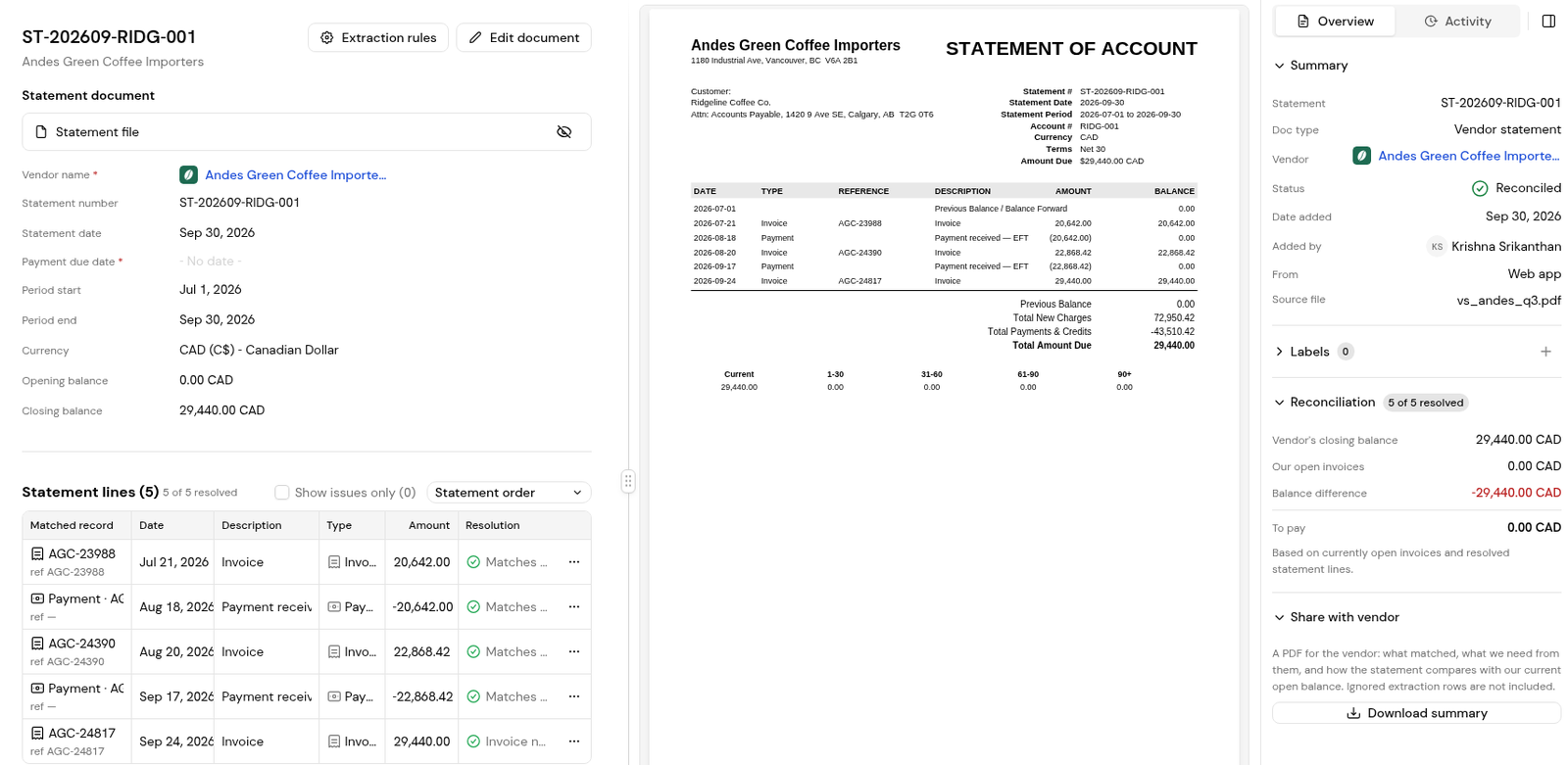
2. If a Balance difference remains, look for lines marked "Invoice not posted yet" and check where those invoices are in approval and posting.
3. Under Share with vendor, click Download summary to get the PDF.
4. Send the PDF to the vendor yourself. Finofo does not email it.
The PDF shows what matched, what you need from the vendor, and how the statement compares with your current open balance. Ignored extraction rows are not included.
At least one line is resolved as "Invoice not posted yet". The invoice is in Finofo but not yet included in Our open invoices, so the statement still shows a difference. Check where that invoice is in approval and posting.
To pay is available once every statement line is resolved.
No. Download summary gives you a PDF to send yourself.
Yes. Drop several files together. With Disable document splitting for all files on, each file is treated as a single statement.


