Record each vendor agreement in Contracts. A contract tracks a committed value that its purchase orders and invoices draw against, shown as Value, Invoiced, Committed and Remaining.
Link the agreement's purchase orders with Link Purchase Order, so the balance stays accurate and Unlinked Spend is flagged.
Each contract stores the agreement and its terms: value, period, payment frequency and expected amount per period. The Spend Tracking strip shows Value, Invoiced, Committed and Remaining, with percentages. Invoiced spend with the vendor that is not linked to the contract is flagged as Unlinked Spend.
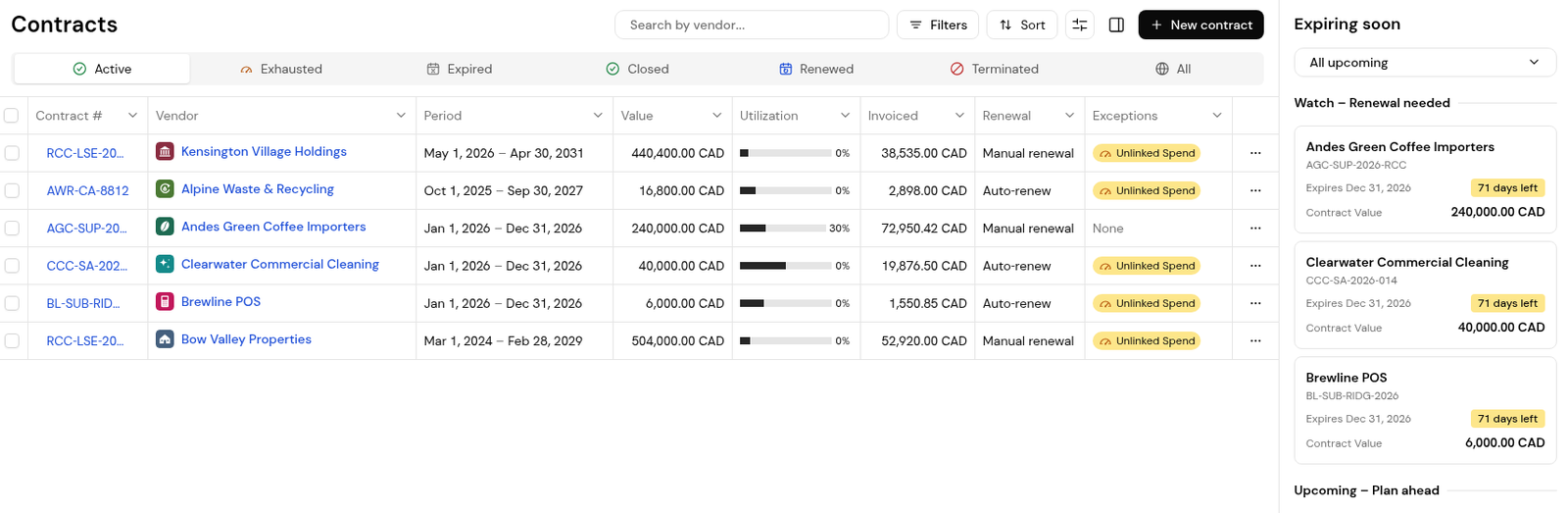
The contracts list has the tabs Active, Exhausted, Expired, Closed, Renewed, Terminated and All, and an Expiring soon panel. A renewal can be set to Auto-renew or Manual renewal, with a reminder before the contract ends.
1. Click + New contract, or + > Contract.
2. Upload the contract file.
3. Complete Contract type, Contract #, Vendor, Start date, End date, Currency and Total contract value.
4. Add Payment frequency and Expected amount per period for recurring spend.
5. Click Create document, or Save as draft.
1. Open the contract and read the Spend Tracking strip.

2. On the Linked documents tab, click Link Purchase Order to link the agreement's POs.
3. In the contracts list, check Utilization and the Exceptions column for Unlinked Spend.
4. On the Renewal card, click Set up renewal and choose the renewal workflow and reminder.
Open the contract. Remaining on the Spend Tracking strip shows what is left of the contract value.
Yes. On the contract's Linked documents tab, click Link Purchase Order.
Invoiced spend with the vendor that is not linked to the contract.


