Finofo reads every line of a vendor invoice, including its tax, and suggests GL coding for each line.
Before you submit the invoice for approval, check each line's Tax cell and its coding row (Account, Class, Location and Tax Rate), starting with any value marked Suggested by a model.
When Coding progress shows every required field complete, the coding part of the approvals checklist is done.
When an invoice arrives, Finofo reads its header and every bill line, including the tax on each line, such as GST, HST, PST and QST and whether each is recoverable. Each line keeps its own tax, so mixed rates stay accurate. Finofo then codes each line. Coding rules run top down and the first match wins; where no rule, exact match or agreeing history applies, a model suggests a value from eligible accounts.
Each value carries a label that shows its source. Read off the document, Extracted and Matched automatically are usually reliable; Suggested by a model needs a check. As required fields are filled, Coding progress rises, and at 100% the coding step of the Approvals checklist is complete. If the tax on the invoice does not agree with its lines, the invoice is flagged for review before anything posts to your ERP. Finofo suggests and flags, but it does not correct values for you: a person confirms them.
1. Open Documents > Invoices and select the In Progress tab.
2. Open the invoice you want to review.
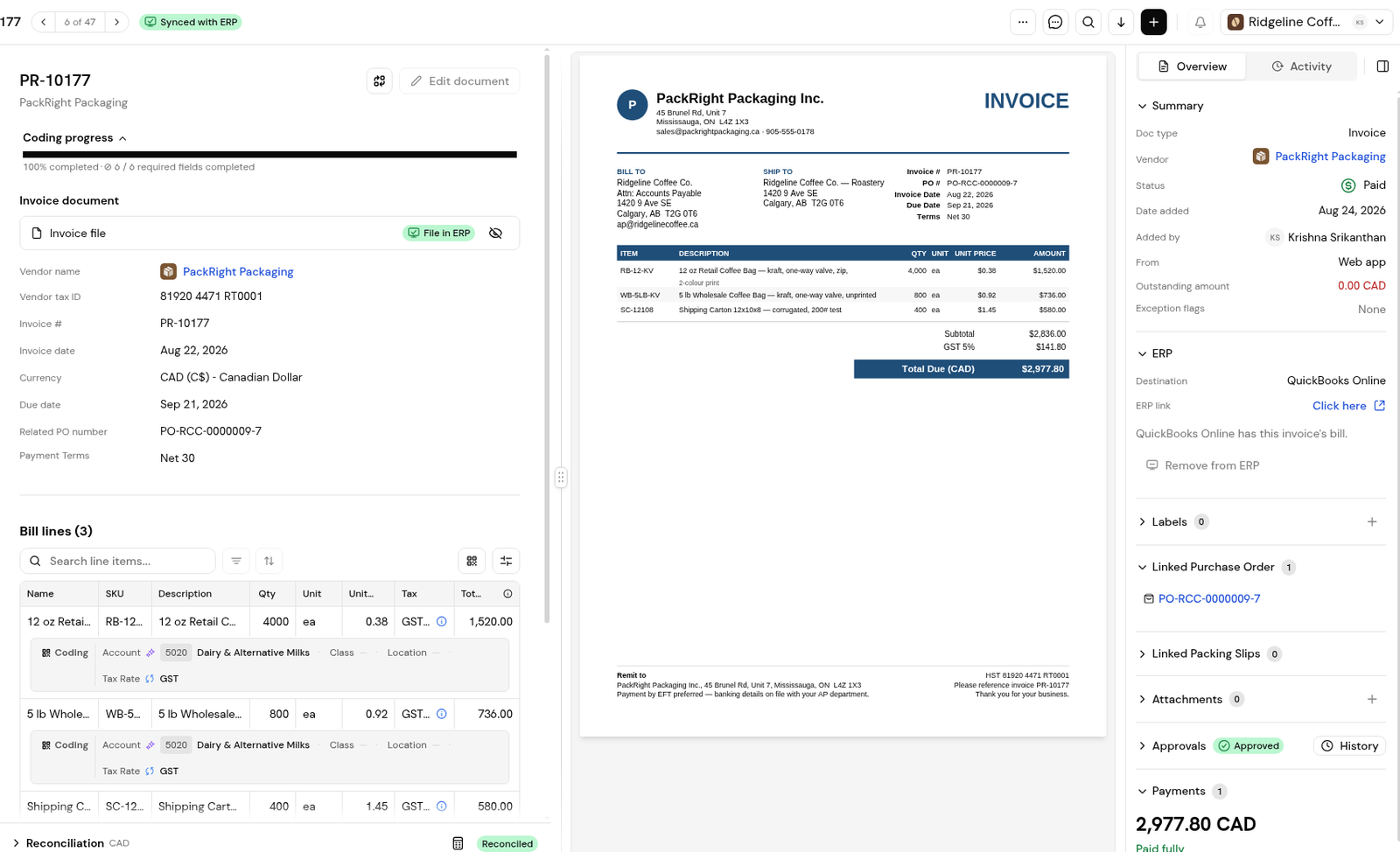
3. Check the header fields: vendor name, vendor tax ID, invoice number, invoice date, currency, due date, related PO number and payment terms.
4. Click View document to compare the values with the original.
5. Review each bill line: Name, SKU, Description, Qty, Unit, Unit price, Tax and Total price.
6. Check the coding row under each line: Account, Class, Location and Tax Rate.
7. Hover over the AI icon on a value to see why it was chosen.
8. Click Edit coding to change any value.
9. Confirm that Coding progress shows every required field complete, for example 100% completed: 6 / 6 required fields completed.
10. Finish the rest of the Approvals checklist, then click Submit for approval.
1. Open the info popover on a line's Tax cell.
2. Check the tax code, the Coded chip, the input tax credit (ITC) amount and the total.
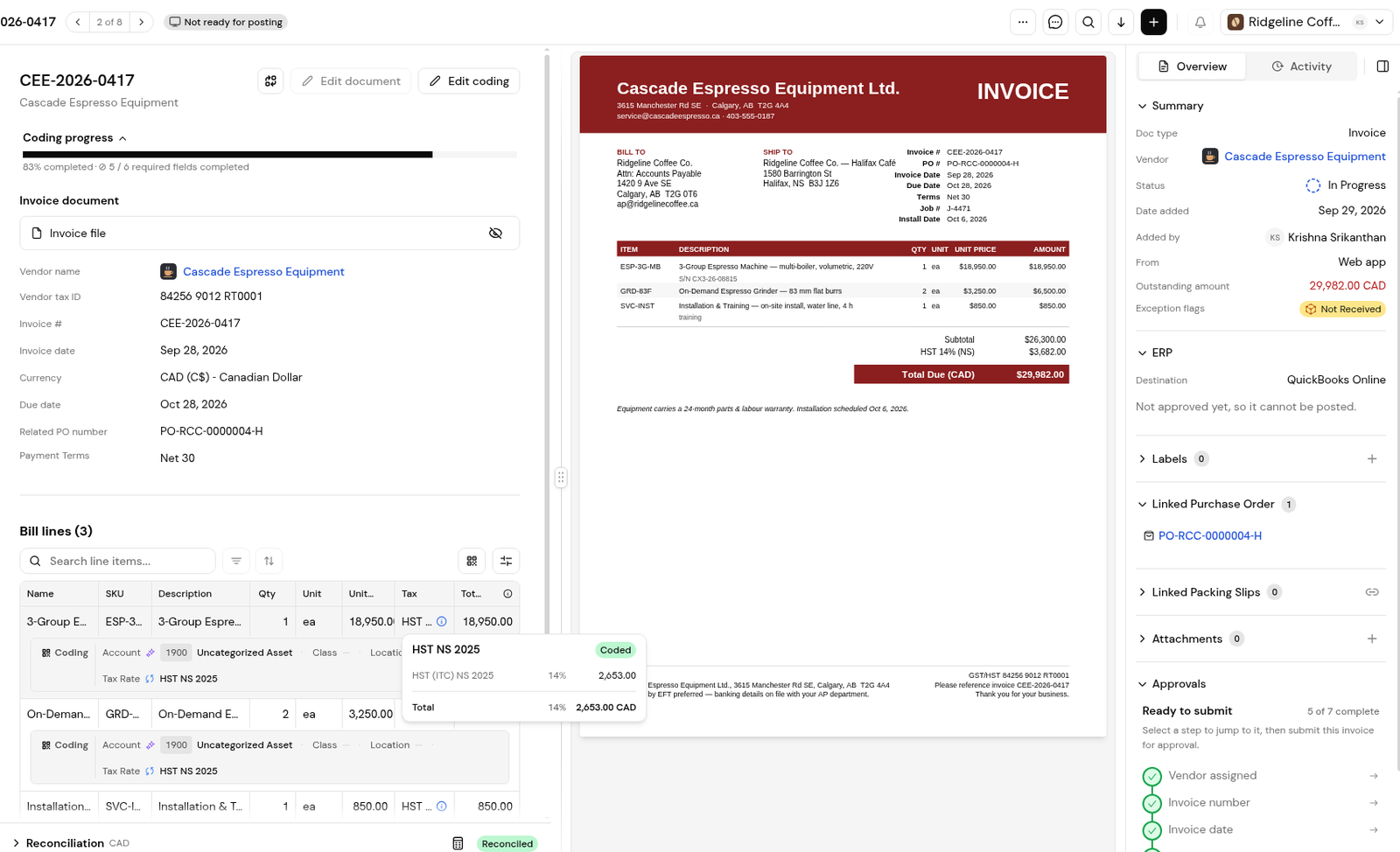
3. If the rate is wrong, click Edit coding and correct Tax Rate.
Open the invoice, click Edit coding and choose the right account in the line's coding row.
It depends on your setup. Settings > Integrations > GL properties shows each property and whether it is required. In the demo configuration, Account and Tax Rate are required.
Coding rules keep a vendor's future invoices coded consistently. For how documents are read, add an instruction on the vendor's Extraction rules tab; it applies to future uploads.
Single line extraction is on in Settings > Documents > Invoices. It records one line equal to the subtotal, with total tax as one amount. Ask an administrator to turn it off where you need line detail or three way matching by line.


