A reimbursable is a business expense you paid with your own money, such as a personal card or cash. Drop the receipt on New reimbursable, or enter the claim by hand, then submit it for approval.
Mileage is claimed by hand with the Mileage type, at a rate per kilometre set by your administrator.
On New reimbursable, each receipt you drop becomes its own expense, and Finofo reads the merchant, date, amounts, tax and line items for you. Enter expenses manually creates one or several claims at once without receipts: "Mileage lives here too." Choose Standard for "A purchase with a merchant, an amount and a receipt.", or Mileage for "Travel claimed at a rate per kilometre."
A standard claim has Paid with, Merchant, Date (no future dates), Currency, a Receipt number prefilled from your initials and today's date, Line items and the Subtotal, Tip and Total. Vendor, Category, Labels and Memo are optional, and so is the receipt. Save with Save as draft or Create reimbursable.
A mileage claim uses one of the rates in Settings > Mileage rates. The default rate is prefilled, the rate used is stored on the claim, and each rate carries its own GL account. Submitted claims follow the expense approval policies and move through the Reimbursables tabs: Draft, In Progress, In Approval, Approved, In Payment and Paid.
1. Open Expenses > Reimbursables and click New reimbursable.
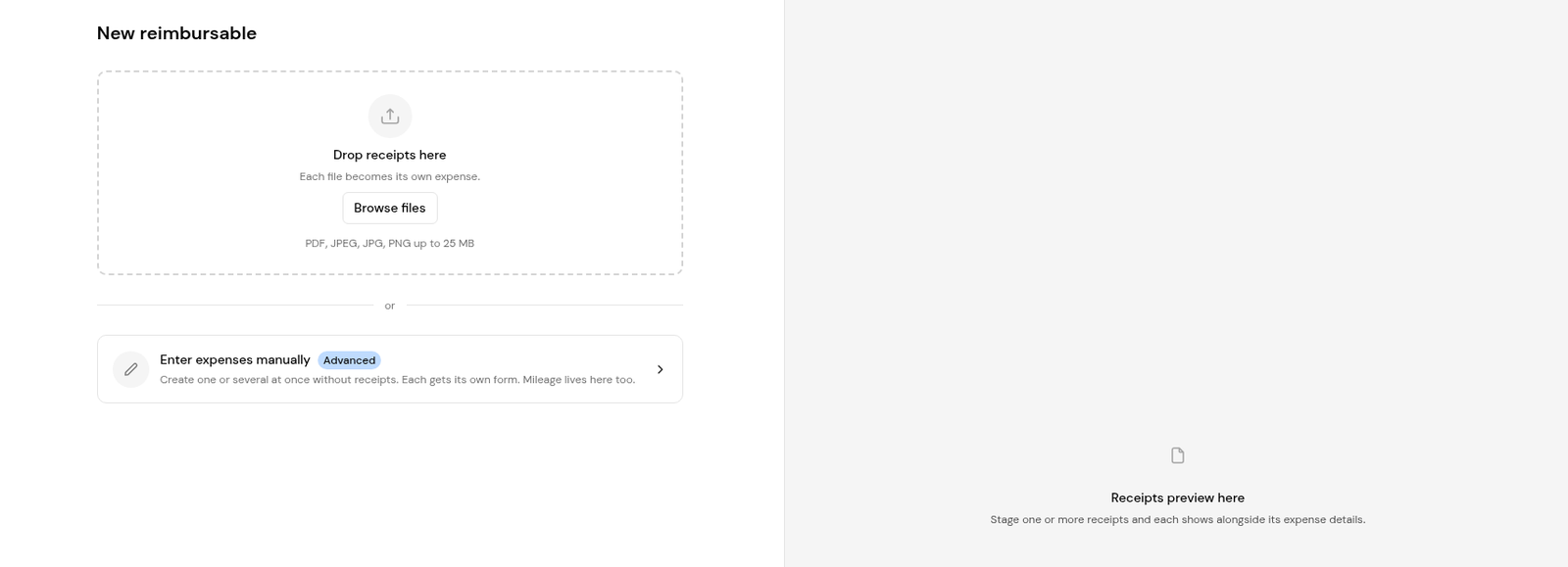
2. Drop receipts on the page, or click Browse files.
3. Check what Finofo read: merchant, date, currency, line items and amounts.
4. Add a Category, Labels and a Memo if needed.
5. Click Create reimbursable, then submit the claim for approval from its Approvals card.
1. On New reimbursable, choose Enter expenses manually.
2. Select Mileage. The default mileage rate is prefilled; choose another rate if your trip calls for it.
3. Enter the trip details and the distance in kilometres.
4. Click Create reimbursable, then submit the claim for approval.
1. Open Expenses > Reimbursables and select a tab, for example In Progress. Mileage claims show the trip in the merchant name and Vehicle Expenses as the category.

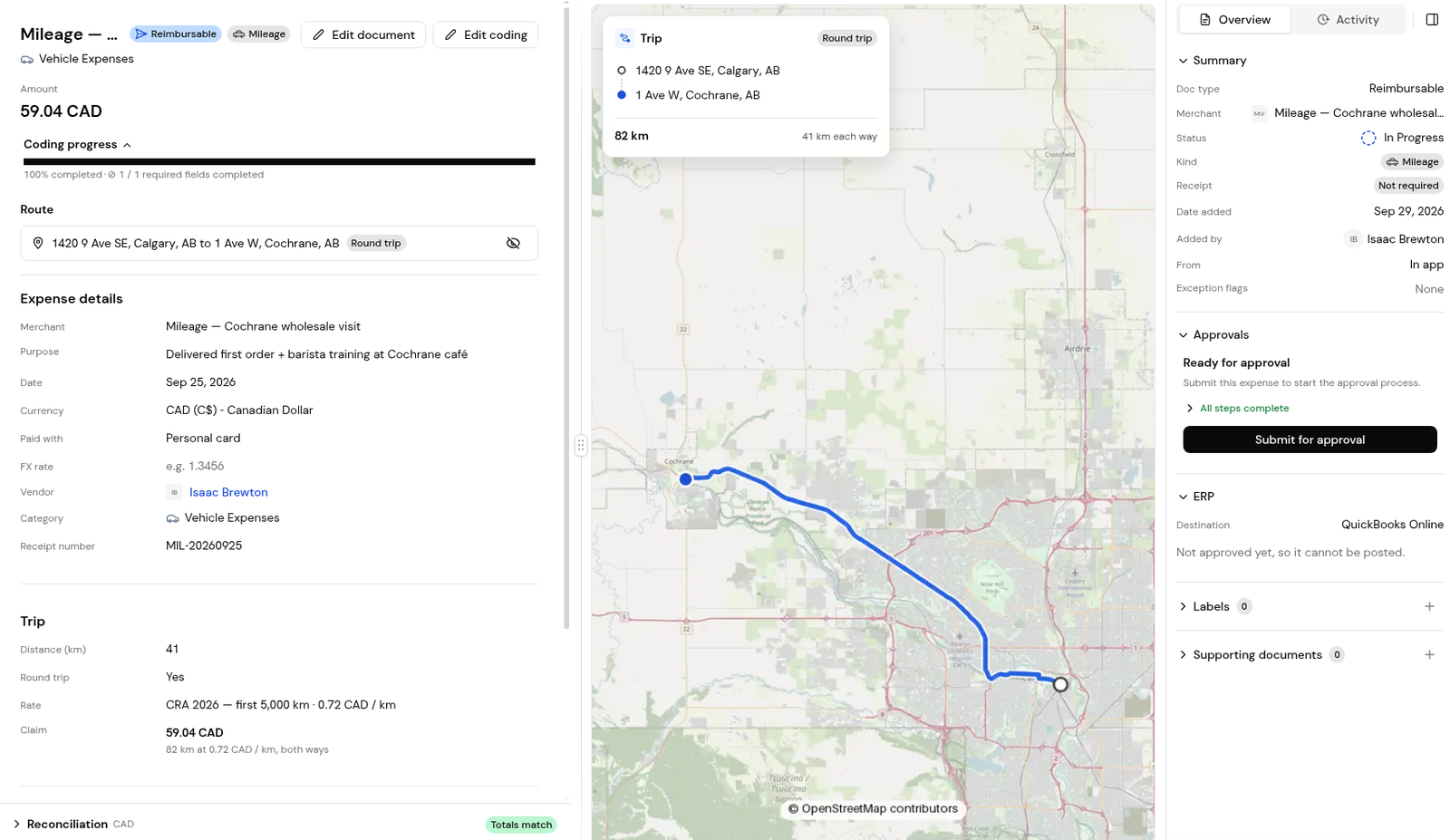
2. Open a claim to check its details, approvals and payment. A mileage claim shows its route, the trip details and a map of the trip.
PDF, JPEG, JPG and PNG, up to 25 MB each. Each file becomes its own expense.
Yes. The receipt is optional; use Enter expenses manually and attach any other proof of the purchase you have. Mileage is always entered by hand.
The default rate from Settings > Mileage rates is prefilled. The rate is stored on your claim, so a later change to the rate doesn't alter it.
No. Nobody approves their own expenses.


