Tour of Finofo: Left Menu, Top Bar and Screen Patterns
Tour of Finofo: Left Menu, Top Bar and Screen Patterns
Find your way around Finofo: what each left menu item holds, the top bar controls, and the list and document patterns used on every screen.
At a glance
Every Finofo screen has the same layout: a left menu for moving between areas, a top bar with actions available everywhere, and a main work area.
Lists and document pages share the same controls, so once you learn one screen, the rest feel familiar.
How It Works
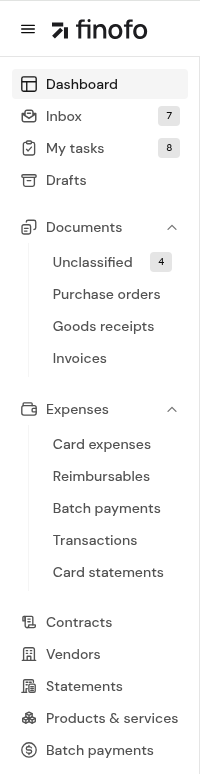
The left menu starts with your daily work: Dashboard, Inbox, My tasks and Drafts. Below them are the Documents and Expenses groups, the reference areas (Contracts, Vendors, Statements, Products & services) and Batch payments. Payments and Settings sit at the bottom. Badges show how many items are waiting, for example in Inbox, My tasks and Unclassified.
The Left Menu
1. Use the left menu to move between areas. Expand Documents and Expenses to see their lists.
The left menu with Dashboard, Inbox, My tasks and Drafts at the top, the Documents and Expenses groups, the reference areas and Batch payments.
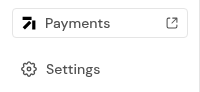
2.Payments and Settings sit at the bottom of the menu.
The bottom of the left menu: Payments, with its external-link icon, and Settings.
Dashboard: Key metrics on the payables pipeline, spend, payment speed, cash needs and exceptions.
Inbox: Mail and text messages sent to your workspace email address and text number.
My tasks: Approvals waiting on you and comments that mention you.
Drafts: Documents that were started but not finished.
Documents: Unclassified, Purchase orders, Goods receipts and Invoices.
Expenses: Card expenses, Reimbursables, Batch payments for reimbursables, Transactions and Card statements.
Contracts, Vendors, Statements, Products & services: Your reference data: agreements, vendor records, vendor statements and the item catalog.
Batch payments: Payment batches for approved invoices.
Payments: An external link that opens in a new browser tab.
Settings: Personal, business, Inbox, expense and feature settings.
The Top Bar
1. Use the top bar from any screen.
The top bar with Search, Uploads, Create document (+), Notifications and the organization switcher.
Search (Ctrl K): Searches invoices, purchase orders, packing slips, vendors and line items across your organization.
Uploads: Opens the File uploads panel with Uploading, Failed and History tabs.
Create document (+): Starts any new document from any screen.
Notifications: Shows your notifications. Choose what you hear about in Settings > Notifications.
Organization switcher: Shows your current organization and lets you switch, manage members or create an organization.
A floating guide sits at the bottom right of every screen. Show me around starts a short tour of the current screen, and Ask opens the Finofo guide, where you can type a question about the product.
Screen Patterns You Will See Everywhere
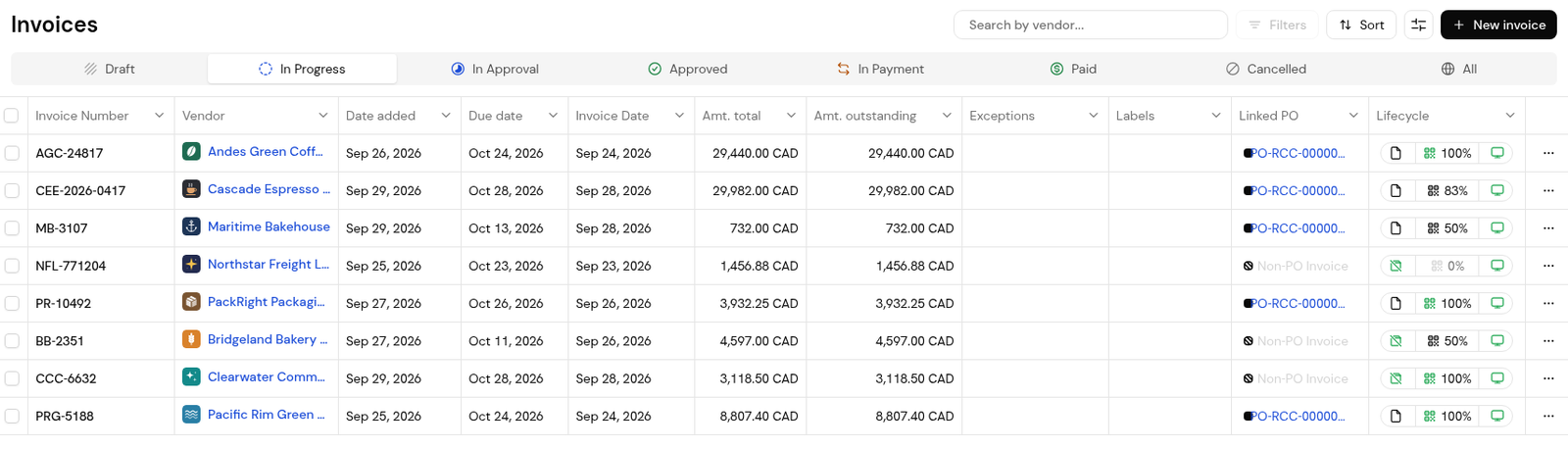
1. Lists have status tabs across the top, then a toolbar with a search box, Filters and Sort. A pager at the bottom sets how many rows show, for example Invoices per page: 25.
The Invoices list with status tabs, the search box, Filters, Sort and the columns icon.
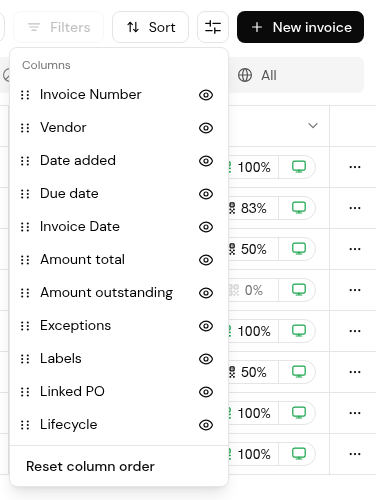
2. Click the sliders icon beside Sort to open Columns. Use the eye toggles to show or hide columns, or Reset column order to go back to the default.
The Columns list opened from the sliders icon, with eye toggles and Reset column order.
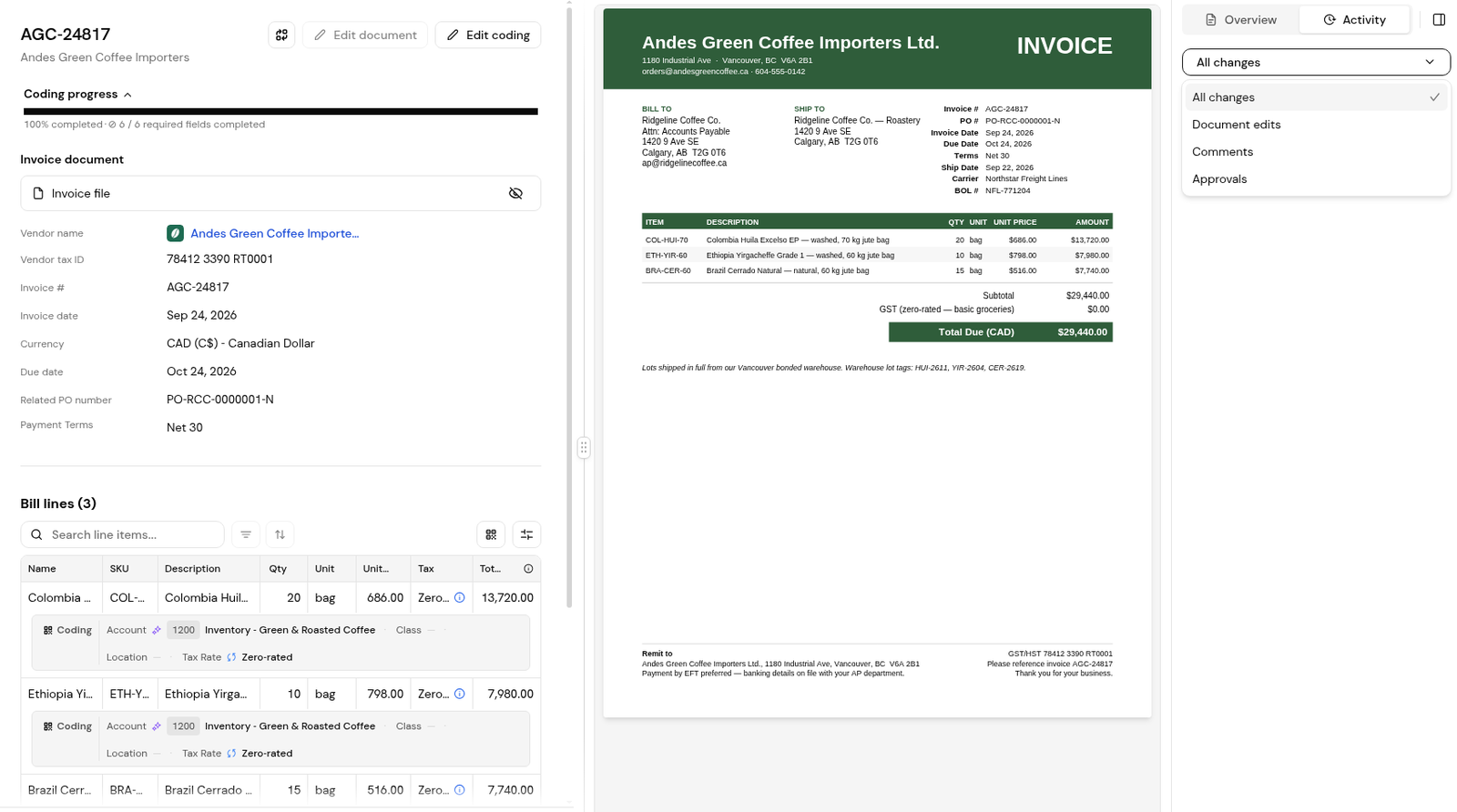
3. Document pages show the fields and lines on the left and a collapsible right panel with Overview and Activity tabs.
An invoice with the Activity tab open and the All changes filter list showing All changes, Document edits, Comments and Approvals.
Activity: The audit trail. Choose All changes, Document edits, Comments or Approvals.
Document viewer: Opens the original file with page navigation, zoom, rotate and download.
Previous and next: A breadcrumb and pager let you step through documents without going back to the list.
Comments: Comment on a whole document, a field or a line, and type @ to mention a colleague. Mentions reach their My tasks.
Provenance chips: Small labels show where data came from, such as "Extracted" or "Matched automatically".
Tips
Start each day in My tasks, then check the Inbox for new documents.
Use the previous and next pager on document pages to work through a list quickly.
Add the Labels or Linked PO column to the Invoices list from Columns when you need them.
Frequently Asked Questions
Where is Settings?
At the bottom of the left menu.
How do I see who changed a document?
Open the document and select the Activity tab in the right panel.
Where are goods receipts?
Under Documents > Goods receipts. Search calls them Packing Slips.