Upload documents from + > Upload documents (PDF, JPEG, JPG and PNG up to 25 MB), or email or text them to your workspace address and number.
Emailed and texted documents land in the Inbox. Sender rules decide whether they go straight to extraction or wait in Needs review until someone clicks Send to extraction.
"Documents are processed and classified automatically." Finofo works out whether each file is a purchase order, invoice, packing slip or expense receipt, reads it and finds the PO an invoice bills against. Files it cannot recognize go to Documents > Unclassified. The Uploads tray in the top bar tracks files from every source, with Uploading, Failed and History tabs.
Every workspace has one email address and one text number, shown on the upload page and in Settings > Inbox > Addresses. Mail needs a PDF or image attached. Team members are trusted automatically; mail from anyone else waits in Needs review unless a sender rule says otherwise. Receipts texted to the workspace number become expenses.
1. Click + in the top bar and choose Upload documents.
2. Drag files onto Drag and drop documents here, or click Browse files.
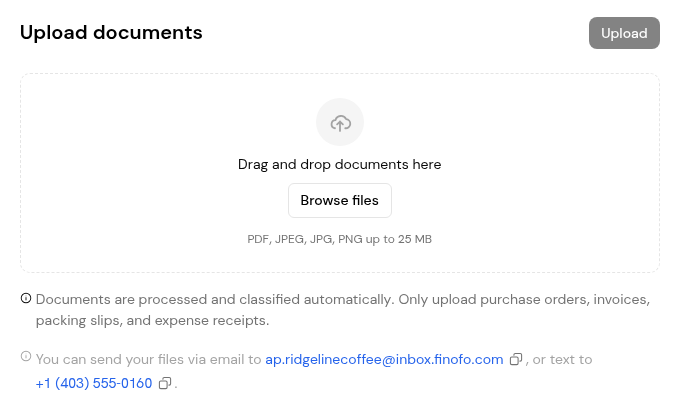
3. Click Upload.
4. Open the Uploads tray from the top bar to follow progress, for example Extracting data.
1. Copy the address or number from the upload page or from Settings > Inbox > Addresses.
2. Email the documents as PDF or image attachments, or text them to the number. To forward from a shared mailbox, use How to forward mail here for Gmail and Outlook guides.
3. Open Inbox to find the message, unless a Process automatically rule sent it straight to extraction.
1. Open Inbox. Needs review is the default view; a badge shows how many messages wait.
2. Click a message and check the sender, the reason chips and the attachments. Open Details for the sender checks.
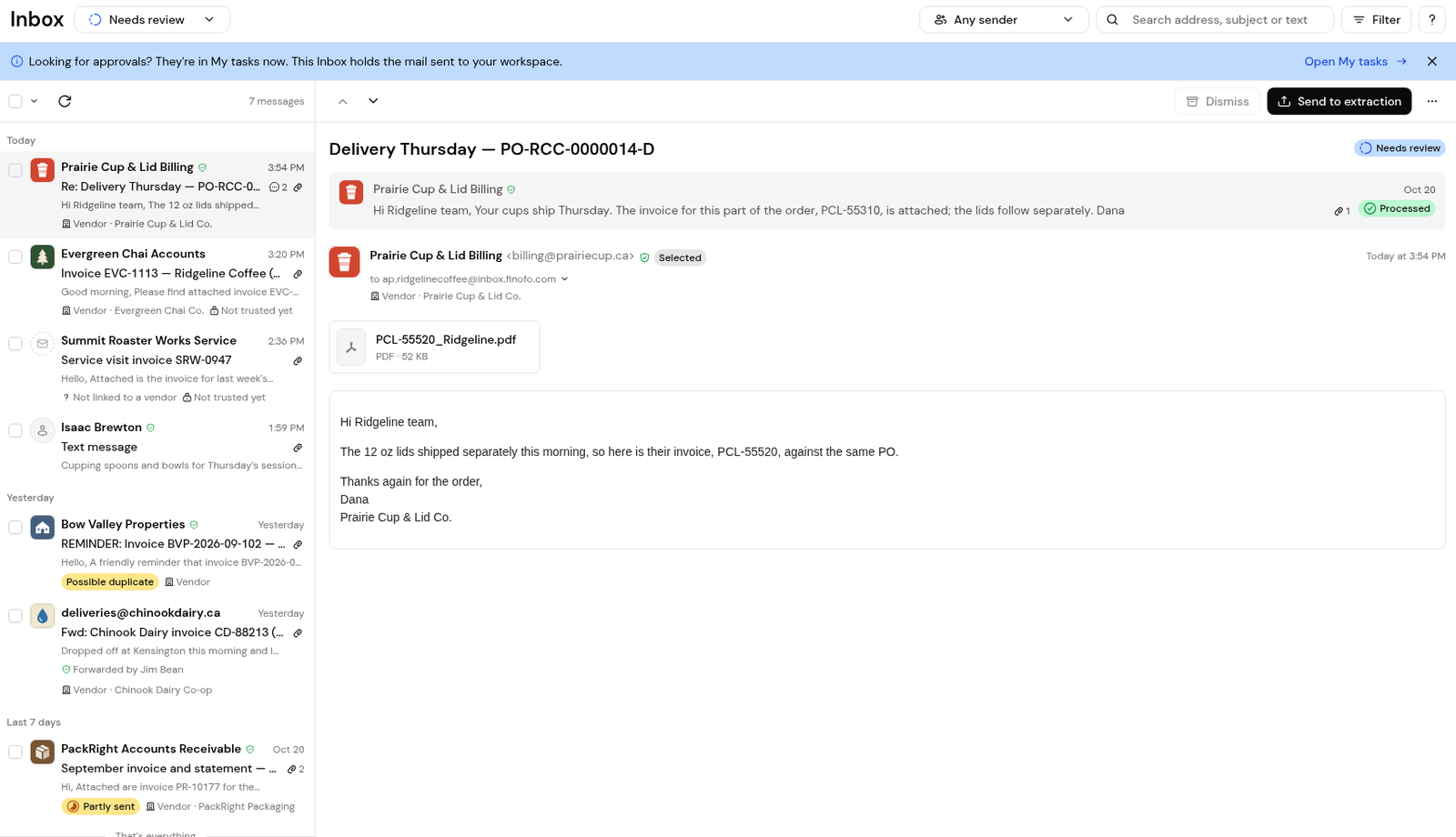
3. Click Send to extraction, leaving out files that should not be processed, such as a logo or signature image.
4. Optionally tick Always process mail from... to create a sender rule, then confirm. The message moves to Sent.
5. For mail that is not needed, click Dismiss instead.
1. Open Settings > Inbox > Sender rules and click Add rule.
2. Enter an email address, an email domain or a phone number.
3. Choose Process automatically, Trust, Hold for review or Block.
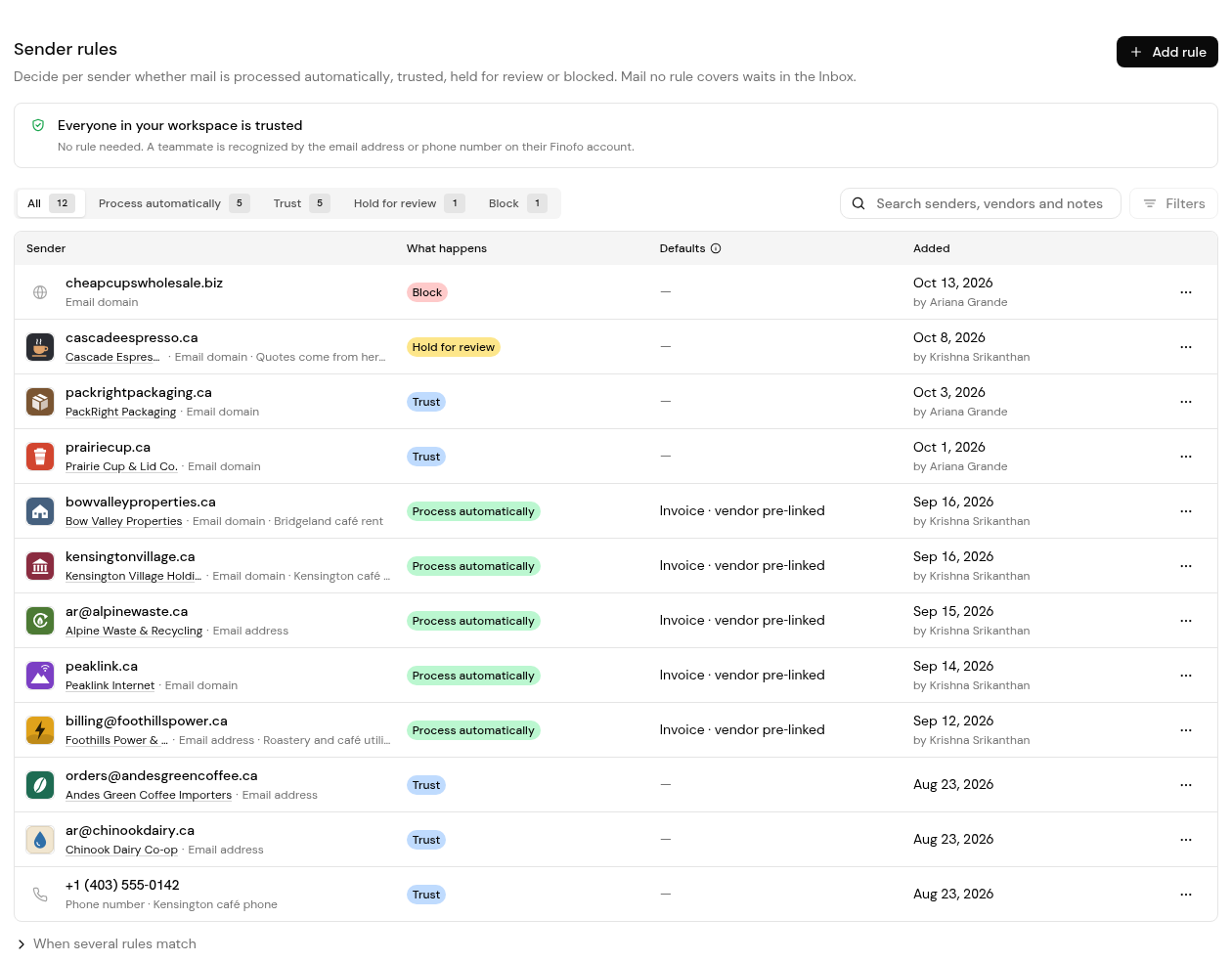
When several rules match, an exact address or phone number beats a domain, and Block beats Hold for review, which beats Process automatically. Trust applies only when no other rule matches.
PDF, JPEG, JPG and PNG, up to 25 MB per file. Emailed and texted documents need a PDF or image attached.
Check the Inbox views Needs review, Suspicious and Blocked. Also check that Accept mail sent to this address is on in Settings > Inbox > Addresses; when it is off, mail sent to the address is refused.
No. The text number is designed for receipts, which become expenses. Vendors should email invoices to the workspace address.
Add or change a Block rule in Settings > Inbox > Sender rules. Blocked mail is listed under Blocked, and reopening a blocked message does not unblock the sender; change the rule instead.


