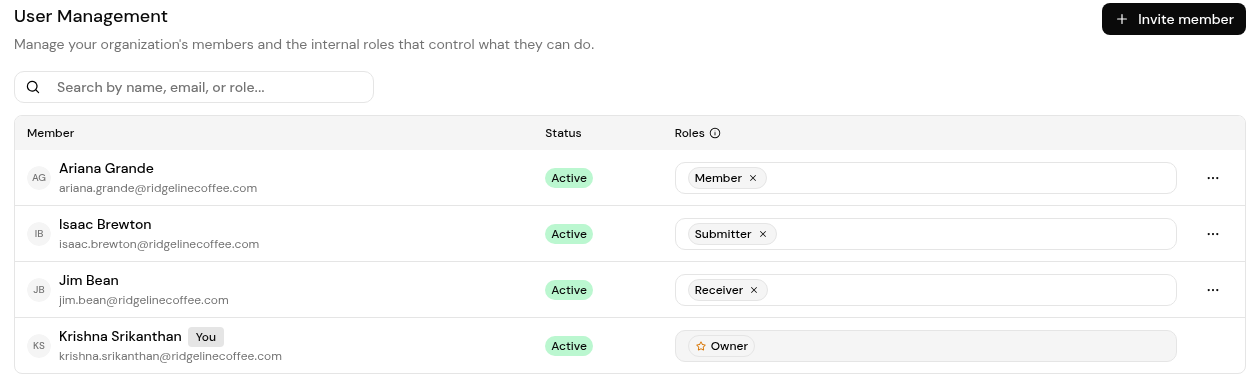
Invite people from Settings > User Management with just an email address, then give them one or more roles once they join.
Each person manages their own password and two-step verification from the Profile, password and two-factor settings card in Settings > Account or Settings > Security.
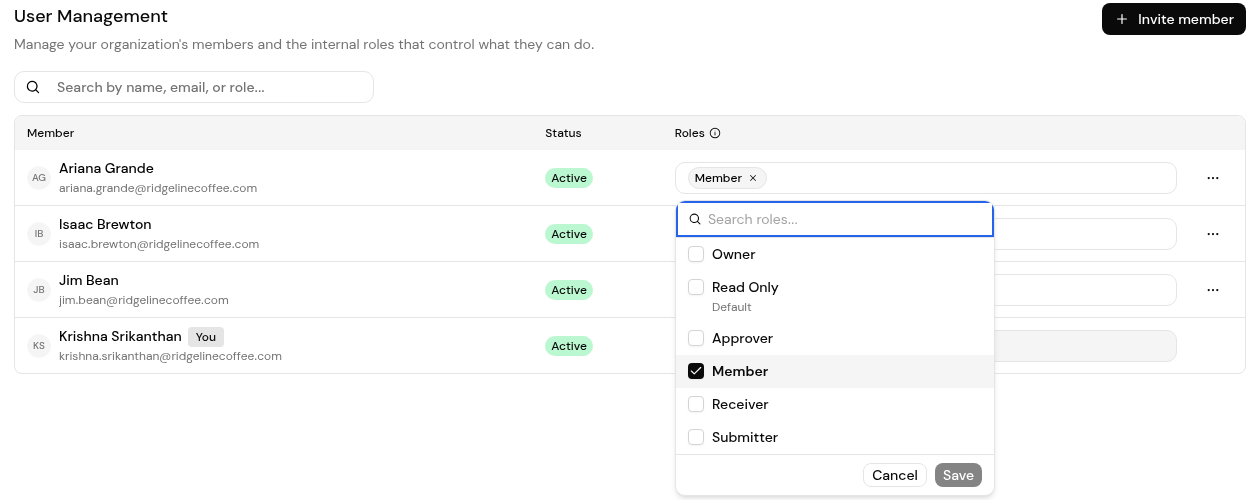
Finofo roles decide what each member can do in the app. They're separate from the login provider's own roles. Roles are picked from a checklist, so one person can hold several. The organization owner's row cannot be changed.
1. Open Settings > User Management and click Invite member. Use Search by name, email, or role... to find existing members.
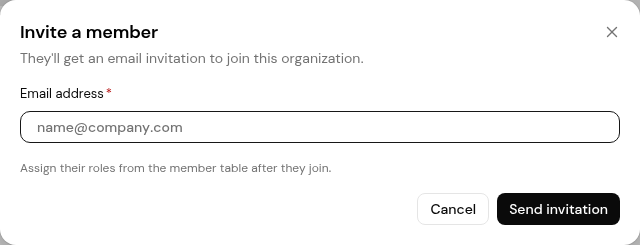
2. In Invite a member, enter the Email address and click Send invitation. "They'll get an email invitation to join this organization."
1. In the member table, click the Roles cell on the person's row.
2. Tick or untick roles, then click Save. Use Search roles... to find a role quickly.
Each person manages their own sign-in details, connected accounts and active sessions from the Profile, password and two-factor settings card, shown on both Settings > Account and Settings > Security.
1. Open Settings > Security and open Profile, password and two-factor settings.
2. Update your password there.
3. Set up two-step verification with a text message code or an authenticator app, and save the backup codes somewhere safe. They let you in if you lose your device.
4. If you are locked out, contact your organization owner or Finofo support.
No. Invite with an email address, then assign roles from the member table after the person joins.
Yes. Tick every role they need.
Sign in with one of your backup codes, then set up two-step verification again. Without a backup code, contact Finofo support.


