Each vendor record holds everything Finofo needs to read, match and pay that supplier, spread across the tabs Profile, Contacts, Payment methods, Credit, Documents, Ledger, Extraction rules and Aliases.
The Ledger tab answers the question "what do we owe this vendor, and what should their statement say?"
The vendor list has All and Archived tabs. Under each name is a Company or Individual chip, and synced vendors show a green check. The vendor header shows the Synced to ERP chip and the vendor's currency.
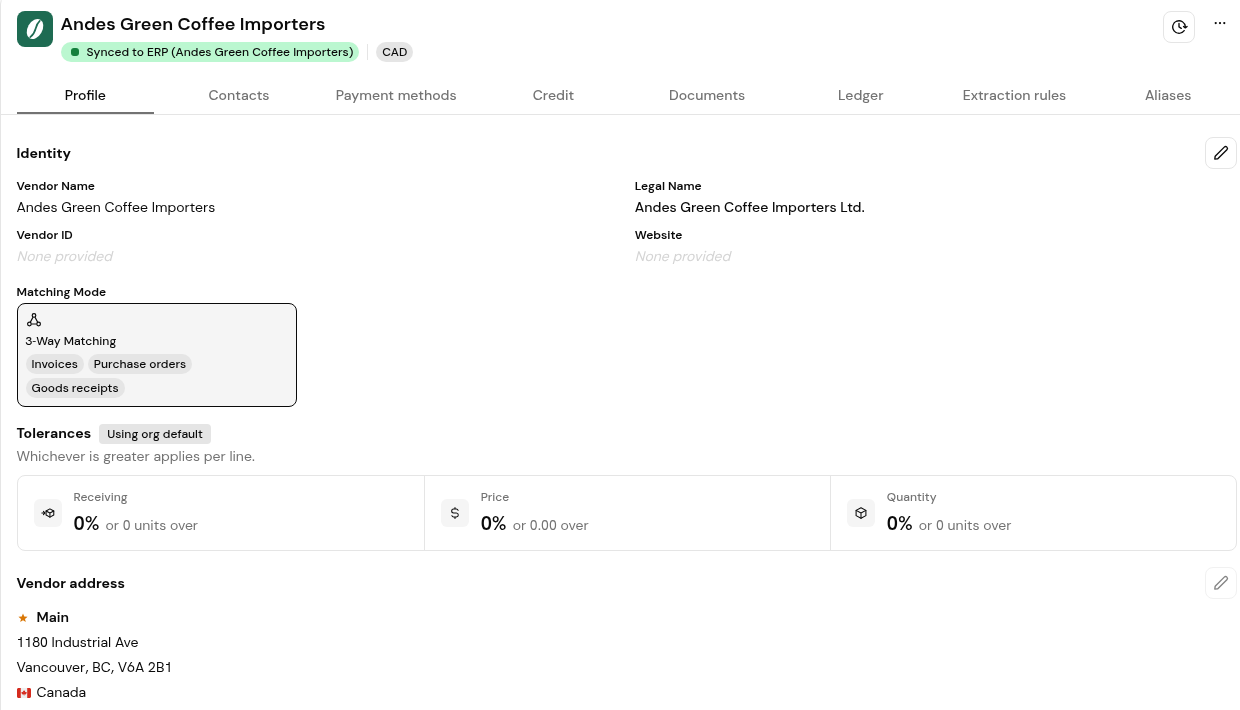
A vendor can be a company or an individual, such as an employee being reimbursed. Settings on the record apply to that vendor only, for example its matching mode and tolerances.
1. Open Vendors and select the vendor.
2. Check the Profile tab. Matching Mode shows, for example, 3-Way Matching with the documents it uses. Under Tolerances, the chip Using org default means the organization setting applies, and "Whichever is greater applies per line."
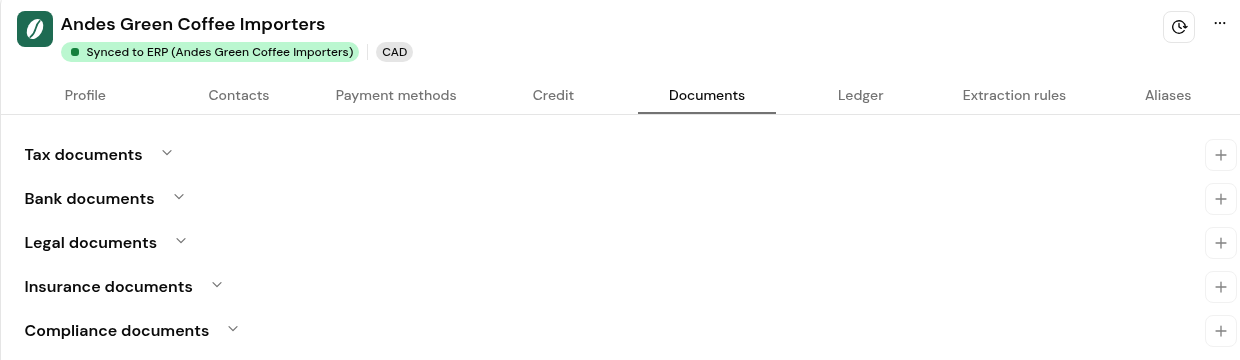
3. Open Documents to check that tax, bank, insurance and compliance documents are on file. Click the + icon on a section to add one.
4. To see who changed the record and when, click the clock icon at the top right of the vendor header. The vendor's change history opens, for example "created this vendor", "added an address" and "added a contact".
1. Open the Ledger tab. Under Account balance, read the three tiles.
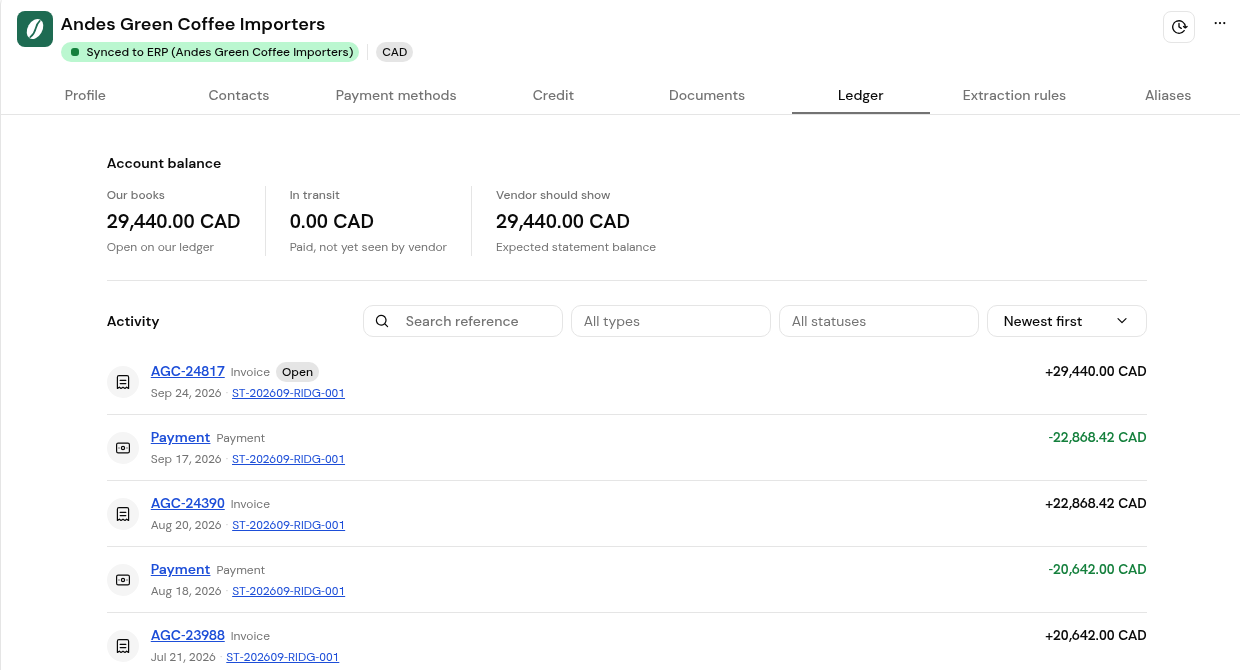
2. Scroll to Activity. Each row shows the reference with its type and status, the date, any linked statement and the signed amount. Use Search reference, All types, All statuses and Newest first to narrow the list.
Check In transit first: a payment may have left but not yet reached the vendor. Then reconcile the vendor's statement in Statements to find missing invoices or credits.
The vendor has no tolerance of its own, so the organization setting in Settings > Receiving applies.
Click the clock icon at the top right of the vendor header.
Yes. Choose Individual when adding the vendor. Employees reimbursed through Finofo are paid as individual vendor records.


